Connect your Horizon Cloud environment to your Windows 365 environment.
Prerequisites
Before performing the steps in this task, complete the following prerequistes in the workflow:
-
Enable the Partner setting on the Microsoft MEM portal. To do so, open a web browser, go to the Microsoft Endpoint Manager (MEM) portal at https://aka.ms/cpcprod and select Tenant administration > Connectors and tokens > Windows 365 Partner Connectors > add omnissa.
-
Configure identity and provider access. See Configure identity and access provider information for integrated Windows 365.
For related information about the sequence of steps for getting started with integrated Windows 365 in Horizon Cloud, see Configuring Windows 365 Integration.
Procedure
-
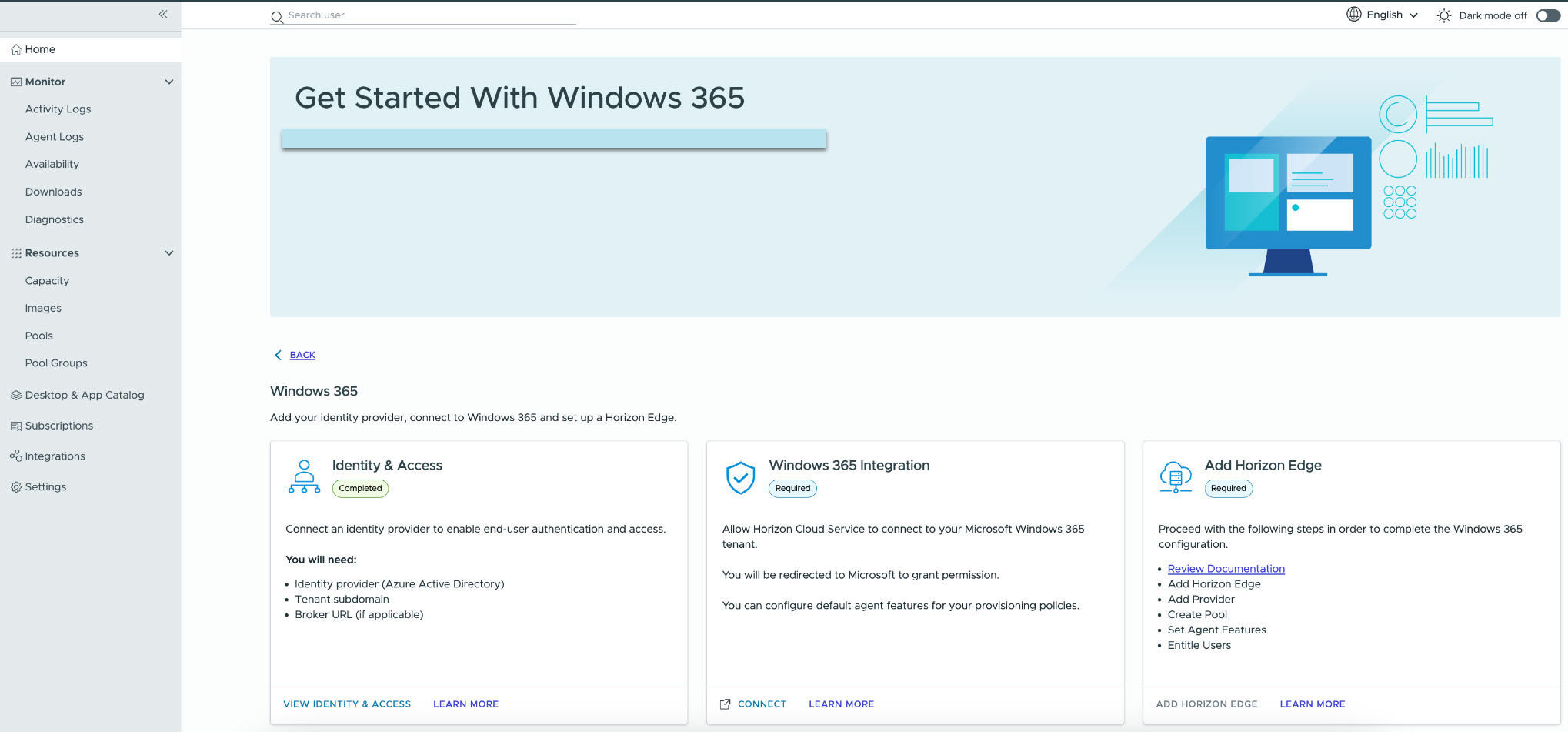
From the Get Started with Windows 365 page, click Connect on the Windows 365 integration tile.
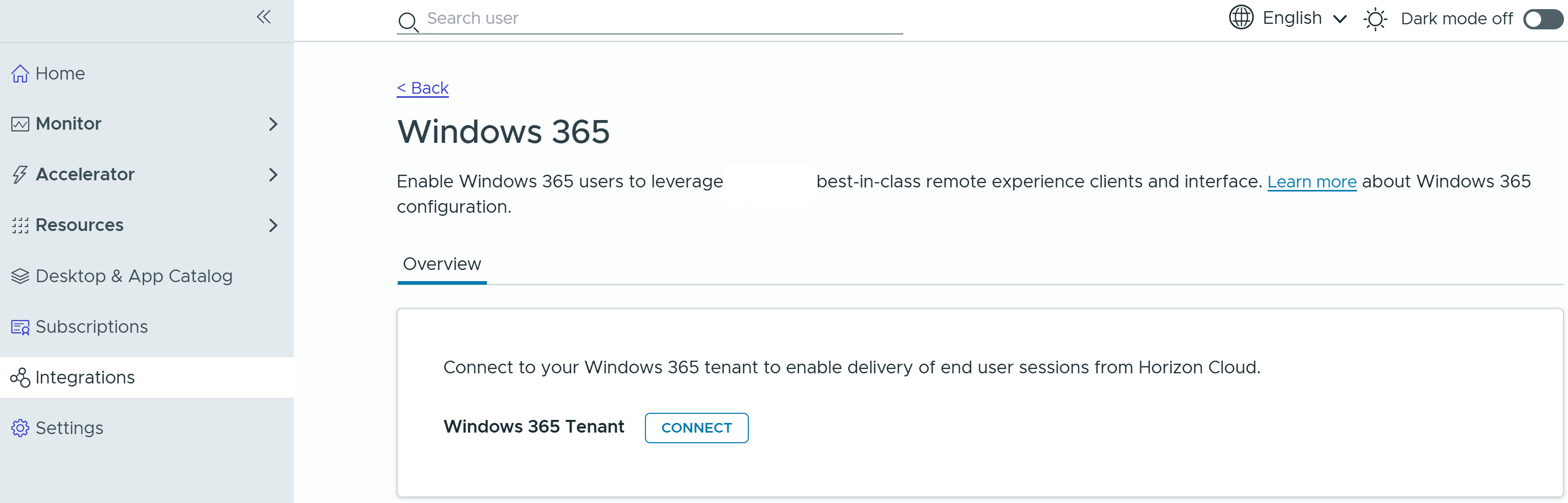
Alternatively, click Integrations > Windows 365 from the Horizon Universal Console and then click Connect.
-
When prompted, select your Windows 365 account. Respond to all prompts.
-
Note that a message appears stating that the connection process may take a brief period of time.
-
When the connection is complete, the status changes to Connected and the Azure tenant ID is displayed.
On-screen help directs you to Learn More in the integration overview product documentation at Configuring Microsoft Windows 365 Integration.
-
(Optional) You can configure default agent settings now or skip that step and configure them later. The Customize Default Agent Features for Windows 365 page may appear when the connection is complete. If the screen does not appear, you can click Default Agent Features and specify settings or click Skip. See Customize default agent features for new provisioning policies for integrated Windows 365.
-
Proceed to the next step in the Windows 365 integration process to create your Horizon Edge. See Add a Horizon Edge for integrated Windows 365.
Was this page helpful?