A hybrid pool group allows you to combine resources from different infrastructure providers into a single, unified assignment for your users. For example, you can create a floating desktop pool group that contains both a Horizon 8 provider-type pool and an Azure provider-type pool.
By leveraging the Horizon Universal Broker, you can seamlessly provision and manage these hybrid resources — including multi-session and RDSH environments. Administrators can now create Pool Groups that combine Horizon 8 RDSH farm pools with cloud-native multi-session pools, enabling unified management of session desktops across on-premises and cloud environments from the Horizon Universal Console.
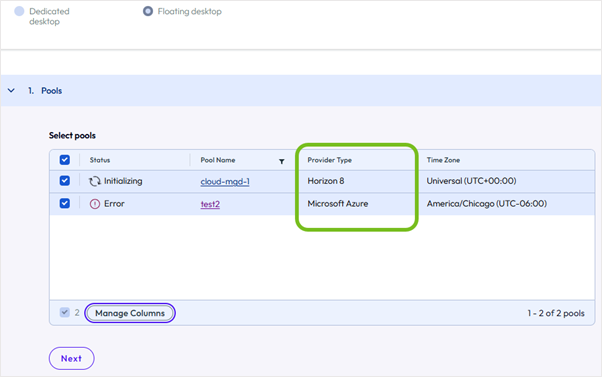
For a conceptual overview of how the Universal Broker manages hybrid resources and routes sessions, see Enable and Use the Horizon Universal Broker.
Before You Begin
To support Universal Broker provisioning, you must first ensure your on-premises Horizon 8 pools are configured as "Cloud Managed" so they synchronize with Horizon Cloud.
Configure a Horizon 8 Automated Desktop or Remote Desktop Session Host (RDSH) Pool as Cloud Managed
When creating or editing a desktop or Remote Desktop Services (RDS) pool in a cloud-connected Horizon 8 Edge, you must configure specific settings in the Horizon 8 Admin Console to make it available to the Universal Broker. Once configured as "Cloud Managed," the on-premises pool automatically synchronizes to Horizon Cloud.
Procedure
-
In your Horizon 8 application, log in to the Horizon 8 Console for any Connection Server instance in the target Horizon 8 Edge.
-
Navigate to Inventory > Desktops.
-
Click Add to open the Add Pool wizard, or select an existing pool and click Edit.
-
Follow the wizard prompts and ensure the following required settings are configured for multi-cloud assignment:
-
Type: Select either Automated Desktop Pool, or RDS Desktop Pool.
-
vCenter Server: Select Instant Clone or Full Virtual Machines.
-
User Assignment: Select Floating or Dedicated.
- Important: If you select Dedicated, you must also select Enable automatic assignment. Do not configure any manual assignments of machines to users.
-
Desktop Pool Settings: Select Cloud Managed. The Universal Broker only recognizes pools with this setting enabled.
- Note: You cannot use the Horizon Console to delete or deactivate a desktop pool once it is configured as Cloud Managed.
-
Remote Display Settings: Select the default display protocol for the desktop pool.
-
-
Continue following the prompts to complete the wizard and to configure additional settings for the pool.
Remove a Horizon 8 Pool from Horizon Cloud
If you no longer want a Horizon 8 pool to be managed by the cloud or available through the Universal Broker, you can remove it by disabling its cloud-managed status.
Procedure
-
Remove the pool from its Pool Group (if applicable): If the Horizon 8 pool or template is currently part of a pool group in Horizon Cloud, you must first remove it from that pool group.
- Note: You can do this from the Horizon Universal Console by navigating to Pool Groups, editing the specific pool group, and removing the pool from the assignments.
-
Access the Horizon Console: Log in to your on-premises Horizon Connection Server administrator console (Horizon Console).
-
Un-set the Cloud Managed flag: Locate the specific pool you want to remove, edit its settings, and deselect (un-set) the Cloud Managed option.
Once the cloud-managed flag is marked as false in the Horizon Console, the system initiates the removal process. The pool will be automatically deleted from the Horizon Cloud console within approximately 15 minutes.
Related Information
To learn more about creating, editing, and entitling pool groups for the Universal Broker, refer to the following topics:
Was this page helpful?