In Horizon Cloud, after you create an OpenStack Edge you can configure the Unified Access Gateway (UAG) settings for that Edge.
Note: Horizon Cloud on OpenStack is currently available in Limited Availability (LA) mode only.
You cannot configure UAG settings when you create the Edge, only after the Edge has been created.
Enable SSH access to the Unified Access Gateway (UAG)
UAG log collection and diagnostic command execution for on-premises cloud providers, such as vSphere, Nutanix, and OpenStack, are performed by the module connecting to the UAG VM over SSH. SSH must be permitted from the Horizon Edge module to the UAG VM, so that Horizon Ops can collect UAG logs and run diagnostic commands for troubleshooting any issues found in UAG deployments.
- The SSH protocol must be enabled on the UAG appliance.
- Firewall/security-group rules must allow inbound SSH (TCP port 22) to the UAG VM's management interface from the Horizon Edge module's network.
Create the Unified Access Gateway (UAG) for the Horizon Cloud on OpenStack Edge
After you have created the Horizon Cloud on OpenStack Edge as above, you can configure a Unified Access Gateway.
You need to provide one or more certificates for the Unified Access Gateway in PEM or PFX format. The certificate’s Common Name (CN) or Subject Alternative Name (SAN) must match the fully qualified domain name (FQDN) used to access the UAG.
Open the Existing Edge in Horizon Cloud and Confirm Requirements
-
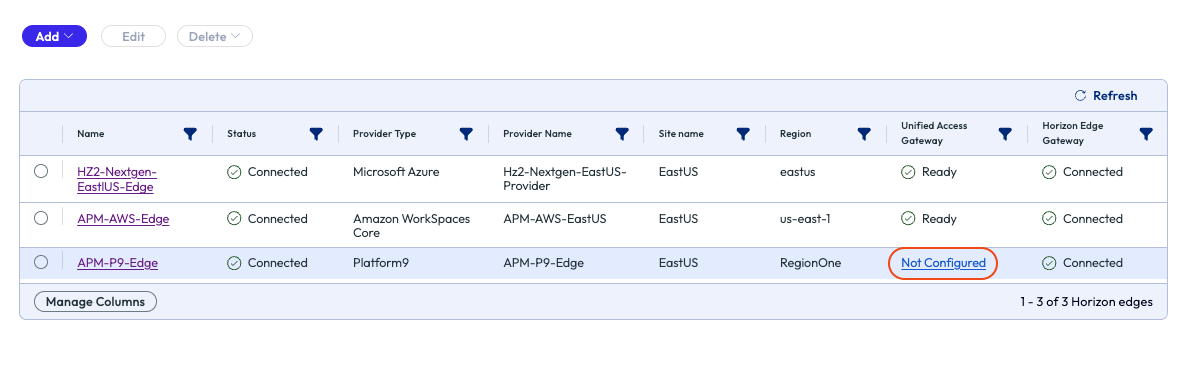
In the Horizon Cloud console, locate the Horizon Cloud on OpenStack Edge by clicking Capacity > Horizon Edges. and locate the deployed Platform9 Edge.
-
In the Unified Access Gateway column, click on the Not Configured status to begin the setup.
-
On the Requirements page, confirm that you have met the stated requirement and click Next.
General Information
On the General Information page, enter the following information and click Next.
-
Enter a name and description for the UAG and specify the number of Unified Access Gateway VMs to be created for this deployment.
-
In the Provider field, specify the provider where UAG is to be deployed.
-
For Deployment type, choose Basic or Advanced as below:
-
Basic - For POC environments, or any environment where end user clients have unique IP addresses. The required load balancer policy is Source IP affinity.
-
Advanced - For large scale environments, or when end user clients connect to the load balancer behind a proxy or NAT. The load balancer policy can be Round Robin, with no affinity rule.
Note: Basic mode enables 2K session support per UAG. Advanced mode enables 4K session support per UAG. To use Advanced mode, ensure that the UAG is configured with a minimum of 4 vCPU and 16 GB RAM. Actual compute requirements may vary based on your specific use case and workload.
-
-
For Number of Network Adapters, select the number of networks adapters to be used by UAG based on your data center network design.
-
For IP Mode, specify the IP address assignment mode for UAG VMs as below:
-
Static V4
- Load Balancer FQDN: Provide FQDN of UAG Load Balancer to connect to desktops. Add UAG DMZ IPs to load balancer backend pool.
- DNS: The comma separated list of DNS servers, to resolve Horizon cloud URLs and specific Internet resources.
- DNS Search Domain: The space separated list of default search domains to be used.
- Default Gateway: The IP address of default gateway of DMZ network (first interface).
- Blast Extreme TCP Port: Select the TCP port on which Blast Extreme Protocol traffic will be sent by the client. Port 8443 is recommended for consistent performance and less resource utilization. Port 443 can lead to excessive CPU utilization, causing Unified Access Gateway Appliances to become unresponsive. Use 443 only if client-side restrictions prevent the use of 8443.
- NTP Servers: Enter the list of NTP servers to use for time synchronization of the UAG cluster VMs.
-
DHCP v4:
- Load Balancer FQDN: Enter the FQDN for the load balancer.
- Blast Extreme TCP Port: Select the TCP port on which Blast Extreme Protocol traffic will be sent by the client. Port 8443 is recommended for consistent performance and less resource utilization. Port 443 can lead to excessive CPU utilization, causing Unified Access Gateway Appliances to become unresponsive. Use 443 only if client-side restrictions prevent the use of 8443.
- NTP Servers: Enter the list of NTP servers to use for time synchronization of the UAG cluster VMs.
-
Resources
-
In the Cluster field, select the cluster to use from the available list configured clusters.
Note: If you are unable to enter a Cluster value, it is likely that your Horizon Cloud for OpenStack Edge has not yet finished building in the associated OpenStack or Platform9 environment. You can open your OpenStack or Platform9 console to check for completion before continuing.
-
In the Flavor field, select the VM flavor for the OpenStack UAG to be deployed.
-
In the Volume field, select the volume type for the OpenStack UAG VM to be deployed.
-
For the Network Security Groups field, select the network security groups that you want to apply to the OpenStack UAG VM. Note that if you apply additional security groups using the Private Cloud Director console, they will not be reflected in the Horizon Universal Console.
-
For the Certificate Type, choose PEM or PFX as below:
-
For PEM, select and upload the PEM certificate.
-
For PFX, select and upload the PFX certificate and enter the PXF file password when prompted.
-
-
For OVA Image Link, optionally specify a link to an OVA image to use for the UAG.
Networks
-
In the Network field, choose a network configured within the Platform9 environment.
-
In the Subnet field, choose a subnet belonging to the selected network.
-
In the Route field, enter a comma-separated list of IPV4 custom routes for this interface in the form ipv4-network-address/bits ipv4-gateway-address. For example, 20.2.0.0/16 10.2.0.1,20.9.0.0/16 10.2.0.2.
-
Click Save to complete the UAG configuration for the Edge.
Load Balancer for UAG
You can use a customer-managed local load balancer of your choice in front of the UAG instances. For related information, see Load Balancing Unified Access Gateway for Horizon.
What to do next
After you have deployed the Horizon Cloud for OpenStack Edge and its configured UAG, you can create images and add the Edge to Pools and Pools Groups.
For images, see Managing Images for OpenStack Provider Deployments.
For pools and pool groups, see Creating a Pool and Pool Group for Horizon Cloud on OpenStack Provider.
Was this page helpful?