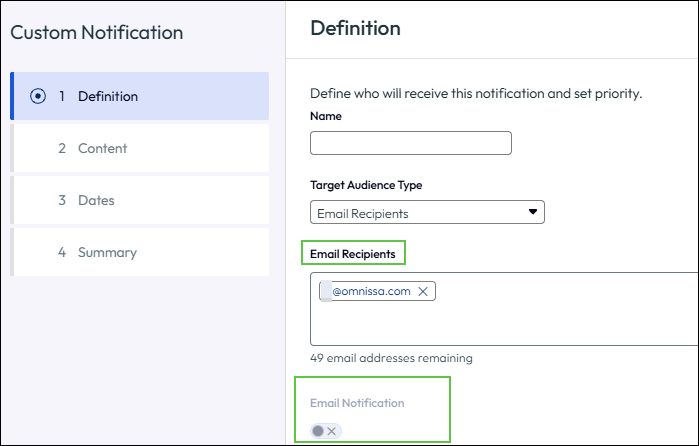
Workspace ONE Hub Services supports an SMTP configuration that allows Hub Services to send notifications to users' email inboxes in addition to push notifications. When SMTP is configured, an Email Notification toggle becomes available in the notification builder. This is applicable for the Email Recipients audience type only.
Notes:
- This feature is available for SaaS deployments only.
- FedRAMP deployments are not supported at this time.
- Frontline users who do not have an email address associated with their account will not receive email notifications.
Prerequisites
- You must have the Administrator role in Hub Services. Read-only administrators can view the SMTP configuration in read-only mode but cannot make changes.
- You must have the host name and port number for your organization's SMTP server.
- If your SMTP server requires authentication, you must have the user name and password.
Procedure
Follow the inline guidance in the form as well as the instructions that follow.
-
Log in to the Hub Services admin console.
-
In the left pane, select External Integrations.
-
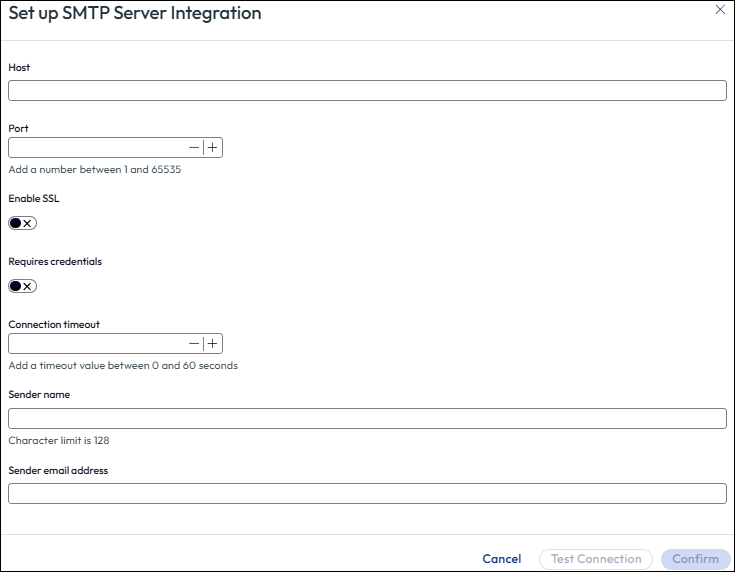
On the SMTP Server integration card, click Set Up. The Set Up SMTP Server Integration form opens.
-
Enter the SMTP server host name in the Host field.
For example:
smtp.example.com -
Enter the SMTP server port number in the Port field.
For example:
25or587. -
To use SSL/TLS encryption for the encryption of data over the communication instead of the default STARTTLS, toggle Enable SSL.
-
If the SMTP server requires authentication, toggle Requires credentials and enter the user name and password.
-
Enter a timeout value in the Connection timeout field.
-
Enter a display name for the email sender in the Sender name field.
The sender name is required for sending email notifications.
-
Enter the email address that will appear as the sender in outgoing notification emails in the sender email address field.
The sender email address is required for sending email notifications.
-
Click Test Connection.
This action checks the connectivity to the SMTP server with the provided configuration. If the test is successful, the Confirm button is enabled.
-
Click Confirm to save the SMTP configuration.
Result
After saving the SMTP configuration, the External Integrations page displays the SMTP Server integration as configured. In the notification builder, when you select Email Recipients as the audience type, an Email Notification toggle appears. Notifications configured with this audience type are delivered to both the user’s device (push notification) and the user’s email inbox.
What to do next
To send notifications by email, create or edit a notification in the notification builder and ensure that the audience type is set to Email Recipients and that the Email Notification toggle is enabled.
Was this page helpful?