When users go to the Workspace ONE Intelligent Hub portal, the browser displays the feature tabs that you enabled in Hub Services.
Users can:
- View and launch apps that are assigned to them.
- View and launch App Bundles, which group related applications together, and set a default component app for quick access.
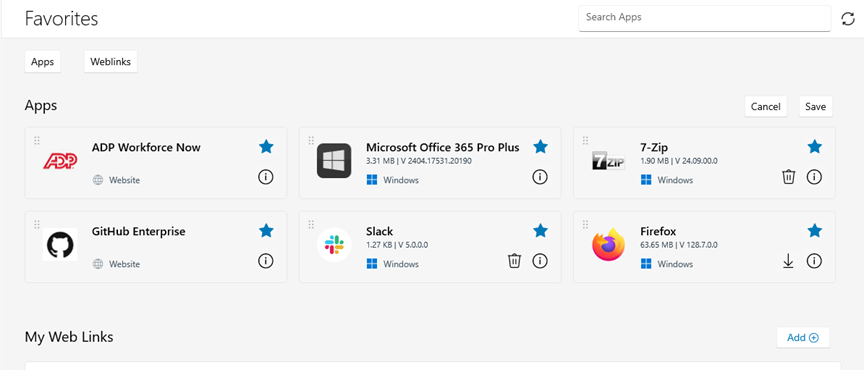
- Mark apps as favorites to view them in the Favorites tab.
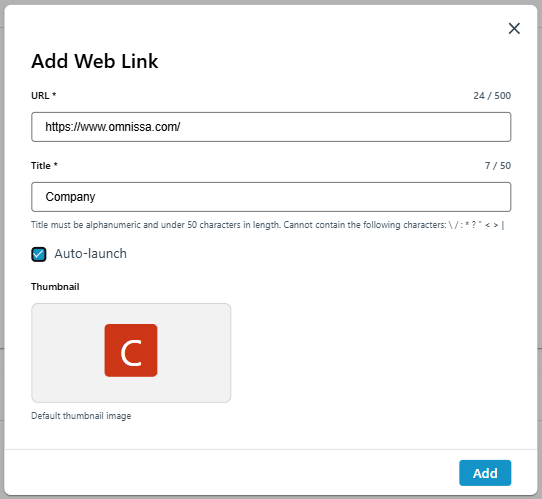
- Add Web links in the Favorites tab.
- Configure auto-launch for Web links. See Configuring auto-launch for Web links.
- Search for people in the organization.
- Receive notifications in the For You tab.
- Get help from the Support tab.
- Go to the custom tab link that you set up.
- Reset unresponsive Horizon or Horizon Cloud desktops. See Resetting Horizon Desktops.
Note: Mobile applications are not available from the Hub portal view in a browser.
Adding apps to Favorites tab
Users can click the star icon on an app in the Intelligent Hub Apps tab to mark it as a favorite. Apps marked as favorites appear in the Favorites tab. For example:
Configuring auto-launch for Web links
If users want a Web link to automatically open when they log in to the Hub web portal, they can select the Auto-launch option for the Web link. Auto-launch can be configured for a maximum of five Web links.
To configure auto-launch:
- Log in to the Workspace ONE Intelligent Hub web portal.
- In the Favorites > My Web Links section, either click Add to add a new link or click the menu icon on an existing link tile and select Edit.
- Select Auto-launch.
- Click Add or Save.
For example:
Resetting Horizon Desktops
Users can reset their Horizon or Horizon Cloud virtual desktops directly from the Workspace ONE Intelligent Hub web portal. The Reset action performs a hard reboot of the virtual machine, providing a quick self-service recovery option for dedicated desktops.
Note: The Reset option does not apply to floating desktops, multi-session environments, or RDSH-published applications or desktops.
Caution: If a dedicated desktop has multiple assigned users, resetting it will abruptly disconnect any active session.
To reset a Horizon Cloud desktop from the Hub web portal:
-
Log in to the Workspace ONE Intelligent Hub web portal.
-
Navigate to the Horizon Cloud desktop that you want to reset.
-
Click the menu icon on the desktop tile.
-
Select Reset.
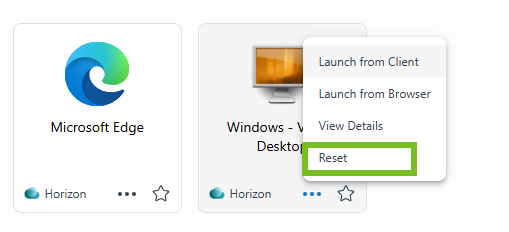
Note: The Reset option is also available from the app details page, accessed by selecting View Details on the desktop tile. For example:
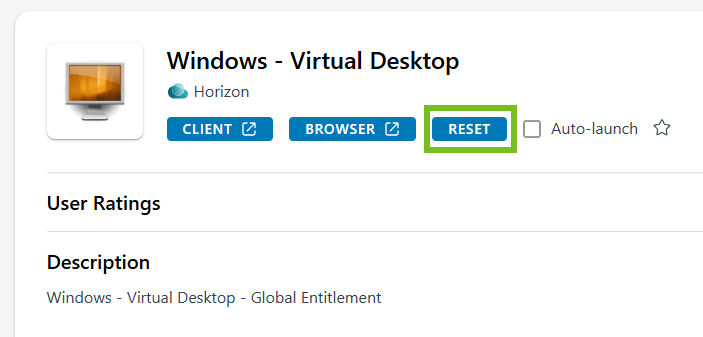
The virtual machine powers off and then powers on.
Was this page helpful?