Users can perform self-service device management tasks directly from the Workspace ONE Intelligent Hub Support tab, without submitting a help desk ticket. When an administrator enables Actions on the Employee Self-Service page, users can view and run the actions that are available for their enrolled devices.
Types of Actions
-
Critical Actions. Significant, typically irreversible device management tasks, such as Delete Device and Enterprise Wipe.
-
Non-Critical Actions. Routine self-service tasks, such as Lock Device, Change Device Passcode, Clear Device Passcode, Make Noise, and Find Device. Available actions vary by device platform.
-
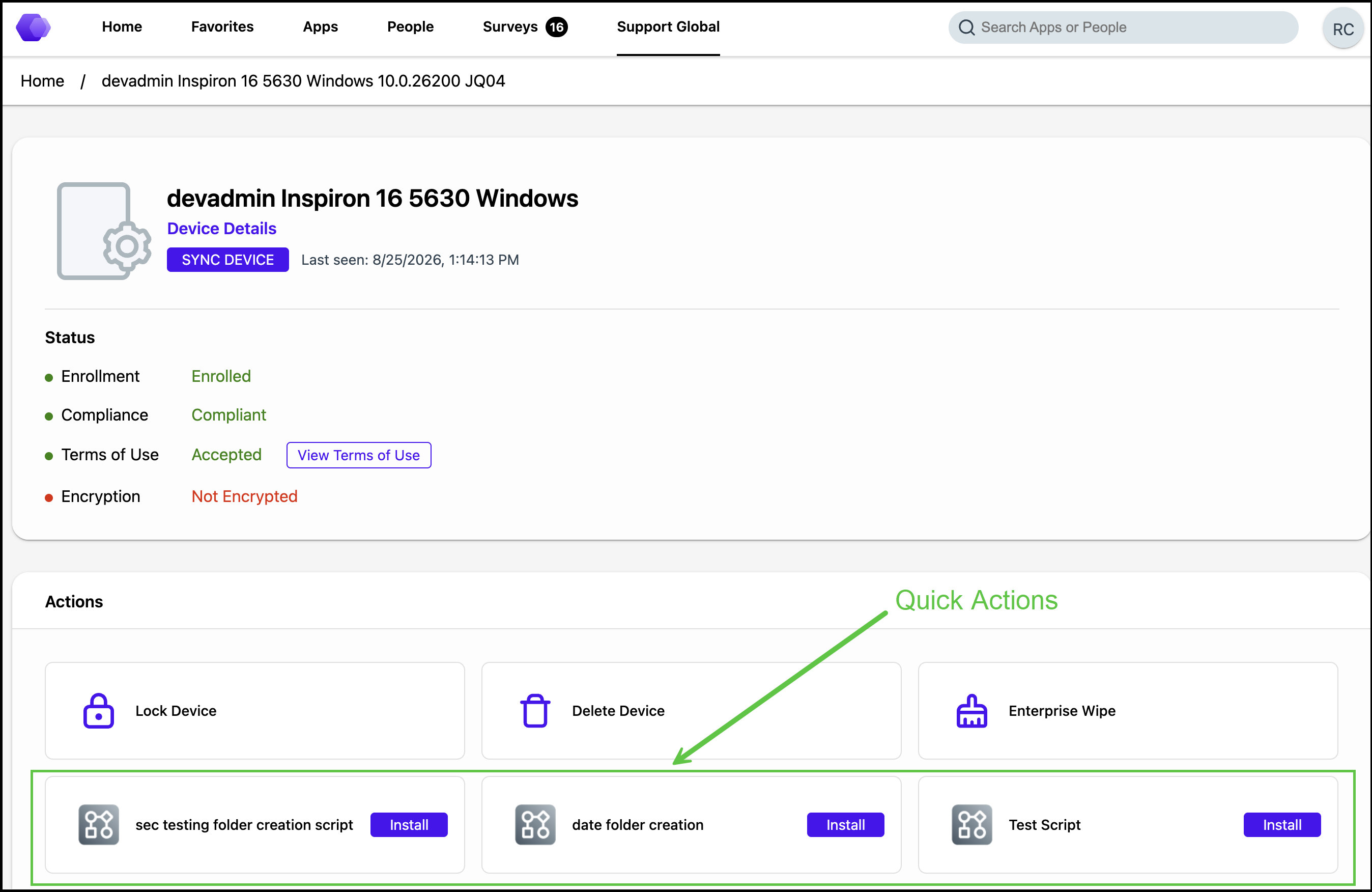
Quick Actions. On-demand Workspace ONE UEM Freestyle Orchestrator workflows that an administrator makes available for problem-solving or configuring a device.
Platform Support
-
Web. Users accessing the Support tab from a web browser can view and execute actions for any of their enrolled devices. This includes quick actions, except for any macOS devices, which do not display quick actions in the Support tab.
-
Workspace ONE Intelligent Hub app for Windows, iOS, and Android. Quick actions are only available for the device the user is currently logged in to.
Note: Quick Actions require Workspace ONE UEM version 23.08 or later, with a Freestyle Orchestrator workflow published and configured to display in Workspace ONE Intelligent Hub. Freestyle Orchestrator is available only for the SaaS version of Workspace ONE UEM.
How Users Execute an Action on a Device
-
Log in to Workspace ONE Intelligent Hub.
-
Go to Support > My Devices.
-
Select the enrolled device you want to manage.
On the web portal, this can be any of your enrolled devices.
-
On the Device Detail page, in the Actions section, select the action you want to run.
The action runs on the selected device. The status updates for quick actions can take several hours.
Related Topics
Was this page helpful?