You can create custom banners to display important messages and announcements to end users in Workspace ONE Intelligent Hub. Banners can include a title, message, and optional action button that links to additional information or resources.
Prerequisites
- The banners option enabled in Global Settings. See Enable Banners in Workspace ONE Hub Services.
- Administrator access to the Hub Services console.
- (Optional) If adding an action button, have the target URL prepared, including a protocol, such as https://.
Procedure
-
Log in to the Hub Services console.
-
Starting in the left pane, navigate to Notifications & Banners > Overview.
-
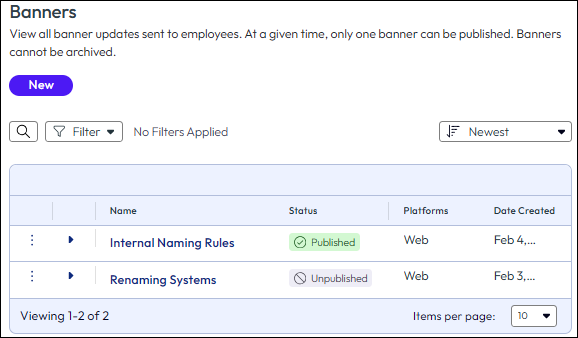
In the Banners section, click New.
-
On the Definition page, provide a Name for internal identification, select the Platforms on which to display the banner, and click Next.
All the platforms are selected by default. Deselect any platforms you want to exclude.
-
On the Content page, configure the options and click Next:
- Title - Enter a title for the banner.
- Message - Enter the main message text. This is the detailed content that users will read.
- Action Button (Optional) - To add a clickable action button:
- Toggle on Include Action Button.
- In the Button Text text box, enter the text that will appear on the button, such as "Click here", "Learn more", or "View details".
- In the Button Link URL text box, enter the complete web address including the protocol, such as https://www.example.com or https://confluence.company.com/status.
-
On the Summary page, review the banner configuration:
- Verify the banner name.
- Confirm the selected platforms.
- Review the title and message text.
- If configured, check the action button text and URL.
-
Click Publish and then Publish again to create the banner and make it immediately visible to end users.
Results
The banner is immediately displayed to end users when they access Workspace ONE Intelligent Hub.
Important: Only one banner can be published at a time. If you publish a new banner, the previously published banner is automatically unpublished.
Example Use Cases
System Downtime Notification
Scenario: Your organization is performing scheduled maintenance on a critical application.
- Title: Scheduled Maintenance - Main App
- Message: Main App will be unavailable from 10:00 PM to 2:00 AM EST on Saturday. Please save your work and use the alternative application during this period.
- Action Button Text: Go to Alternative App
- Action Button URL: https://alternative-app.company.com
Important Announcement
Scenario: A new security policy requires immediate action from all users.
- Title: Action Required: Update Your Password
- Message: Due to enhanced security requirements, all users must update their passwords by Friday, March 15. Failure to update your password will result in temporary account suspension.
- Action Button Text: Update Password Now
- Action Button URL: https://account.company.com/password-reset
Resource Link
Scenario: You want to provide quick access to updated documentation or training materials.
- Title: New Hub Features Available
- Message: Workspace ONE Intelligent Hub has been updated with new collaboration features. Learn how to use these features to improve your productivity.
- Action Button Text: View Training Guide
- Action Button URL: https://docs.company.com/hub-training
What to Do Next
- To make changes to the banner, see Edit a Banner and Other Actions in Workspace ONE Hub Services.
- To stop displaying a banner without deleting it, unpublish the banner from the Notifications & Banners > Overview page.
Related Topics
Was this page helpful?