Workspace ONE Hub Services provides banner functionality that allows administrators to display important messages and announcements to end users. This feature helps organizations communicate critical information, system updates, and important notices directly within Workspace ONE Intelligent Hub.
The Difference Between Banners and Notifications
This section is specifically about banners. However, understanding how banners differ from notifications is useful. You can use the Hub Services console to create both banners and notifications. Both methods allow administrators to share information with end users.
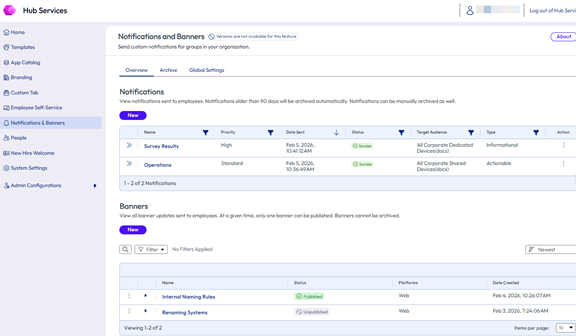
The two methods differ as follows:
Notifications - Notification messages are pushed to users unrelated to user activity. Notifications are better suited for time sensitive communication, or when communications are targeted towards a specific group. See Using Hub Notifications Service in Workspace ONE Hub Services.
Banners - Banner messages are pulled by user devices at login or refresh. Banners are better suited for announcements that all users see while active.
About Displaying Banners in Workspace ONE Intelligent Hub
Banners appear prominently at the top of Workspace ONE Intelligent Hub, ensuring that users see important messages when they access the hub.
Banners displayed in Workspace ONE Intelligent Hub serve as a communication channel between administrators and end users. You can use banners for purposes such as the following:
-
Notify Users of System Downtime or Maintenance - Alert users about planned maintenance windows or unexpected service interruptions, and provide links to alternative applications or resources.
-
Communicate Important Announcements - Share critical updates, policy changes, security alerts, or other urgent information that requires immediate user attention.
-
Provide Helpful Resources - Direct users to documentation, support pages, knowledge base articles, or other helpful resources through action buttons with embedded links.
-
Guide Users Through Transitions - Inform users about application changes, new features, or required actions during organizational transitions or updates.
Key Concepts
Understanding the following concepts will help you effectively manage banners in Workspace ONE Hub Services:
Banner Components
A banner consists of three main elements:
- Title - A prominent heading that captures attention and summarizes the message.
- Message - The main content that provides detailed information to users.
- Action Button (optional) - A clickable button with custom text that links to external or internal URLs for additional information or resources.
Platform Support
Banners are currently available in Workspace ONE Intelligent Hub for the following platforms.
- Web
- Android
- iOS
In subsequent releases, additional client platform support will be provided, including for macOS and Windows platforms.
Banner Status
Banners can exist in two states:
- Published - The banner is active and displayed to end users.
- Unpublished - The banner is stored and not visible to end users.
Single Banner Display
Only one administrator-created banner can be published and displayed at a time.
Non-Dismissible by Users
End users cannot dismiss banners. Administrators determine how long a message remains as a banner.
Banner Precedence
The system follows a specific precedence order when multiple banners are configured:
- System Notifications from Omnissa - Take the highest priority and are displayed instead of administrator-created banners.
- Administrator-Created Banners - Are displayed when no system notifications are active.
If a system notification is in effect, your custom banner is not visible to users until the system notification is resolved or acknowledged by the administrator.
What to Expect
Enabling the Banner Feature
Before you can create banners, you must first enable the banner feature in Global Settings. This is a one-time configuration step that activates the banner functionality across your Workspace ONE Intelligent Hub environment.
Creating and Publishing Banners
The banner creation process involves several steps:
- Navigate to the Custom Banner page.
- Provide an internal name for the banner and select the platforms on which to display it.
- Configure the banner content: title, message, and optional action button.
- Review the summary and publish the banner.
Once published, banners are immediately visible to end users accessing Workspace ONE Intelligent Hub.
Managing Existing Banners
You can manage your banners through the following actions:
- Edit - Modify the banner name, title, message, or action button configuration.
- Unpublish - Remove the banner from display while keeping it saved for future use.
- Publish - Make a previously unpublished banner active again.
- Delete - Permanently remove a banner from the system.
Action Button URLs
When configuring action buttons, you must provide complete URLs including the protocol, such as https://www.example.com. The button can link to resources such as the following:
- Internal resources, such as web pages or company documentation.
- External resources, such as support sites or alternative applications.
- Status pages or incident management systems.
Getting Started
To begin using banners in Workspace ONE Hub Services, review the following topics:
- Enable Banners in Workspace ONE Hub Services - Configure the global setting to activate banner functionality.
- Create a Banner in Workspace ONE Hub Services - Set up your first banner with title, message, and optional action button.
- Publish a Banner in Workspace ONE Hub Services - Make your banner visible to end users.
- Edit a Banner and Other Actions in Workspace ONE Hub Services - Modify existing banners as your communication needs change.
Was this page helpful?