You can create a Quick Actions section in the Workspace ONE Intelligent Hub Apps tab and add on demand Workspace ONE UEM Freestyle Orchestrator workflows to this section .
Note: Quick Actions can be set up for Windows, MacOS, Android, and iOS devices only.
A Quick Actions section with the available quick actions is set up in the Apps page to make it easy for users to quickly find and execute workflows for problem-solving or configuring their digital workspace.
You use the Freestyle Orchestrator feature in the Workspace ONE UEM console to create customized workflows to automate endpoint configurations on Windows and MacOS devices. In Freestyle, you design a workflow, assign the workflow to the targeted platform, and select a smart group that can access the workflow. In the Workspace ONE UEM console, select Show in Intelligent Hub to deploy the workflow to the Hub catalog when the workflow is published.
You add Quick Actions as a section in the catalog Apps tab and select the workflows that are available as Quick Actions. When you make them available in the Quick Actions section, users can easily find and access quick actions links for their Windows or MacOS device they are using.
Prerequisites
- Platform support for Windows 10 with Workspace ONE Intelligent Hub app 2404 or later
- Platform support for MacOS with Workspace ONE Intelligent Hub app 2404 or later
Overview of Using Freestyle Orchestrator to Create Workflows for Workspace ONE Intelligent Hub App Catalog
The following outlines the high-level steps in the Workspace ONE UEM console to create workflows that displays in the Hub App catalog. You can then select them to display in the Quick Action section in the Apps tab. See the Freestyle Orchestrator guide for detailed steps about creating and managing workflows.
-
In the Workspace ONE UEM console > Freestyle > Freestyle Orchestrator page, create a workflow.
-
In the Admin Panel, select the Windows platform and select the smart groups to which you want to assign the workflow.
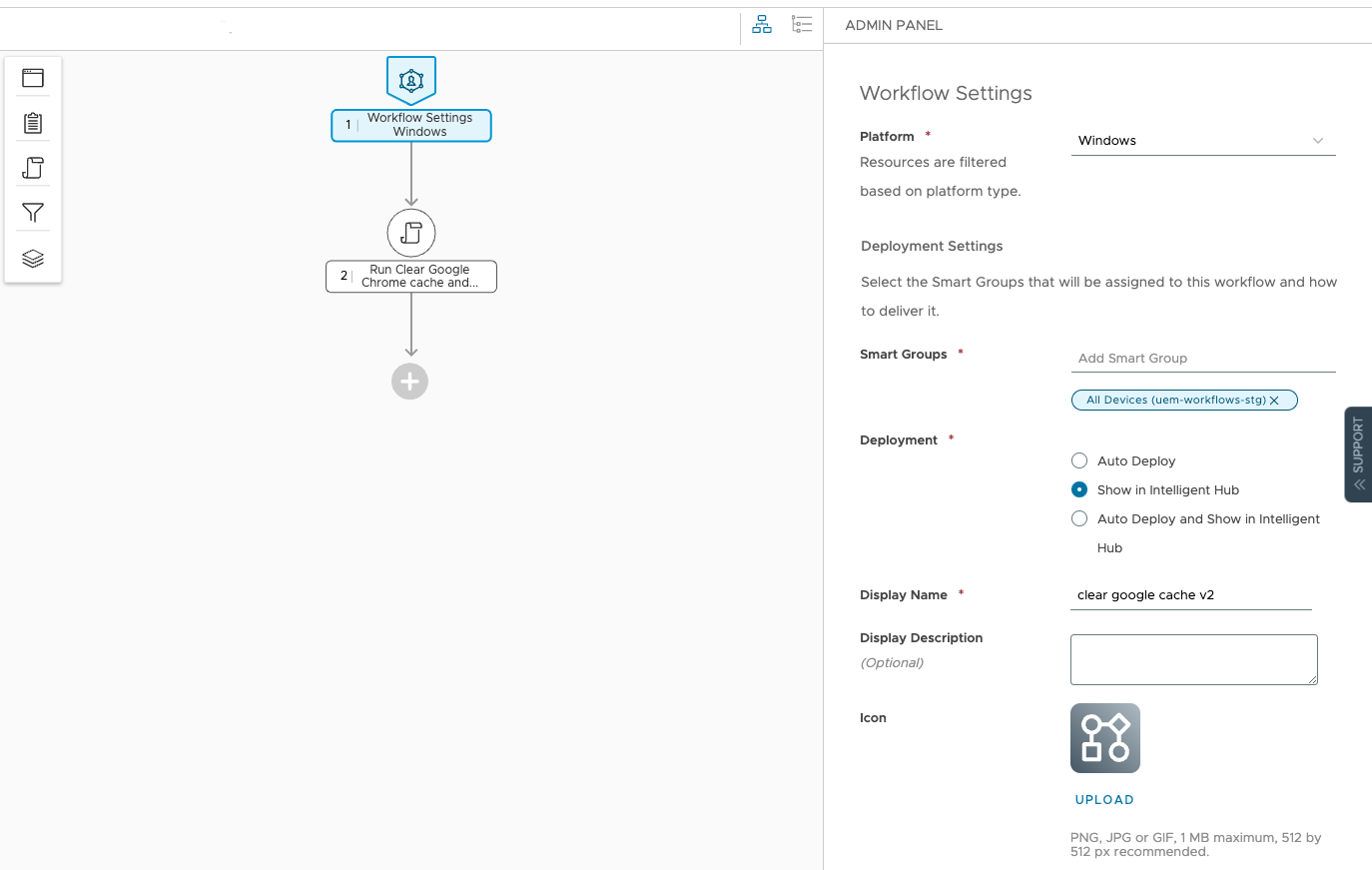
-
In the Admin Panel, configure the Deployment setting Show in Intelligent Hub. When the workflows are published in the Workspace ONE UEM console, the workflows are displayed in the Workspace ONE Intelligent Hub Apps catalog. To make the quick action links easier to find, in the Hub Services console you can create a Quick Actions section to appear in the catalog Apps tab.
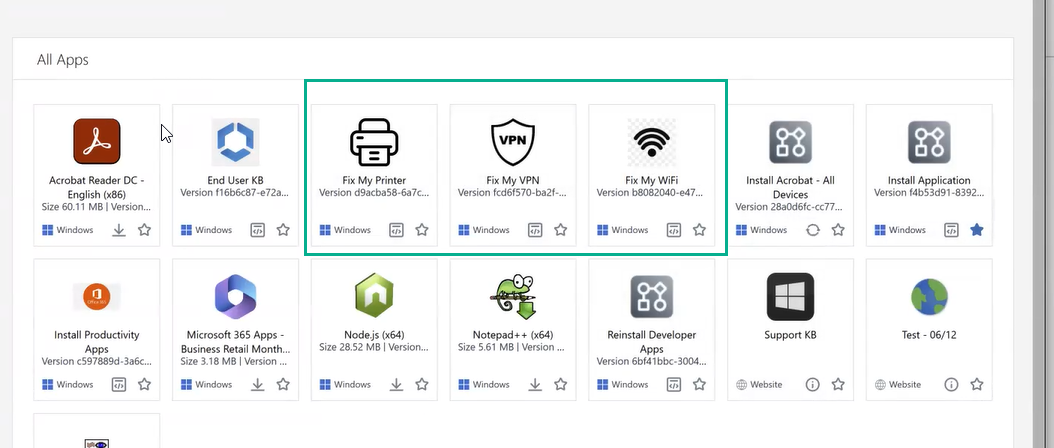
Configure Templates to Display Quick Actions Section in the Apps Catalog Tab
You can edit the Hub Services global and custom templates to add a quick actions section and add on-demand Workspace ONE UEM Freestyle Orchestrator workflows to this section. You can also create custom templates with quick actions that are specific to the users in the smart groups that are assigned to that template.
For more information about how to set up templates in the Hub Services console, see Using Hub Templates to Customize the Workspace ONE Intelligent Hub Experience for Different Users.
Procedure
-
Navigate to the Hub Services console Home page and select App Catalog > Configuration.
-
Select the version to edit, either GLOBAL to edit or create or edit a customized template.
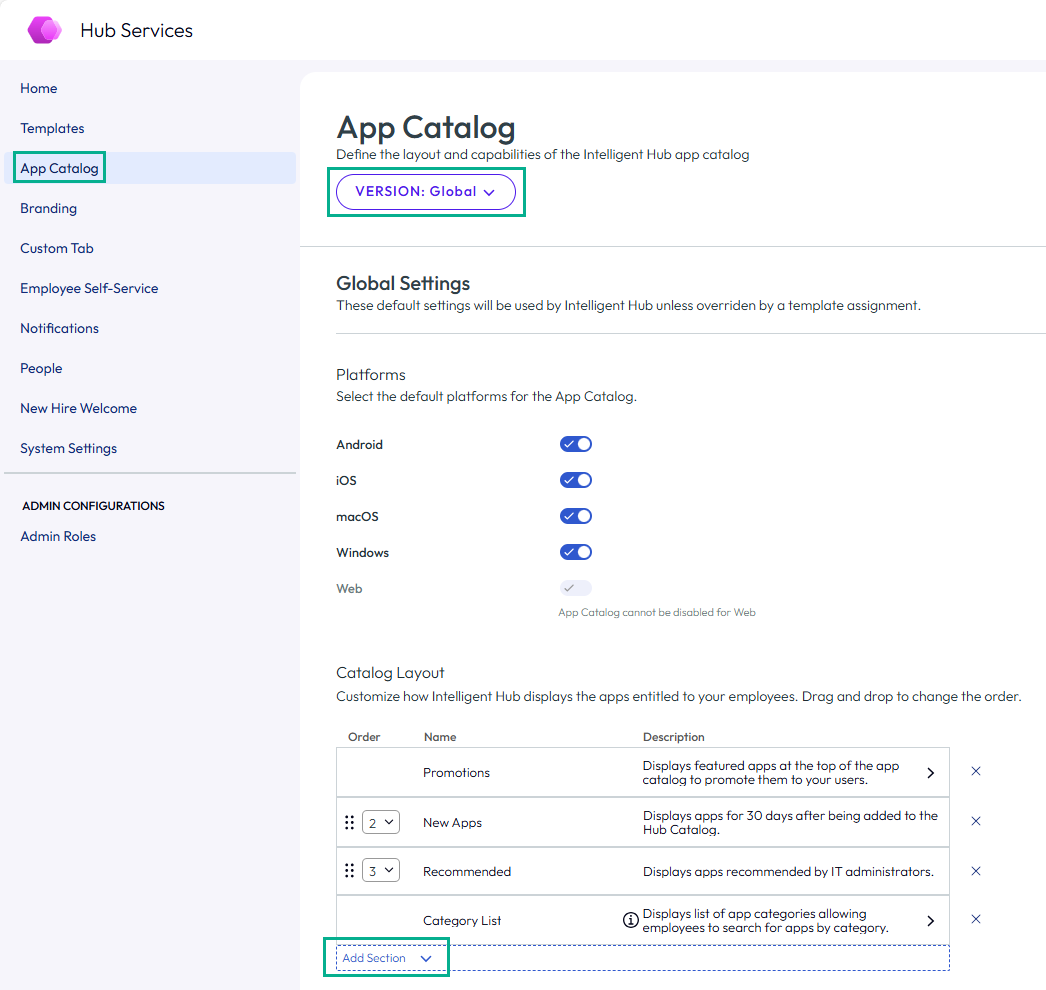
-
In the App Catalog page, navigate to the Catalog Layout section and click ADD SECTION.
-
Select Actions.
Actions is added to the Catalog Layout table.
-
In the Action row, click the arrow to open the search box.
-
Click ADD A ROW and click the down arrow in the Search for an action search box to see a drop-down menu of the workflows. To search for a workflow, start typing in the search box. Select a workflow to add.
Click ADD A ROW to add additional workflows.
-
(Optional) You can drag the six-dot icon to reorder where the Actons section displays in the Apps tab.
-
Click Save.
Was this page helpful?