Users can upload S/MIME certificates from the Workspace ONE Intelligent Hub to sign and encrypt their corporate email. The S/MIME certificate upload feature is available via the Workspace ONE Intelligent Hub app Support tab.
On the Support tab, a S/MIME certificate section is available, with an Upload an S/MIME certificate link.
Hub Services passes the uploaded certificates to Workspace ONE UEM for storage and management. Hub Services does not store certificate information, and certificate details are not displayed in Workspace ONE Intelligent Hub.
Platform Support
The S/MIME certificate upload feature is available in Workspace ONE Intelligent Hub for the following platform:
- Web – Supported in the current release.
Certificate Types
Users can upload up to three types of S/MIME certificates. Each certificate file must be password-protected and must be in PFX, P12, or PKCS7 format.
| Certificate Type | Description | Maximum Files |
|---|---|---|
| S/MIME certificate | The primary certificate used for signing email. | 1 |
| Separate encryption certificate | A separate certificate used for encrypting email. Using a separate certificate for encryption allows the encryption key to be escrowed without affecting the non-repudiation property of the signing key. | 1 |
| Old encryption certificate | This certificate is used to decrypt older messages. Upload an older certificate to allow decryption of previously encrypted emails. | 5 |
Prerequisites
Before uploading an S/MIME certificate, users must obtain or generate a certificate file from their organization's certificate authority (CA) or a public CA. The certificate file and its password must be available before starting the upload.
How Users Upload S/MIME Certificates
-
In Workspace ONE Intelligent Hub, go to Support.
-
Under S/MIME certificate, click Upload an S/MIME certificate.
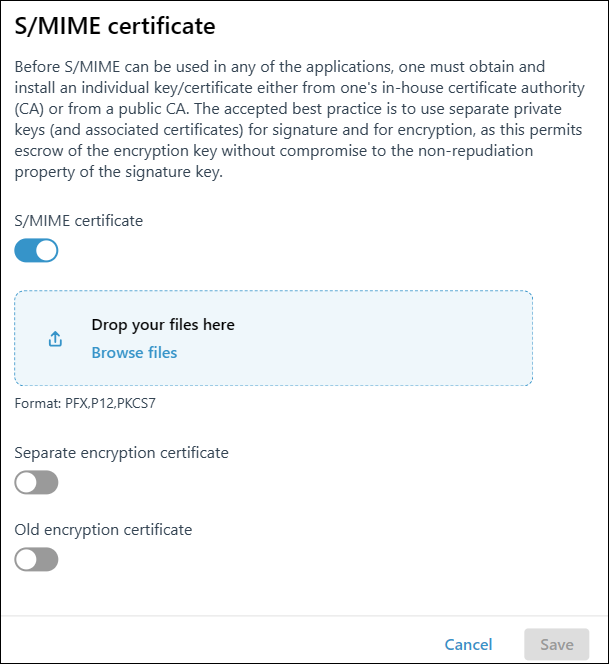
The S/MIME certificate dialog appears.
-
Toggle on the certificate type you want to upload.
A file upload area appears below the toggle.
-
Add the certificate file by dropping the file into the upload area or by clicking Browse files to select it.
After selecting the file, a Certificate password field appears below the filename.
-
Enter the certificate password in the Certificate password field.
-
Repeat steps 3–5 for any additional certificate types you want to upload.
-
Click Save.
The uploaded certificates are sent to Workspace ONE UEM. If any error occurs during the upload of the provided files, the upload operation fails.
Note: Any encryption certificate uploaded through Workspace ONE Intelligent Hub is overwritten in UEM. To retain older certificates for decryption, upload the “Old encryption certificate” type along with a new encryption type: “S/MIME certificate” and/or “Separate encryption certificate”.
Was this page helpful?