When FIDO2 authentication is configured in the Omnissa Access service, users can manage their FIDO2 keys from the Hub Portal using a web browser. They can view all registered keys, register new keys, and delete previously registered keys without needing to submit a request to support.
When FIDO2 authentication is available, users can access FIDO2 key configurations on the Hub Portal web page by going to Support > My Devices. Users will see a FIDO2 Security Keys section that lists the FIDO keys that are registered for their devices.
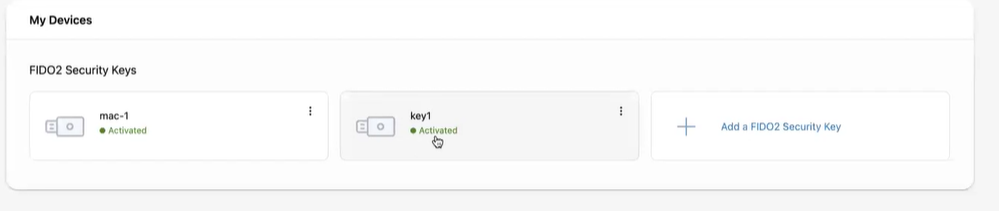
Users can manage FIDO2 key configurations from the Hub Portal in the following ways.
-
Click the key name to view the status of the key and the registration date.
-
Rename or delete the key from the three-dot menu for each key.
-
Add a new FIDO2 security key to their My Devices panel.
How Users Add FIDO2 Security Keys to Their My Devices Panel
-
Users click Add a FIDO2 Security Key link.
-
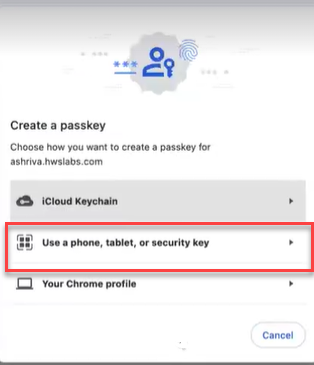
On the screen that appears, the user selects the type of passkey to create. In this example, Use a phone, table, or security key is selected.
-
A QR code is displayed, and the user scans the QR code with a camera on the device where the passkey is to be created.
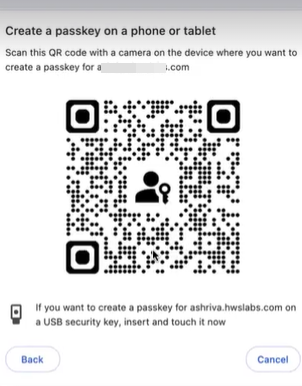
The passkey is added to the device.
-
User are asked to name the FIDO2 key that was added the device.
-
When they save the name, the FIDO2 key is activated.
User Login Process
When FIDO2 is activated and users log into their device, the login screen asks them to sign in with a FIDO2 authenticator.
They scan the QR code that displays and their passkey is validated against the passkey on the device.
Was this page helpful?