You can add a Promotions section to the Hub Catalog to display featured apps at the top of the catalog view in the Workspace ONE Intelligent Hub app or the web portal.
Note: If you promote an application that is part of an App Bundle, the bundle tile appears in the Promotions section instead of the individual component app. This ensures users can still access promoted applications while benefiting from the simplified bundle view.
Procedure
-
Navigate to the Hub Services console Home page.
-
Select App Catalog > Configuration.
-
In the Catalog Layout section, click New Section to select Promotions.
The Promotions displays before Favorites in the App Catalog.
-
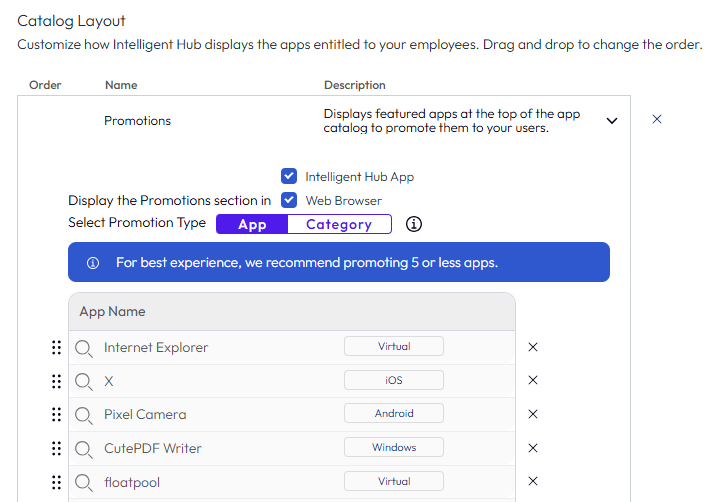
In the Promotions row, click > to expand the row.
-
The default is to display Promotions in both the Workspace ONE Intelligent Hub app and the Hub web browser views. You can change the default.
-
Select whether to promote apps or specific catalog categories.
-
In the App/Category Name section, search for the names to promote.
Click Add a row to add additional names.
-
-
Click Save.
Was this page helpful?