On the Employee Self-Service page in the Hub Services console, you can customize the support features available in the Workspace ONE Intelligent Hub app. You can set up device self-service to let users manage their devices, investigate issues, and resolve problems on their own. You can also add Helpful Links to the self-service tab, directing users to useful internal and external resources. Setting up these self-service option can help reduce the number of help desk tickets and support issues.
For global settings, the option to view the self-service tab in the browser is on by default. You can create customized versions of the self-service tab for specific user groups and add them to Hub templates.
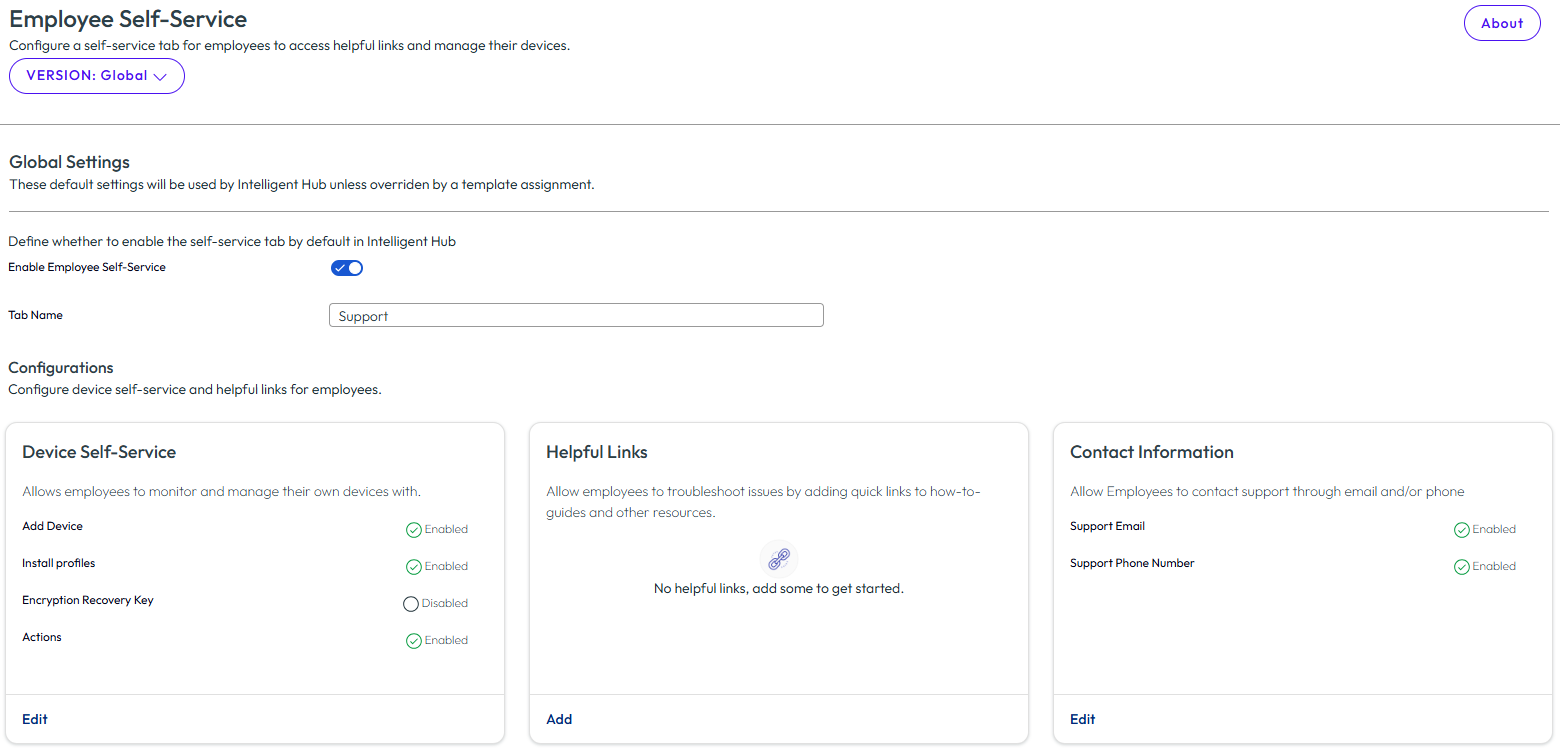
Customize the Employee Self-Service Tab Label
The tab name that appears in the Workspace ONE Intelligent Hub app is labeled Support. You can modify this label in the Hub console Employee Self-Service page. When you change the label, users see the updated name in the navigation bar when they refresh the Workspace ONE Intelligent Hub app view.
Setting Up Device Self-Service Options
When Device Self-Service is configured, users monitor and manage their devices from Workspace ONE Intelligent Hub. Users go to the My Devices section of the Support tab to see which devices are managed from the Workspace ONE Intelligent Hub, and what actions they can take.
In the Device Self-Service section, you configure the following user device management options.
| Feature to enable | Description |
|---|---|
| Add Device | Users can register a new device through email, SMS, or a QR code. Users can see the status of their devices, and they can click Sync Device to sync their profiles to the device. |
| Install Profiles |
Users can view and install optional profiles or reinstall automatic profiles. Users can see their work apps and devices that are installed, and they can click Reinstall. |
| Terms of Use |
Users can view and accept the terms of use for managed applications. For more information on Terms of Use for managed applications, see Installing and Setting Up Workspace ONE Intelligent Hub App on Devices. |
| Encryption Recovery Key |
The encryption recovery key is a unique numerical password that users can use to regain access to their macOS or Windows device. When this option is enabled, users can retrieve their desktop encryption recovery keys for their enrolled and encrypted macOS and Windows devices from the Workspace ONE Intelligent Hub Support tab, instead of submitting a support ticket requesting a recovery key. |
| Actions | Three types of actions can be made available to users:
|
Add Helpful Links
In the Helpful Links section, you can add links to internal or external sites and knowledge base articles to provide users with self-service help. These links allow users to find solutions to issues before contacting your support service.
You can create deep links to direct users to specific content or pages within your websites. Use wsonehub://{deeplink} to set up links that navigate to other pages within the Workspace ONE Intelligent Hub app. Use awb(s)://{URL} to launch web pages in a web app from Workspace ONE Intelligent Hub. Use awscl://{URL} to launch web pages in the Workspace ONE Content app.
You can add up to 20 links to direct users to resources. Users can find these links in the Workspace ONE Intelligent Hub Support tab, Helpful links section.
S/MIME Certificate Upload
The Support tab also provides users with an S/MIME certificate section, where they can upload S/MIME certificates to sign and encrypt their corporate email. This capability is available in Workspace ONE Intelligent Hub for web and does not require configuration in the Hub Services console. Hub Services passes the uploaded certificates to Workspace ONE UEM for storage and management. Certificate details are not stored or displayed in Workspace ONE Intelligent Hub.
For details on what users see and how the upload works, see Users Upload S/MIME Certificates from the Workspace ONE Intelligent Hub Portal Support Tab.
Manage Contact Information
When Workspace ONE UEM is configured to enroll devices and is configured with Hub Services, a Contacts section displays in the Employee Self-Service page. The support email and phone number that display are configured in the Workspace ONE UEM console Device > Device Settings > Device & Users > General > Enrollment > Customization tab.
Note: The Customization tab shows an example email and phone numbers. If you do not change the example settings in the Workspace ONE UEM console, this example information displays in the Contacts section. See Configure Contact Email and Phone Number Information for Workspace ONE Intelligent Hub Support Tab.
Was this page helpful?