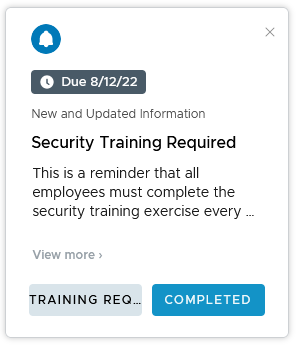
This example creates an actionable notification in Hub Services that asks the audience if they completed the required security training.
You can add a video or an image that displays in the notification. The notification can include up to 10 links and 10 attachments.
The notification includes two actionable options. Recipients that completed the training, click Completed. Recipients that have not completed the training, click Training Required. They are routed to the security training page.
Procedure
-
Navigate to the Hub Services Notifications page and click New and then click CREATE NOTIFICATION.
-
Enter the name as Security Training Required.
This name displays in the status list on the Notifications page.
-
For Target Audience Type, select All Employees.
-
For Priority, because everyone must take this training and you do not want them to overlook the notification, select High-priority.
High-priority notifications display at the top of the notification list until the user acts on the notification.
-
Click NEXT to go to the Content page. Verify that the template is Actionable.
-
In the Content section, complete the notification details.
Icon Use the default image, Intelligent Hub or you can add your own image for this notification. Title Enter the title as Security Training Required. Subtitle (optional) To highlight the completion date, enter the subtitle New and Updated Information. Media Type (optional) You can add either a video or an image to the notification card.
To allow images and videos to display correctly in the notification banner, you must configure the web portal to permit cross-origin access to image or video files. The HTML must provide a crossorigin attribute that in combination with an appropriate cross-origin resource sharing (CORs) header, allows images to display in the notification banner correctly. For more information about CORS, see the Cross-Origin Resources Sharing web site.
To display images or videos correctly in the web portal, define the following CORs request headers on your website.
To display an image in the notification banner, enter the full URL address that includesAccess-Control-Allow-Origin:Access-Control-Allow-Method: GET HTTPS. Example of a full image URL address,https://www.mozilla.org/media/img/firefox/new/desktop/hero-mr1.c078ff206641.png. The image must be either a JPG or PNG file and the aspect ratio of the image is 4:3.
To display a video in the notification banner, enter the full URL address that includesHTTPSthat is displayed in the embedded code as thesrcvalue. For example,src="https://mozzila/media/videos/abcvideo.mp4".Description In this example, the message description reads as follows.
This is a reminder that all employees must complete the security training exercise every year.
If you already completed the training, click COMPLETED.
If you have not completed the training, click TRAINING REQUIRED. The security training page will be displayed.Additional Details (optional) Click ADD Details to add a feature, fact, or other item that you want to call out in the message. Enter as a label and the description. Links (optional) Your notification can include up to 10 links. -
This notification is created with two actions, Completed and Training Required.
-
The first action is for users who already completed the security training.
Action Button Text Enter the text for the button that appears in the notification. Enter as COMPLETED. Completed Action Button Text (optional) Enter the text for the button that appears in the notification after the Completed action button is clicked. Enter as CONFIRMED. Action Button Behavior Select API as the button type. Method Select POST as the method. When users click COMPLETED, the answer is posted to the API endpoint URL. API Endpoint Enter the URL where the response is posted. For example, https://security-training-completed.acme.com.Make Action Repeatable Deactivate Make Action Repeatable. Primary Enable Primary. This button is the first button in the notification. -
The second action is for users who have not completed the security training. When they click this button, they are sent to the security training URL.
Action Button Text Enter the text for the button that appears in the notification. Enter as TRAINING REQUIRED. Completed Action Button Text Enter the text for the button that appears in the notification after Training Required is clicked. Enter as IN PROGRESS. Action Button Type Select Open In as the button type. Link Enter the link to the security training site. For example, enter https://security-training.example.com.Repeatable Deactivate Make Action Repeatable. Primary Deactivate Primary. This button appears after the button labeled Completed. -
In the Attachments section, you can add up to 10 attachments to the notification. The individual file size cannot exceed 5 MB. Users can download or preview the attachments through a web browser.
-
-
Click NEXT to go to the Scheduling page to enable Set Due Date and set August 12, 2022 as the due date by which the notification must be acted on.
The due date displays in the notification.
-
(Optional) You can set an expiration date up to 90 days from the creation date for the notification using a month-day-year format.
By default, notifications expire in 90 says. After the expiration date is passed, notifications disappear from the end-user's "For You" section, as well as the History section. In the admin console, noticiations that have expired appear in the Archived tab.
-
Click NEXT to see a summary of the notification.
-
Click CREATE to create and send the notification.
Was this page helpful?