Informational notifications do not require the user to take an action within the notification. Examples of the type of informational notification are system downtime, company-meeting reminders, or benefits-enrollment deadlines.
You can add a video or an image that displays in the notification. The notification can include up to 10 links and 10 attachments.
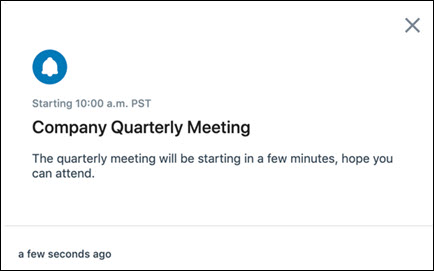
This example creates an information notification to remind users that the company all-hands meeting is starting soon.
Procedure
-
Navigate to the Hub Services Notifications & Banners page and click New and then click Create Notification.
-
Enter the name of the notification as Company Quarterly Meeting Notification.
This name displays in the status list on the Notifications & Banners page.
-
For the Target Audience Type, to send this notification out company wide, select All Employees and accept the default Standard priority.
-
Click Next to go to the Content page.
-
In the Template text-box drop-down menu, select Informational.
-
In the Content section, complete the notification details.
Icon Use the default image, Intelligent Hub or add your company logo. Title Enter the title as Company Quarterly Meeting. Subtitle (optional) To highlight the meeting start time, enter the subtitle Starting at 10:00 a.m. PST. Media Type (optional) You can add either a video or an image to the notification card. Description Type the message. The quarterly meeting will be starting in a few minutes, hope you can attend. Links (optional) Your notification can include up to 10 links. Additional Details Click Add Details to add a feature, fact, or other item that you want to call out in the notification. Enter as a label and the description. Attachments You can upload up to 10 files to attach with the notification. The individual file size cannot exceed 5 MB. Users can download or preview the attachments through a web browser. -
Click Next to see a summary of the notification.
-
Click Create to create and send the notification.
Was this page helpful?