Find information about Omnissa Intelligence components, trials, storage, and sampling. Use the Omnissa Intelligence console for enterprise mobility management (EMM) planning, automation, and to optimize resources, strengthen security and compliance, and enhance user experience across your environment.
Omnissa Intelligence components
Omnissa Intelligence aggregates data from various Omnissa products, for example Omnissa Workspace ONE UEM, Omnissa Access, and Horizon. The system includes dashboards, reports, and workflows to analyze data and perform actions for efficiency and remediation.
Intelligence integrates with third-party services for connections, support, and security. It also offers Experience Management. The console brings together data points so you have a single workspace to interact with your Omnissa environment.
Product information
Access the Omnissa Intelligence product page for information on features.
Products and solutions
Visit the Omnissa™ products pages for information on the available products and solutions.
Accessing Omnissa Intelligence
Access Omnissa Intelligence from the Workspace ONE UEM console or from your Omnissa Connect console.
From Workspace ONE UEM
To access the Omnissa Intelligence interface from UEM, you must enter your credentials and opt-in to the service.
- In Workspace ONE UEM, go to Monitor > Intelligence.
- Select Opt-in to Intelligence, and then select Launch.
To return to Workspace ONE UEM, use the menu square in the header of the UI.
- Select the square in the top right corner of the UI.
- Select Workspace ONE UEM.
From Omnissa Connect
Access Intelligence from your Home page in Omnissa Connect.
- In Omnissa Connect, ensure you are in the desired Organization.
- Select the drop-down menu by your user name.
- Use the drop-down menu under View Organization to select the desired organization.
- Go to Home > Launch Services and find the Intelligence tile in the Launch Services area.
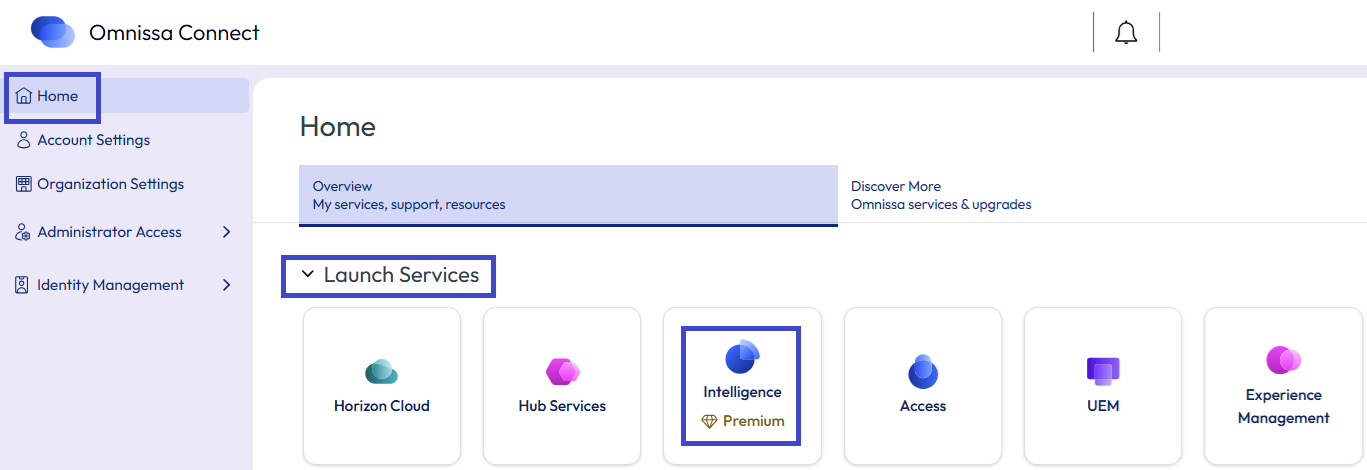
- Select Launch in the Intelligence tile.
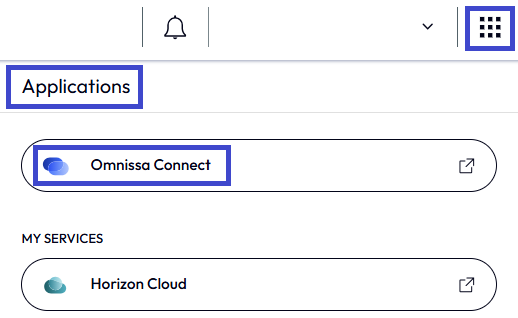
To return to Omnissa Connect, use the square in the header of the UI.
- Select the square in the upper right of the UI.
- Select Omnissa Connect from the Applications list view.
 .
.
Trial versions
To try licensed features of Omnissa Intelligence, you can activate a trial version and try them for free for 30 days. Features available to try include Freestyle, Dashboards, Experience Management, and Risk Analytics. Reporting is available to use without a trial.
To set up a trial, the system asks for contact information. Have an Omnissa Workspace ONE UEM admin enter their contact information that is associated with their admin credentials. The system uses this information to explore future licensing options.
A trial version of Omnissa Intelligence displays TRIAL banners on the user interface. It also notifies you of how many days you have left on your trial.
Activate a trial version
Work in the Omnissa Intelligence console to try the Premium version of Intelligence.
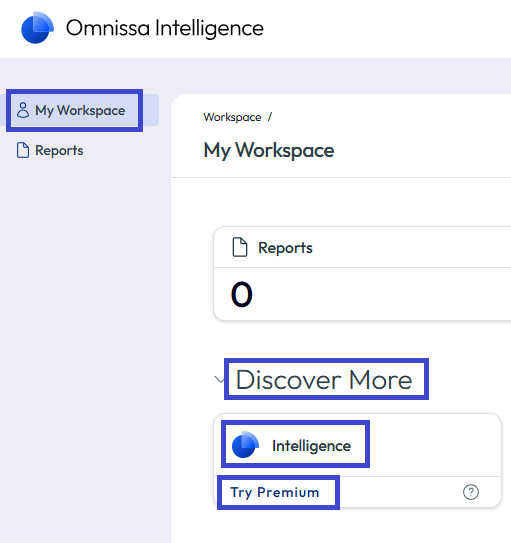
- In Intelligence, go to My Workspace, work in the Discover More section, and in the Intelligence tile, select to Try Premium.
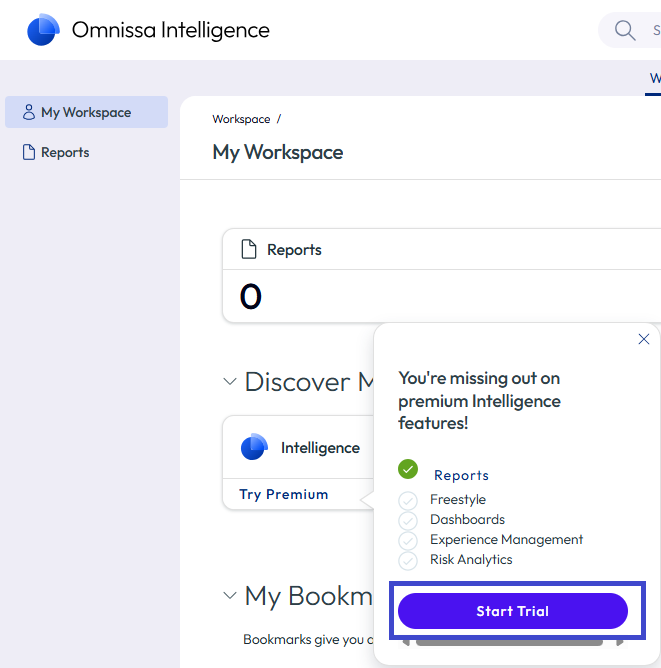
- Select the trial you want, and then choose Start Trial.
- Enter the information associated with your UEM admin credentials and select Accept.
- If you are trying Experience Management, activate the feature.
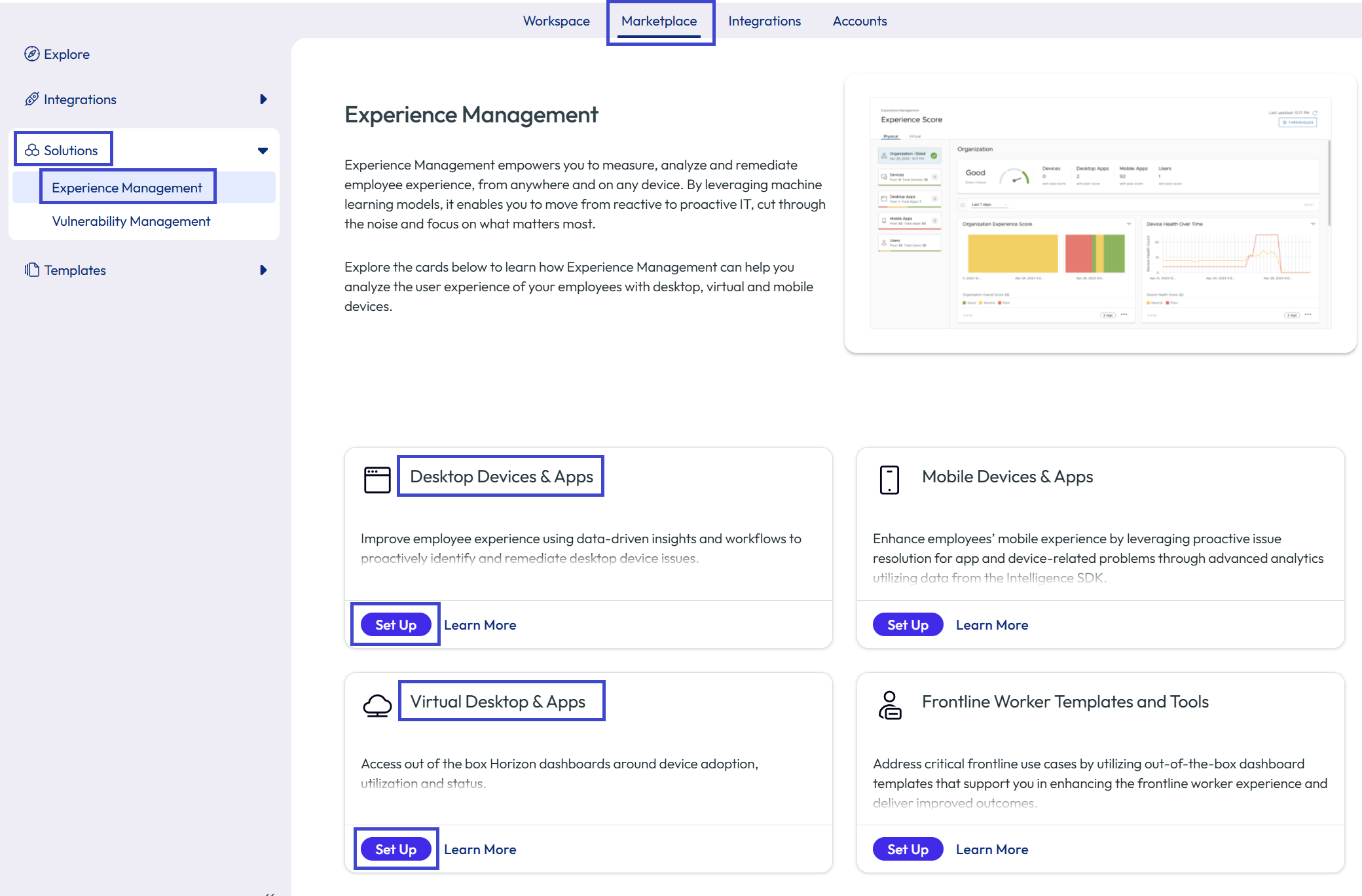
- In Intelligence, go to Marketplace > Solutions > Experience Management.
- Select Set Up in one of the listed tiles.
- Select Set Up in the Desktop Device & Apps tile to trial Experience Management for macOS and Windows.
- Select Set Up in the Virtual Desktop & Apps tile to trial Experience Management for Horizon.
Storage and sampling
Omnissa Intelligence uses deployment data to offer Dashboards, Workflows, and Reporting. All these features use the same data that streams from your Omnissa deployment.
The Workspace ONE system stores and manages the data in its cloud services infrastructure. The reports cloud service within the services infrastructure collects and imports data at regular intervals from Workspace ONE transactional databases.
Bookmarks
For convenience, bookmarks save your preferences and allow you to navigate between My Workspace and your dashboards, reports, and workflows (automations). The system saves your bookmarks to your Omnissa Intelligence admin account so the bookmarks are available when you are working in the system.
Navigation
Find your bookmarks in My Workspace > My Bookmarks.
Add bookmarks
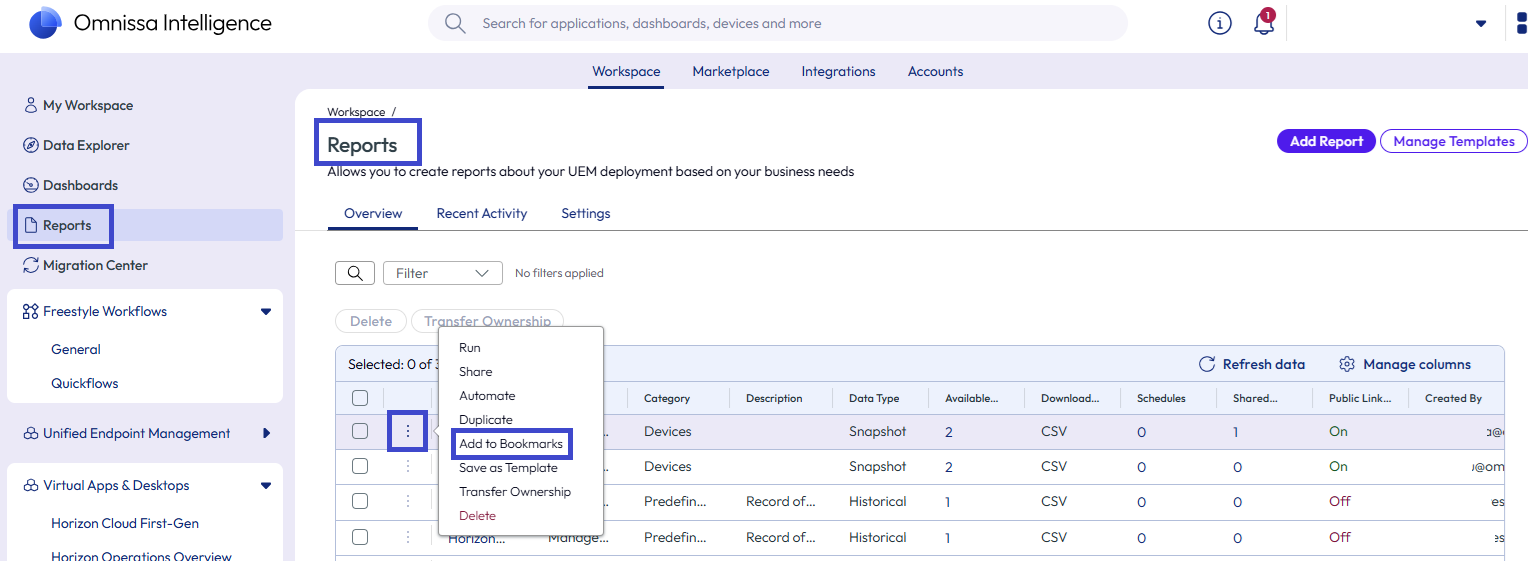
Use the bookmark icon or the ellipses menu to add a bookmark. If you use the ellipses menu, you can perform other management functions.
- Bookmark Icon: Select the bookmark icon in a dashboard or in a workflow to add it to My Workspace.
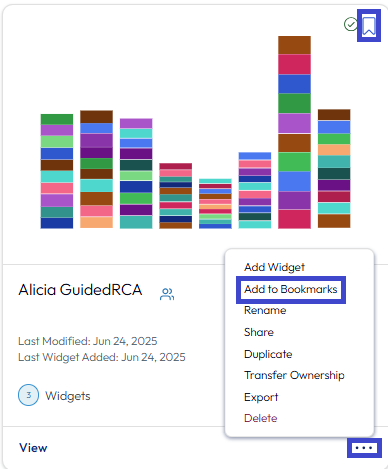
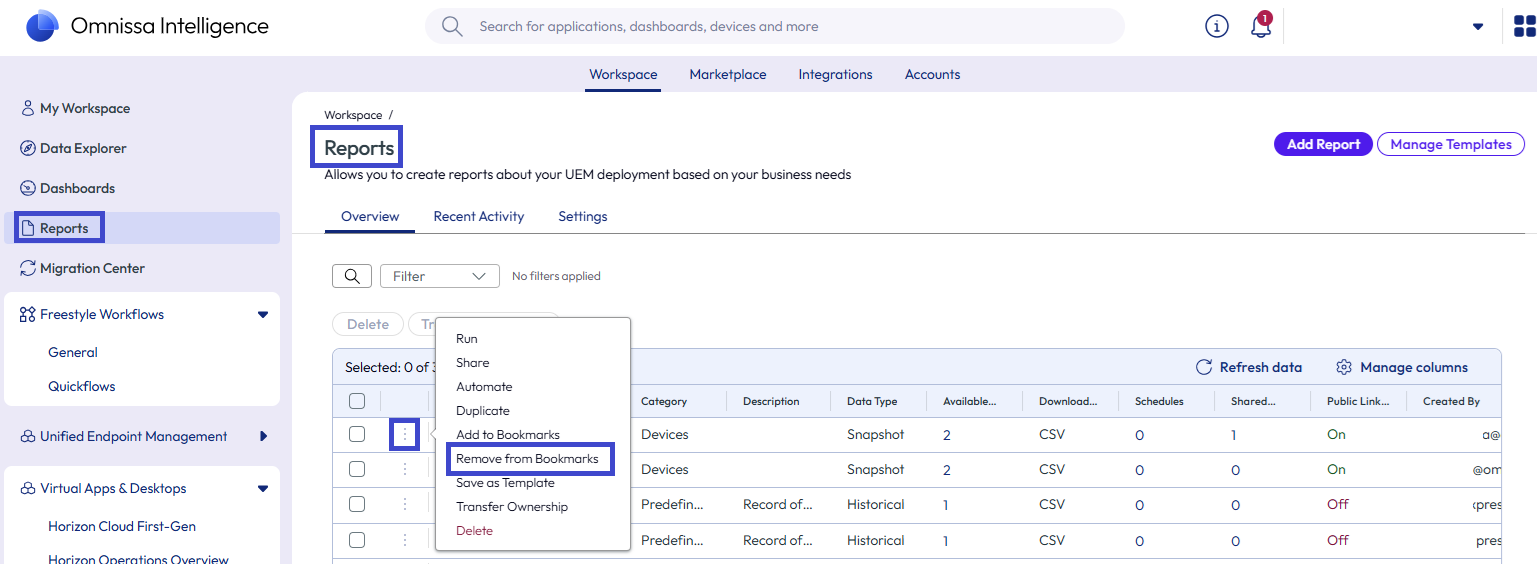
- Add to Bookmarks: Select the ellipses on dashboards or the reports list view and then select the Add to Bookmarks menu option to add the object to My Workspace.
Remove bookmarks
Remove bookmarks using the bookmark icon, the ellipses menu option, or the X icon in the My Bookmarks section.
- Bookmark Icon: Deselect the bookmark icon in a dashboard or in a workflow to remove it from My Workspace.
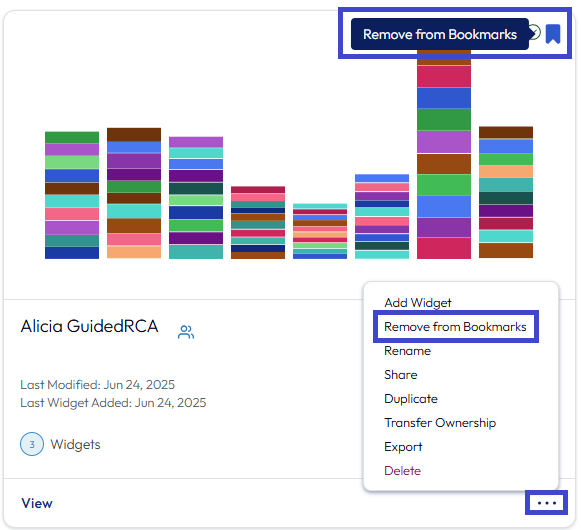
- Remove from Bookmarks: Select the ellipses on dashboards or the reports list view and then select the Remove from Bookmarks menu option to remove the object from My Workspace.
- My Bookmarks: In the My Bookmarks section, hover over the right, upper corner of a bookmark tile and select the X to remove a report, dashboard, or automation (workflow) bookmark.

Notifications
You might already receive notifications from Omnissa Intelligence by email. You can also view and interact with notification messages within the console. Omnissa Intelligence displays notifications in a banner or from a bell icon both located at the top of the screen. Notifications have three severity levels, Informational, Warning, and Critical.
Working with notifications
- In the header, select the bell icon to open the Notifications panel.
- Notifications panel
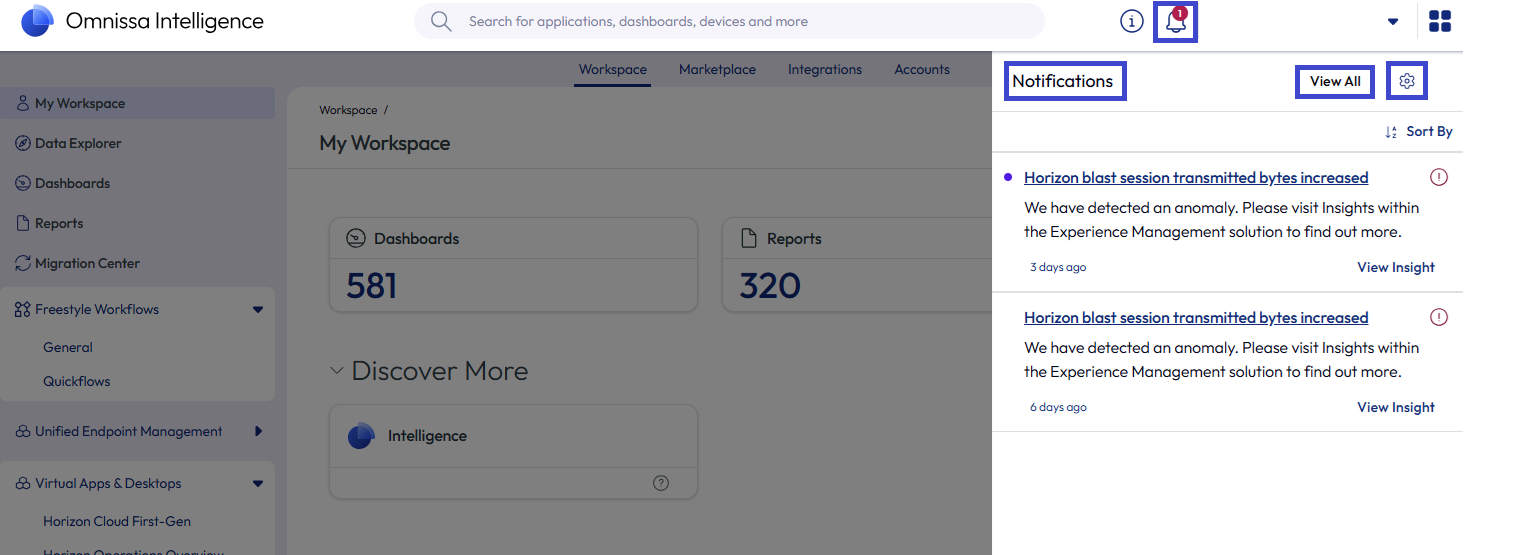
- In the Notifications panel, you can interact with messages individually by hovering over the upper, right corner of the message. Dismiss or mark notifications as read.
- You can also use the View Insight to get more information. Insights use the Guided Root Cause Analysis (gRCA) feature to detect anomalies.
- If you dismiss a notification from the panel, but you need to view it again, select the View All menu option. This selection takes you to the Notification Center.
- Notifications panel
- Select the View All menu option in the Notifications panel to navigate to the Notification Center where you can see a list of all your messages for the last 30 days.
- Notification Center
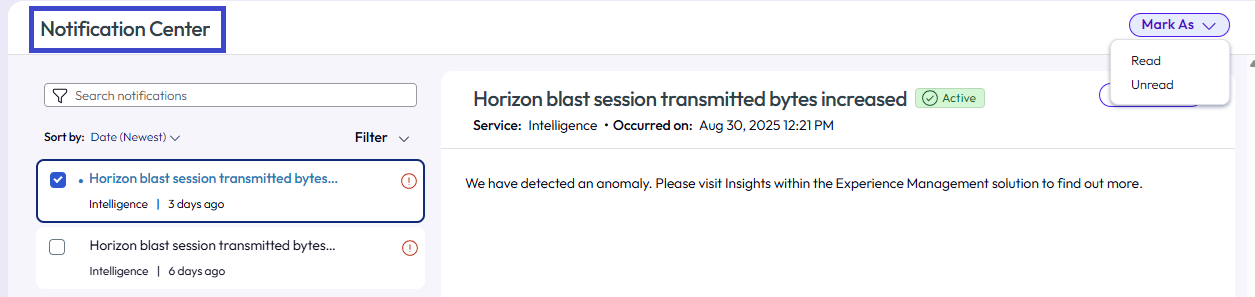
- Interact with notifications from this list either in bulk or individually. The center offers the same interactions as the panel so you can dismiss messages, mark them as read, and use the View Insights link to get more information.
- You can find options to sort and filter your notifications on this page.
- The Notification Center displays the status for notifications as Active or Inactive. Sometimes a notification may become expired or revoked. The expiring or revoking of the notification changes the status from active to inactive, but you can still find inactive notifications in the Notification Center.
- Notification Center
- In the left navigation, select Notifications > Settings to view Horizon announcements, to configure notifications for Intelligence, and to configure notifications for Access and Identity Services. You can also use the gear icon on the Notifications panel to get to this page.
- Notification Settings
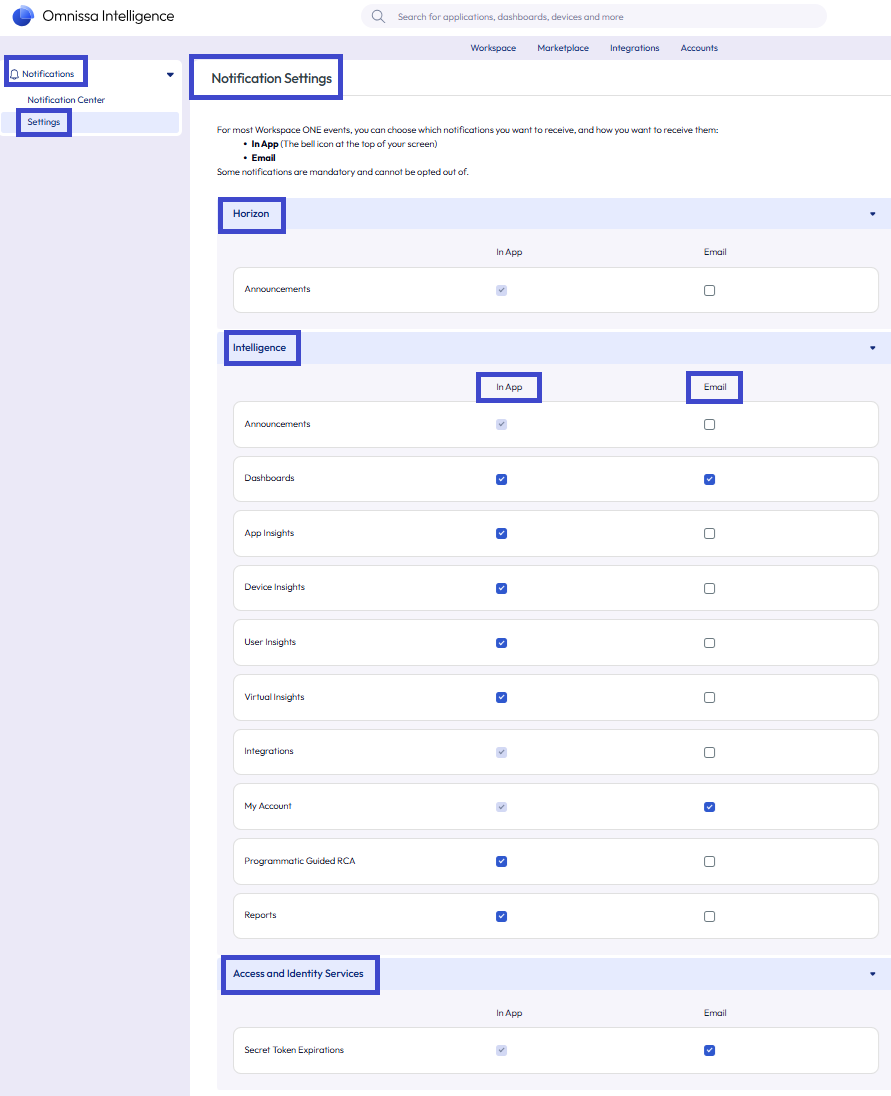
- Use this page to customize how you receive your notifications for your Omnissa services.
- There are some mandatory notifications that you cannot opt-out of receiving and you cannot make selections.
- You can select In App and Email notifications.
- Notification Settings
Notification examples
| Notification category | Notification subject | How it’s sent |
|---|---|---|
| Announcements | -Global announcements are shared periodically through in app and email. You must opt-in to receive these emails. | -In App |
| Dashboards | -Dashboard ownership transfers -Dashboard sharing | -In App |
| Integrations | -UEM integration disconnected -UEM integration resolved | -In App |
| My Account | -Admin access request -Admin role assignment -Admin role changes | -In App |
| Reports | -Report ownership transfers -Report sharing | -In App |
Data table display limits
Data tables in your dashboards, reports, and workflows have a display limit of 500 records or events (objects). Although an environment might have more than 500 objects, tables can still only display 500 objects.
Although the table display is limited to 500 objects, the widget that creates the table applies the rules, sorting, and filtering to all the data and then displays the first, matching 500 objects.
Was this page helpful?