Activate Omnissa Workspace ONE Intelligent Hub for iOS (Hub) to request Always Allow (always-on) location on managed iOS devices so the Omnissa Intelligence SDK can reliably collect location-based telemetry while Hub runs in the background. To activate the feature, configure settings in Omnissa Workspace ONE UEM so that users see applicable prompts on the device notifying them about the feature.
Why configure Always-Allow location?
The Intelligent Hub for iOS can collect device and location telemetry for Omnissa Intelligence. To collect location reliably while Hub is in the background, iOS requires the user to grant Always Allow (always-on) location permissions. Hub requests this escalation only when the administrator has signaled it is required, and only on UEM-managed devices that carry the required configuration.
This capability is intended almost exclusively for Frontline iOS use cases — for example, hospitals — where continuous background location improves the reliability of device analytics. It also supports scenarios such as locating a shared device if it is lost or stolen.
Off by default
The Intelligent Hub for iOS does not request always-on location unless it is explicitly activated to do so. The prompt appears only when the Intelligence SDK signals the feature is required (iOSContinuousDataCapture = true) and the device is UEM-managed with the listed key-value pairs in place.
How it works
The Intelligence SDK emits two telemetry key-value pairs (KVPs) that control this behavior. Intelligent Hub consumes them and decides whether to prompt the user to escalate location permission to Always.
| KVP | Default value | Description |
|---|---|---|
iOSContinuousDataCapture | false | Must be true to activate Hub to request Always-On location. When false, Hub does not prompt for it. |
iOSContinuousDataCaptureSensitivity | 0 (Low) | Optional. Sets the location sensitivity level (0–3), which determines desired accuracy, distance filter, and geofence radius. |
Sensitivity levels
Sensitivity is a single value (0–3) that sets three location parameters together — desired accuracy, distance filter, and geofence radius. Lower values favor battery life; higher values increase precision and how often telemetry is captured.
| Sensitivity | Desired accuracy | Distance filter (meters) | Geofence radius (meters) |
|---|---|---|---|
| 0 — Low | kCLLocationAccuracyThreeKilometers (≈ 3 km) | 500 | 500 |
| 1 — Medium | kCLLocationAccuracyKilometer (≈ 1 km) | 250 | 300 |
| 2 — High | kCLLocationAccuracyHundredMeters (≈ 100 m) | 100 | 200 |
| 3 — Maximum | kCLLocationAccuracyNearestTenMeters (≈ 10 m) | 50 | 100 |
- Desired accuracy
-How precisely iOS tries to resolve each location fix — from about 3 kilometers at Low to about 10 meters at maximum.
- Higher accuracy improves location quality but uses more battery.
- Distance filter
- The minimum distance the device must move before iOS sends Hub a new location.
- With a 500 m filter, for example, the device has to move roughly 500 m before the coordinates update.
- If it moves less than that between polls, Hub keeps the previous location.
- Smaller values capture movement more often and use more battery.
- Geofence radius
- While Hub is closed, the SDK sets a circular boundary of this size around the last known location.
- When the device crosses it, iOS briefly wakes Hub to record telemetry and a new boundary is drawn.
- A smaller radius wakes Hub more often
- Apple’s minimum is 100 m.
Set KVPs in UEM
Enter these KVPs as Custom Settings (JSON) in the Workspace ONE UEM console.
Expected battery impact
Omnissa tested this feature over an 8-hour period to approximate a working day, with the screen on throughout and a location or geofence event simulated about once per second at maximum accuracy — conditions more demanding than typical real-world use. Testing used a current iPhone 16 Pro (iOS 18) and an older iPhone X (iOS 16).
Additional battery used over the 8-hour test, compared with the same app running without the feature:
| Operating state | iPhone 16 Pro | iPhone X |
|---|---|---|
| App open in background, actively collecting | ≈ 5 pts | ≈ 0 pts |
| Force-quit, woken by geofence while moving | ≈ 7 pts | ≈ 11 pts |
| In background, stationary (few or no updates) | ≈ 0 pts | ≈ 13 pts |
For perspective, under these screen-on conditions the device alone drained roughly 25% (iPhone 16 Pro) to 60%+ (iPhone X) over the 8 hours — so most battery use comes from normal device activity rather than this feature.
Batteries use scales with the sensitivity setting. Higher sensitivity means more frequent location updates — roughly ten times as many over a 12-mile drive at maximum versus low. Choose the lowest sensitivity that meets your telemetry needs.
Based on internal testing
These results come from Omnissa internal testing under deliberately aggressive conditions. Actual battery impact varies by device model, iOS version, sensitivity setting, how much users move, network conditions, and other running apps — expect lower impact in most real-world deployments.
Prerequisites
Devices must run Omnissa Workspace ONE Intelligent Hub 26.05 or later for iOS. Earlier versions don’t support always-on background telemetry.
Procedure
Make configurations in the Workspace ONE UEM console so that the iOS device prompts only on UEM-managed iOS devices that have the required MDM configuration.
- Set the collection level for devices.
- In UEM, go to Groups & Settings > All Settings > Devices & Users > General > Privacy.
- Set Current Setting to Override (rather than Inherit) where appropriate.
- Under Location > GPS Data, select a collection level (for example, Collect and Display) for the ownership types you manage: Corporate – Dedicated, Corporate – Shared, Employee Owned, and Unassigned.
- Activate GPS settings for the classes of registrations you deem appropriate for your deployment.
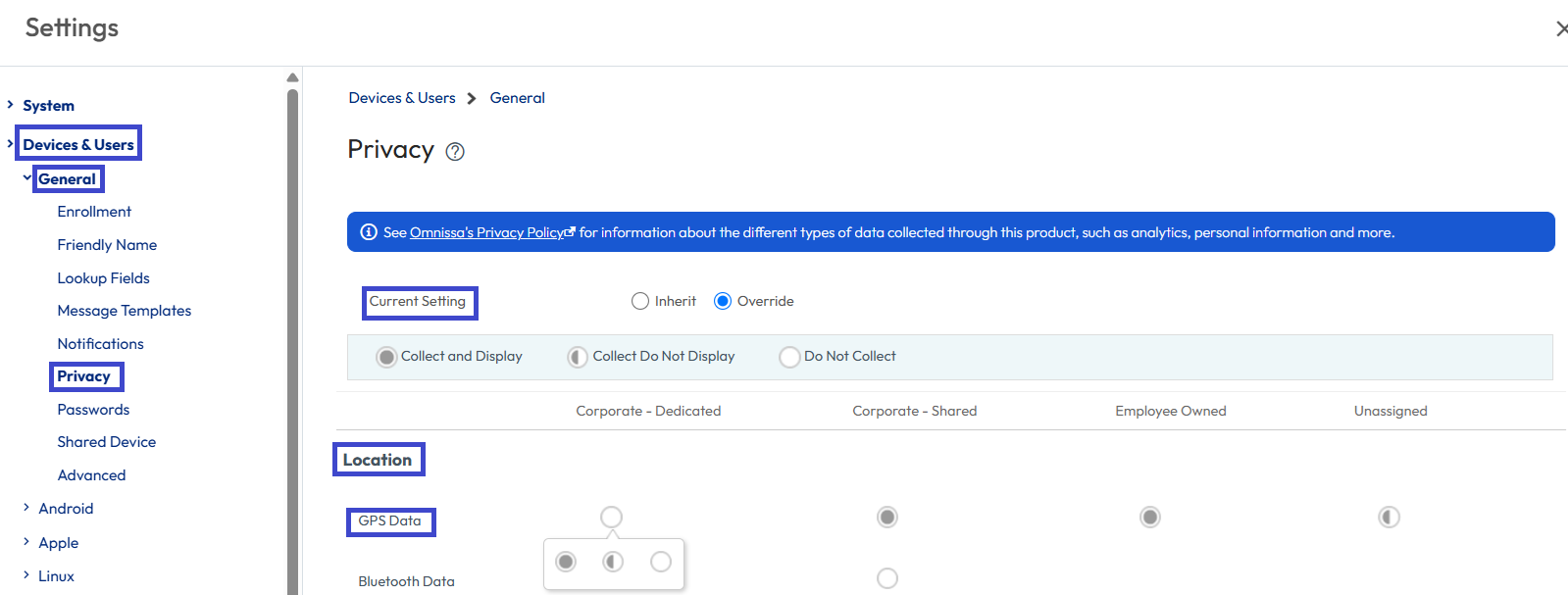
- Activate GPS settings for the classes of registrations you deem appropriate for your deployment.
- Scroll to the bottom of the page and save your settings.
- Turn on Collect Location Data for the Intelligent Hub.
- Still in UEM, go to Groups & Settings > All Settings > Devices & Users > Apple > Apple iOS > Intelligent Hub Settings.
- Set the Current Setting to Override where appropriate.
- On the General tab, in the Area section, activate Collect Location Data. This must be turned on.
- In the General area, confirm that Background App Refresh is activated so Hub can run and report in the background.
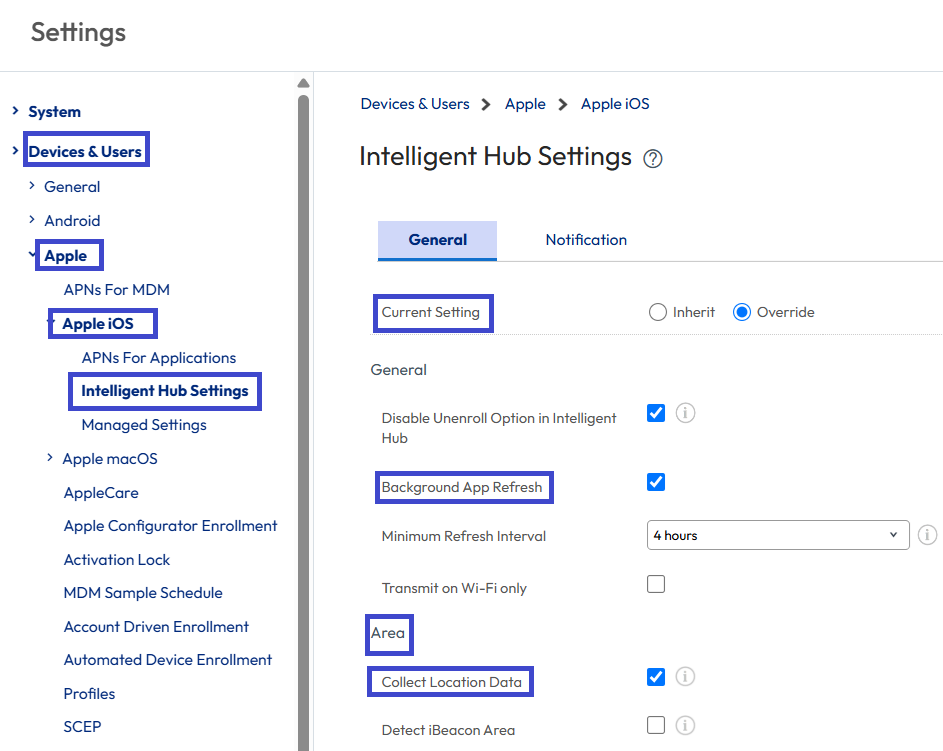
- Review the Minimum Refresh Interval (for example, 4 hours) for how often Hub refreshes in the background.
- Scroll to the bottom of the page and save your settings.
- Enter the KVPs as a Custom Setting in the default SDK profile.
- Still working in UEM, go to Groups & Settings > All Settings > Apps > Settings and Policies > Settings.
- Set the Current Setting to Override.
- Set Custom Settings to Enabled.
- In the Custom Settings field, enter the KVPs as a JSON.
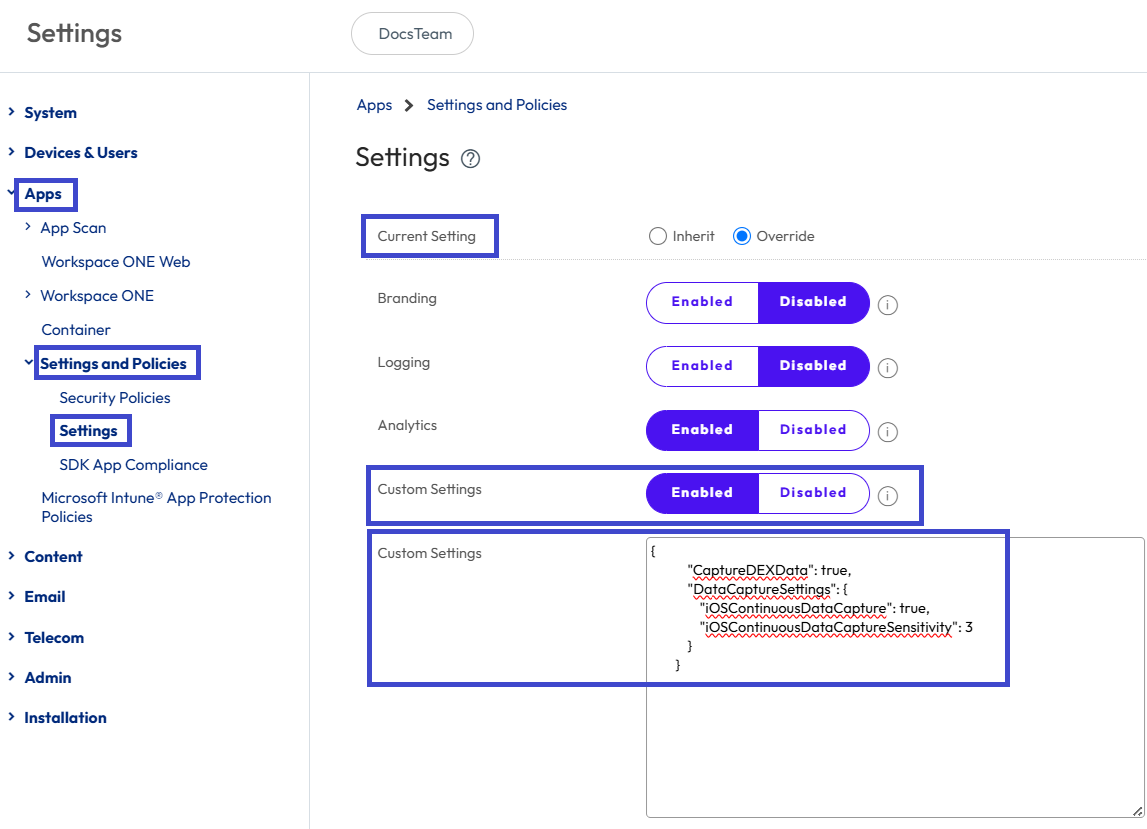
CaptureDEXDataactivates Mobile Analytics collection andDataCaptureSettingsturns on always-on location.- Adding
iOSContinuousDataCaptureSensitivityis optional. Omit it to use the default (0, Low), or set a value of 0–3.
{ "CaptureDEXData": true, "DataCaptureSettings": { "iOSContinuousDataCapture": true, "iOSContinuousDataCaptureSensitivity": 3 } } - Save your settings.
What do end-users see?
iOS grants location access in stages. After configuration, Hub triggers the standard system prompts below. The explanatory text is supplied by the workplace policy, so users see why the request is being made.
Screen 1: Initial location request (While Using)
iOS first asks whether Hub may use their location. The dialog reads Allow ‘Hub’ to use your location with the policy note The policy set by your workplace enables this app to collect your location only while it is open or in the background...
Options include Allow Once, Allow While Using App, and Don’t Allow. To activate telemetry, the user selects Allow While Using App. 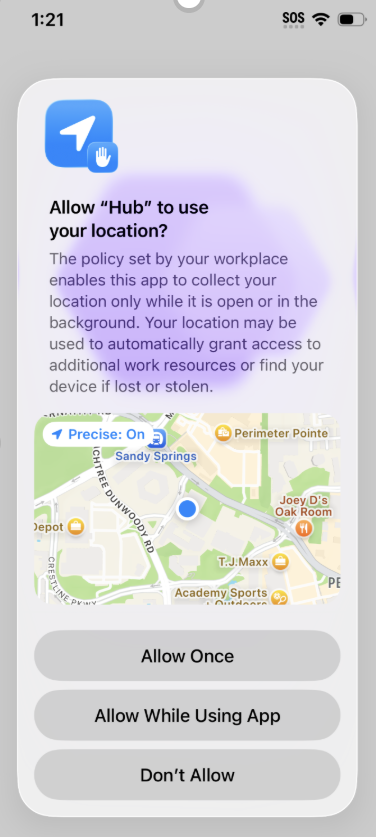
Screen 2: Escalation to Always Allow
iOS asks the user to extend permission to the background. The dialog reads Allow ‘Hub’ to also use your location even when you are not using the app? with the note …enables this app to collect your location in a continuous manner or while it is in the background…
Options include Keep Only While Using or Change to Always Allow. To activate continuous background telemetry, the user selects Change to Always Allow.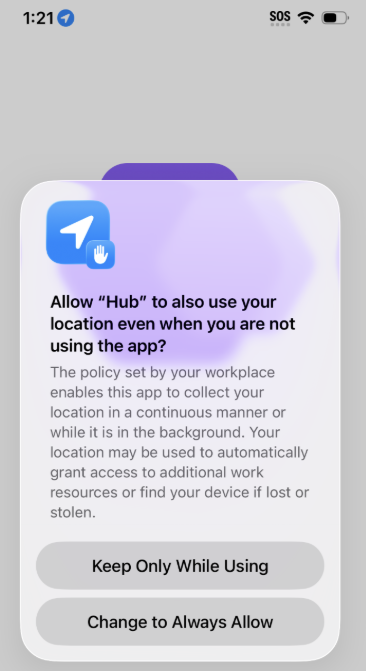
Timing and precise location
iOS, not Hub, controls when the Always Allow escalation display. The prompt typically follows the initial While-Using grant rather than appearing immediately. Keep Precise Location on for accurate telemetry.
More prompts and frequency
After a user grants Always Allow, iOS periodically re-confirms background location use. This is an Apple privacy feature introduced in iOS 13 and is controlled by iOS, not by Hub or the administrator. 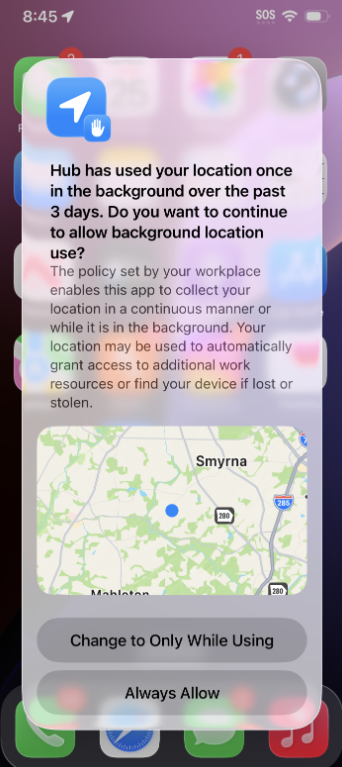
How often users see it
iOS shows the reminder on its own schedule — typically every few days (users commonly report a few times a week). It reappears regardless of how many times the user has already approved, and there is no setting to deactivate only this reminder. The count and map shown reflect how often Hub accessed location in the background during a particular window (for example, “once… over the past 3 days”).
What users should choose
To keep background telemetry flowing, the user should select Always Allow each time the reminder appears. Choosing Change to Only While Using stops background collection until permission is granted again.
Set expectations with Frontline users
Since the reminder recurs by design, tell Frontline users in advance why Hub appears in these prompts and that selecting Always Allow is expected. Telling them this upfront reduces support tickets and accidental opt-outs.
Notes and considerations
- Always-on location is off by default. Hub prompts only when
iOSContinuousDataCapture = trueand the device is UEM-managed with the configuration above. - Keep Precise Location on and Background App Refresh activated for reliable telemetry.
- The recurring iOS reminder cannot be suppressed. Plan end-user communications accordingly.
Was this page helpful?