The Omnissa Marketplace, accessed from Omnissa Connect and from Omnissa Intelligence, provides a rich set of out-of-the-box content for the Omnissa admin that include Solutions, Integrations, and Templates. Use these features and services to quickly address endpoint management, user experience, and workspace security use cases.
Navigation
Omnissa Intelligence
Find the Marketplace in the top navigation in Intelligence, and use the left navigation to access Integrations, Solutions, and Templates.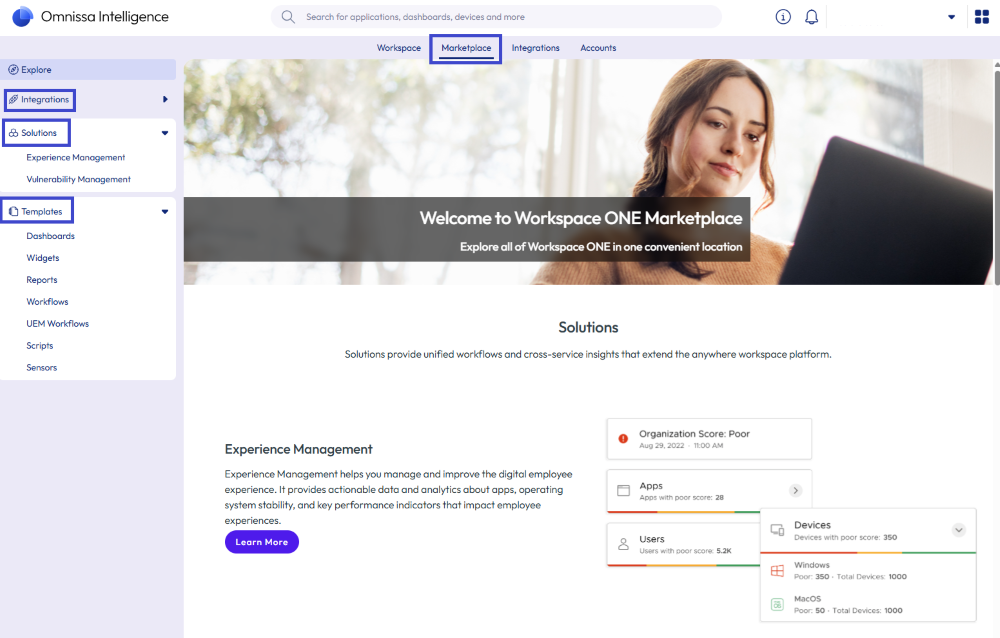
Omnissa Connect
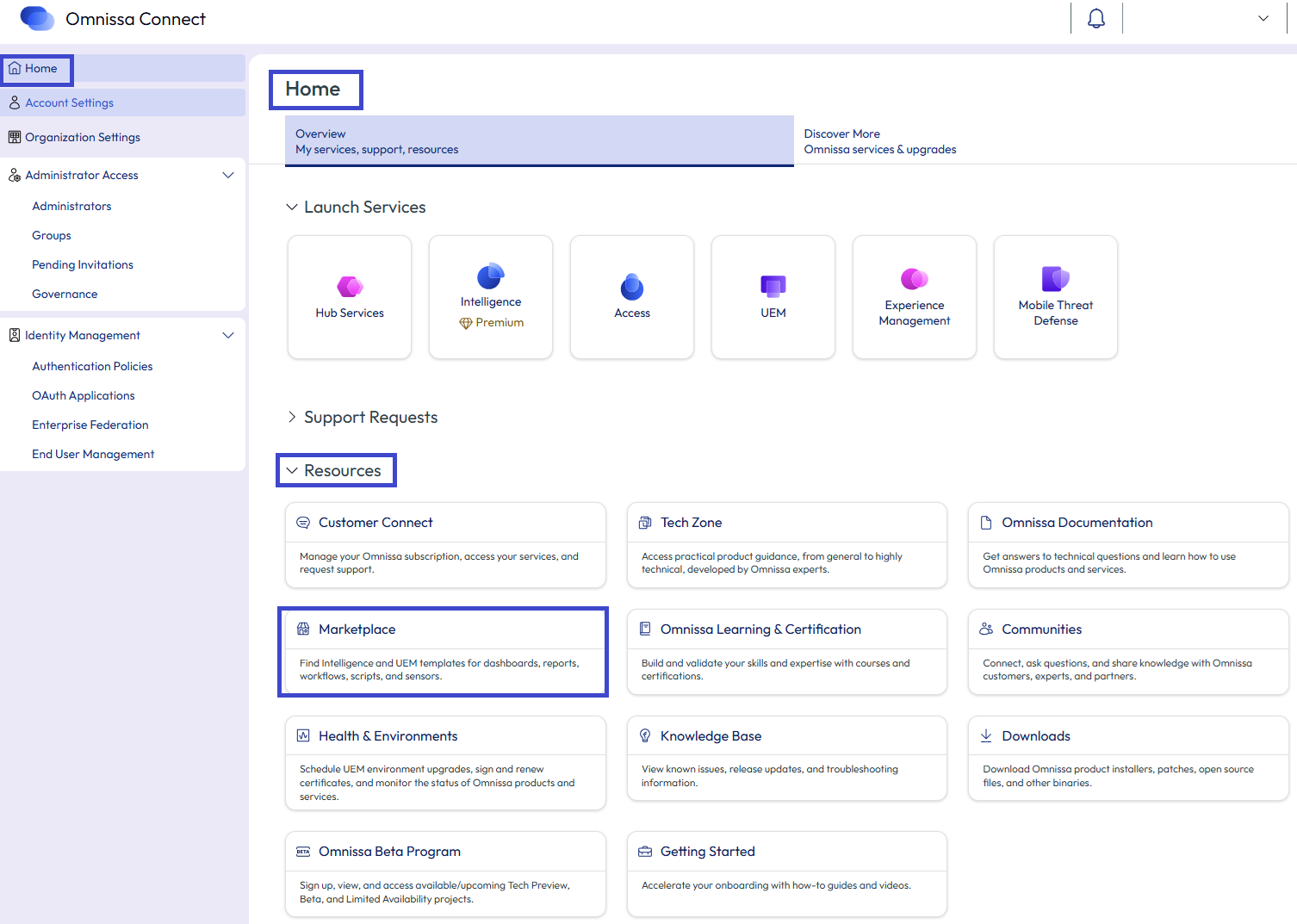
Find the Marketplace tile on the Omnissa Connect Home page, in the Resources area.
What does the Marketplace have?
Marketplace is a curated repository where you can find useful Omnissa features and services in one place, for seamless implementation and quick deployment. Use this content to speed up implementation, explore new use cases and IT tasks, and help simplify complex business processes. You can find Integrations, Solutions, and Templates in Marketplace.
Integrations
Integrations provide connectors to authorize Omnissa Intelligence to connect and share data with other Omnissa services. You can also use Integrations to extend the Workspace ONE solution to your IT ecosystem and to connect with other apps. For example, integrate Intelligence with apps like Slack and ServiceNow to drive more advanced workflows.
Solutions
Solutions provide a suite of features such as unified workflows, cross-service insights, and meaningful dashboards that you can use to automate endpoint configurations and elevate Experience Management.
With the Experience Management Solution use actionable data and analytics about apps, operating system stability, and key performance indicators to enhance the digital employee experience.
Templates
Templates are ready-to-use reports, dashboards, widgets, workflows, and scripts samples curated for your business requirements. Browse through these templates and deploy them easily with one click to speed up your Workspace ONE adoption.
Available templates
- Dashboards: These collections of common dashboard widgets allow the consolidation of relevant visualizations for an entire use case in one central location.
- Dashboard templates help you get quick visibility into use cases such as device deployment, mobile security, and front line user experience.
- Use these templates as a starting point to easily customize dashboards to your unique deployment need.
- Widgets: Choose from popular widgets to populate custom dashboards. Examples include lists of users with the most enrolled devices, breakdowns of Android device battery health by org group, and counts of Windows devices by OS version.
- Reports: You can deploy popular reports at the click of a button. Select templates that include storage capacity details, Windows devices with CVE vulnerability, and Android devices with security patch details.
- Workflows: Powerful workflows automate IT tasks, and you can edit them based on your specific business needs and requirements. For details about workflows and Freestyle Orchestrator in Intelligence, see Freestyle Orchestrator.
- Freestyle: Automate device management tasks with Freestyle workflows. You can automate tasks like managing macOS major updates and managing application updates to enrolled devices. You can preview the workflow steps, download the template from the Marketplace, and import the template into Freestyle. For details about Freestyle Orchestrator for Workspace ONE UEM, see What is Freestyle Orchestrator?.
- Sensors and Scripts: Powerful sensors and scripts provide fine-tuned, system-level controls and remediation codes for your desktop deployments. Discover sensors and scripts templates in the Marketplace designed for Workspace ONE UEM desktop management use cases.
- In Workspace ONE UEM, use sensors to collect device data and use scripts to automate endpoint configurations. An example of sensors and scripts is tracking which Windows devices are not up-to-date with Windows Updates, and then scripting an action to notify non-compliant devices that they need to update.
- Sensors and scripts work on macOS and Windows Desktop devices.
- Rather than writing your own sensors or scripts code, use sensors and scripts templates to apply code to your managed macOS and Windows Desktop devices.
- For further details about what sensors and scripts are, see the listed Workspace ONE UEM topics.
How do you work with templates?
You can search for a specific template and add filters to find a template in the Marketplace. For all templates, you can preview it and add it to your Workspace. You can even deploy certain templates, like scripts and sensors.
- In the Marketplace, go to Templates and select a template type.
- (Optional) Use the Search text field to enter key words to find a template.
- (Optional) Use the filters to narrow your search for a template.
- Select a template and then choose to Preview the template to view its details to ensure it meets your use case.
- If you like the preview, select Add To Workspace to use the template. If the template does not have what you need, arrow out of the preview.
- For Widgets
- When you add a widget to the Workspace, the system adds it to a dashboard.
- You can add the widget to a new dashboard or add it to an existing dashboard.
- For Widgets
- You can edit a template after you add it to your Workspace.
Was this page helpful?