Integrate your Lenovo warranty information with the Omnissa Workspace ONE Experience Management solution in Omnissa Intelligence to display Lenovo device warranty and service entitlement data so that admins can view warranty coverage alongside the applicable device context.
Why integrate?
Integrate your Lenovo warranty information with Experience Management in Intelligence to benefit from the listed features.
- View Lenovo warranty and service entitlement information for supported Lenovo devices.
- Identify warranty coverage start and end dates.
- Review service obligation details such as warranty type, service level, and entitlement duration.
- Analyze warranty data alongside device metadata such as device name, serial number, user, and Workspace ONE context.
- Build dashboards, reports, and workflows using Lenovo warranty data.
Lenovo documentation
See the Lenovo Product Warranty API topic for information about Product Warranty APIs.
Contact your Lenovo enterprise support representative for information about accessing the warranty API.
Sync intervals
The integrated systems perform an initial sync inline as part of the setup process. After that, syncing occurs automatically through a scheduled weekly sync.
Requirements
You must use the listed solutions to use this integration.
- Use the Experience Management solution.
- Manage your devices with Omnissa Workspace ONE UEM.
- Lenovo devices must be properly inventoried in Workspace ONE, including by serial number.
- Have access to the Lenovo Warranty API (Lenovo Support/Services entitlement APIs).
Request access to the Lenovo Warranty API
You need access to the Lenovo Warranty API so that you can enter a client ID in Intelligence for successful integration.
- Lenovo Account
- A registered Lenovo ID (enterprise or partner account) is required.
- Devices should be associated with the same Lenovo account, where possible.
- API Access Approval
- Request access to Lenovo warranty or entitlement APIs through your Lenovo enterprise support representative or Lenovo API onboarding process.
- Approval is typically intended for enterprise customers managing fleets of Lenovo devices.
- Credentials
- After the request is approved, Lenovo issues API credentials by providing a client ID.
- Omnissa Intelligence uses these credentials to retrieve warranty data.
Integrate Lenovo
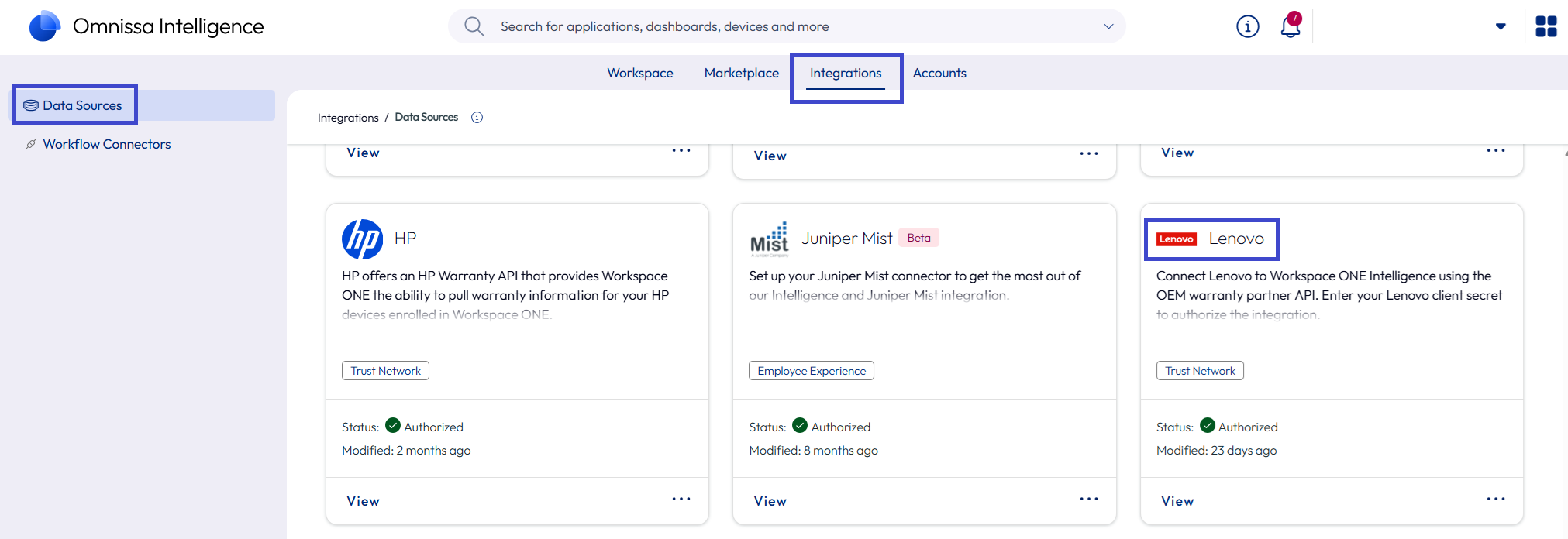
Use the Data Sources > Lenovo tile in Omnissa Intelligence to configure the integration and authorize access to Lenovo warranty data.
- In Intelligence, go to Integrations > Data Sources and find the Lenovo tile.
- Select Set Up on the Lenovo tile.
- Go to the Credentials tab and enter the Client ID you got from Lenovo.
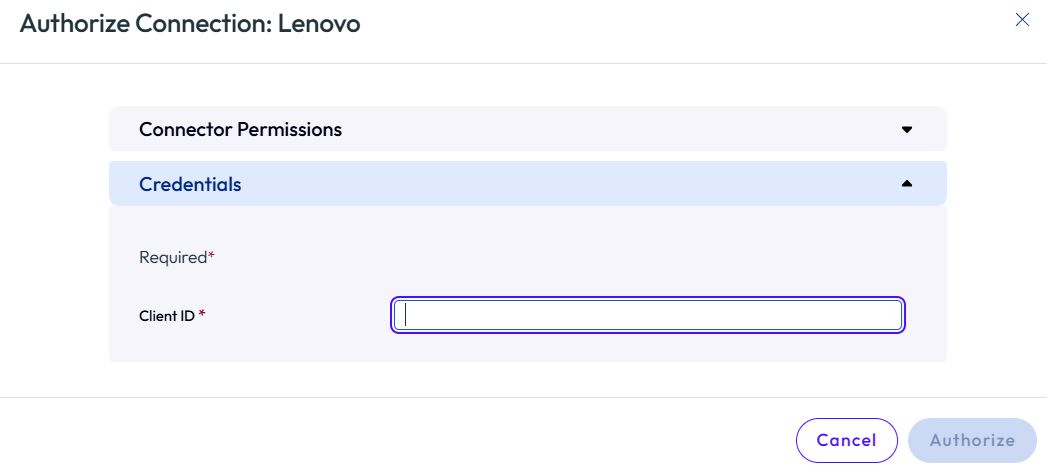
- Select Authorize.
Experience Management can retrieve Lenovo warranty details and make them available across dashboards, reports, and workflows.
Validate integration
Validate the Lenovo integration using a custom widget and the logs.
Custom widget
Make a custom widget in a new custom dashboard or add the widget to an existing dashboard. Follow the procedure to create a new dashboard with a custom widget.
- In Intelligence, go to Workspace > Dashboards and select Add > Custom Dashboard.
- Enter a name for the dashboard and save it.
- In your custom dashboard, select to Add Widget.
- Enter a name for the widget and then select the data source Lenovo > Lenovo Warranty.
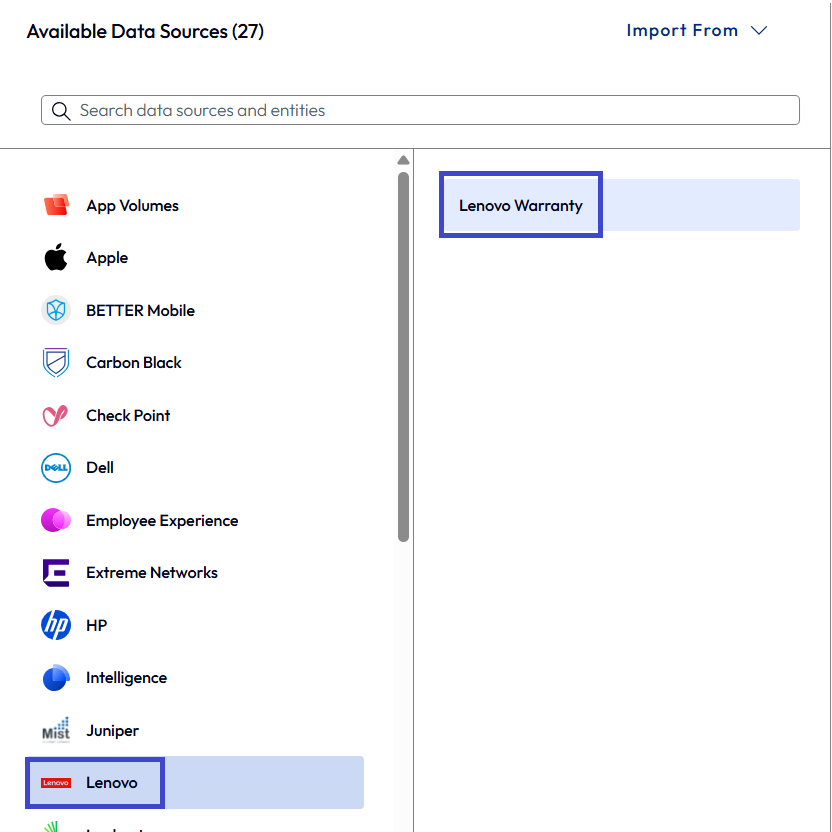
- You don’t need to configure other widget settings. The widget only requires the data source.
- Look for the listed data sets to populate in the preview pane.
- The warranty start and end dates
- Service or entitlement-level records
- Device context fields (such as device name, serial number, username)
Check logs
You can also look at the logs to see that no authorization or API errors appear in the integration status or logs. Access the logs by selecting the Lenovo tile in Integrations > Data Sources, select View, and choose a log option, to download or copy. 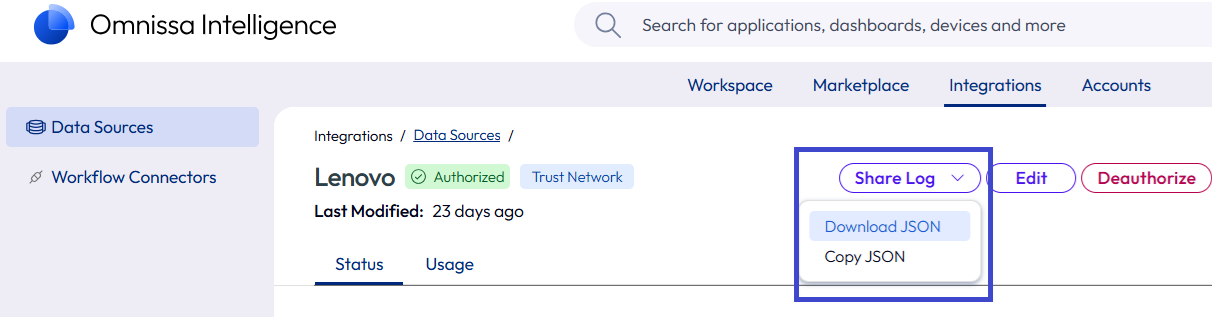
Manage the Lenovo integration
Use the Data Sources > Lenovo tile to manage the integration in Intelligence.
- In Intelligence, go to Integrations > Data Sources and find the Lenovo tile.
- Select View, Edit, or Deauthorize on the Lenovo tile.
- View: From the Lenovo details page, you can see information about Status and Usage for the integration. You can also access log files from this details page.
- Edit: Use this menu option if you need to update the Client ID.
- Deauthorize: Use this menu option when you no longer want to use this integration and you do not want your warranty information displayed in Intelligence.
Data definitions
Find definitions for the data points used in this feature in the Warranty Management topic.
Was this page helpful?