Integrate your HP Development Company warranty information with the Omnissa Workspace ONE Experience Management solution in Omnissa Intelligence to display HP device warranty and service entitlement data so that admins can view warranty coverage alongside the applicable device context.
Why integrate?
Integrate your HP warranty information with Experience Management in Intelligence so to benefit from the listed features.
- View HP warranty and service entitlement information for supported HP devices.
- Identify coverage start and end dates.
- Review service obligation details such as service type, service period, and offer details.
- Analyze warranty data together with device metadata such as friendly name, username, and Workspace ONE device context.
- Build dashboards, reports, and workflows using HP warranty data.
HP documentation
We have listed some suggested HP documentation sites to help with the process to access the Commercial HP Warranty API.
Sync intervals
The integrated systems perform an initial sync inline as part of the setup process. After that, syncing occurs automatically through a scheduled weekly sync.
Requirements
You must use the listed solutions to use this integration.
- Use the Experience Management solution.
- Manage your devices with Omnissa Workspace ONE UEM.
- Have an HP Developers Portal account with permissions to request access to the HP Warranty API tech group and to the Commercial HP Warranty API.
- Note that sometimes Commercial HP Warranty API access requires approval from an HP Account Manager. Omnissa does not control this process.
- Register all your devices under one HP Account and generate application keys for the same account so that Experience Management can access the warranty information for all devices.
Request access to the Commercial HP Warranty API
You need access to the Commercial HP Warranty API key and secret so that you can enter them in to Intelligence for successful integration.
- HP Developers Portal: To access the Commercial HP Warranty API, you need a registered account on the HP Developers Portal.
- HP Warranty API tech group: From the developer portal, request access to the HP Warranty API tech group. You can also reach out to your HP representative or your HP Account Manager for the email to use to request access.
- HP designed this tech group for enterprise customers to track fleets of devices. These fleets often require approval from an HP Account Manager for full access.
- Outline and provide a business use case for access to the tech group.
- The HP Warranty API tech group is sometimes listed under the HP Client Management or the HP Proactive Insights portfolios.
- Approval: In general, HP offers Commercial HP Warranty API approval and access to enterprise customers.
- Look for an approval email from HP.
- The Commercial HP Warranty API is not intended for third-party independent software vendors (ISVs) or IT service companies.
Integrate HP
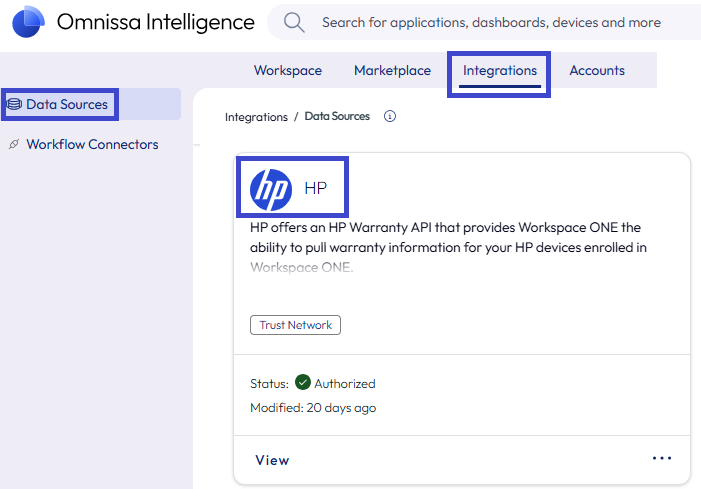
Use the Data Sources > HP tile to enter your API key and secret in to Intelligence so that Experience Management can display warranty details in dashboards, reports, and workflows.
- In Intelligence, go to Integrations > Data Sources and find the HP tile.
- Select Set Up on the HP tile.
- Go to the Credentials tab and enter the API Key and the API Secret you got from the HP Warranty API tech group.
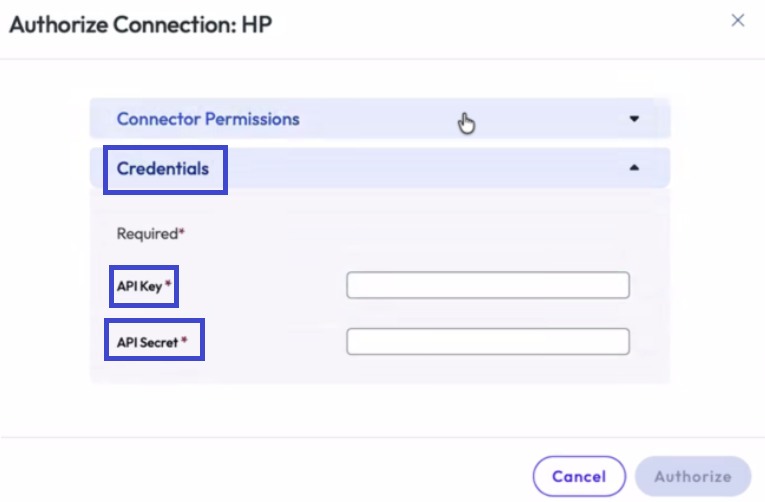
- Select Authorize.
You can now use HP warranty information in your dashboards, reports, and workflows.
Validate integration
Validate the HP integration. You can check this by making a custom widget in a new custom dashboard or adding the widget to an existing dashboard. Follow the procedure to create a new dashboard with a custom widget.
- In Intelligence, go to Workspace > Dashboards and select Add > Custom Dashboard.
- Enter a name for the dashboard and save it.
- In your custom dashboard, select to Add Widget.
- Enter a name for the widget and then select the data source HP > HP Warranty.
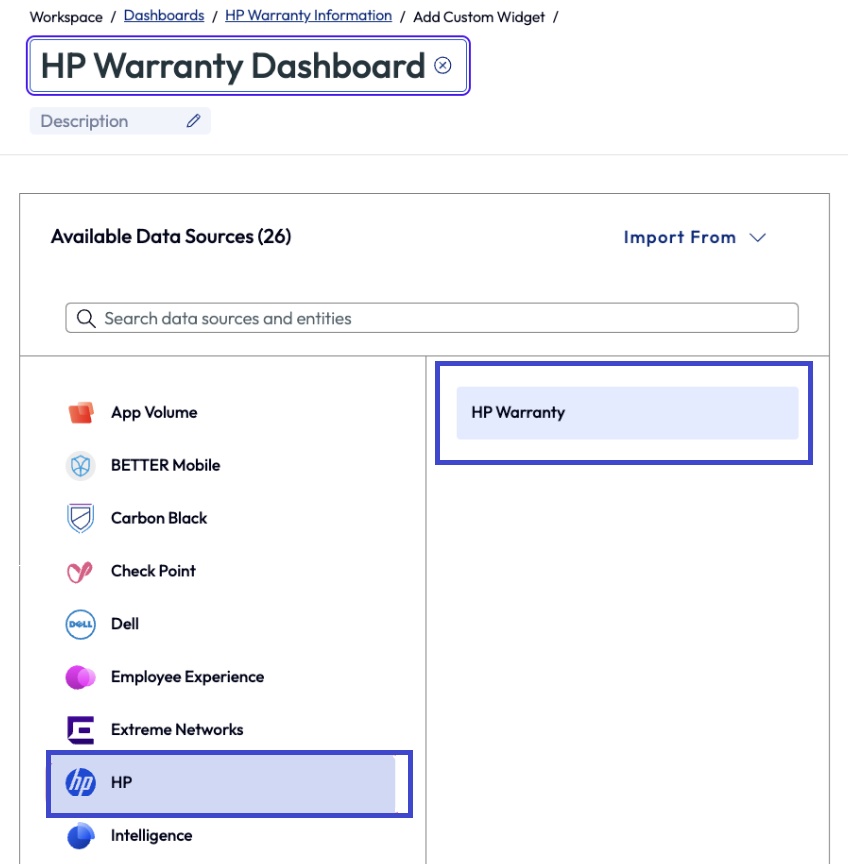
- You don’t need to configure other widget settings. The widget only requires the data source.
- Look for the listed data sets to populate in the preview pane.
- The widget populates warranty dates.
- The widget displays offer-level records.
- The widget populates device context fields such as friendly name and username where applicable.
Manage the HP integration
Use the Data Sources > HP tile to manage the integration in Intelligence.
- In Intelligence, go to Integrations > Data Sources and find the HP tile.
- Select View, Edit, or Deauthorize on the HP tile.
- View: From the HP details page, you can see information about Status and Usage for the integration. You can also access log files from this details page.
- Edit: Use this menu option if you need to update the API Key and the API Secret.
- Deauthorize: Use this menu option when you no longer want to use this integration and you do not want your warranty information displayed in Intelligence.
Data definitions
Find definitions for the data points used in this feature in the Warranty Management topic.
Components for creating custom dashboards and reports
To create custom dashboards and reports for your HP warranty data, use the listed events when you add widgets to dashboards and configure reports. Building HP warranty dashboards and reports lets you surface coverage gaps before they affect your end users.
HP uses a flattened warranty data event model. Each warrantied device produces several events.
- One event for service included in the warranty contract.
- One event for warranty characteristics.
- One event for HP messaging.
When you configure custom dashboards and reports, use the applicable event to collect and display the relevant data.
| Event Value | Description |
|---|---|
| offers_deliverables | One service included in a warranty contract, for example Onsite Support or Hardware Problem Diagnosis. |
| offers_modifiers | One warranty characteristic, for example duration in months, coverage window, or response time. |
| messages | An HP message or warning returned with the warranty lookup. |
Example: Build a fleet coverage overview dashboard
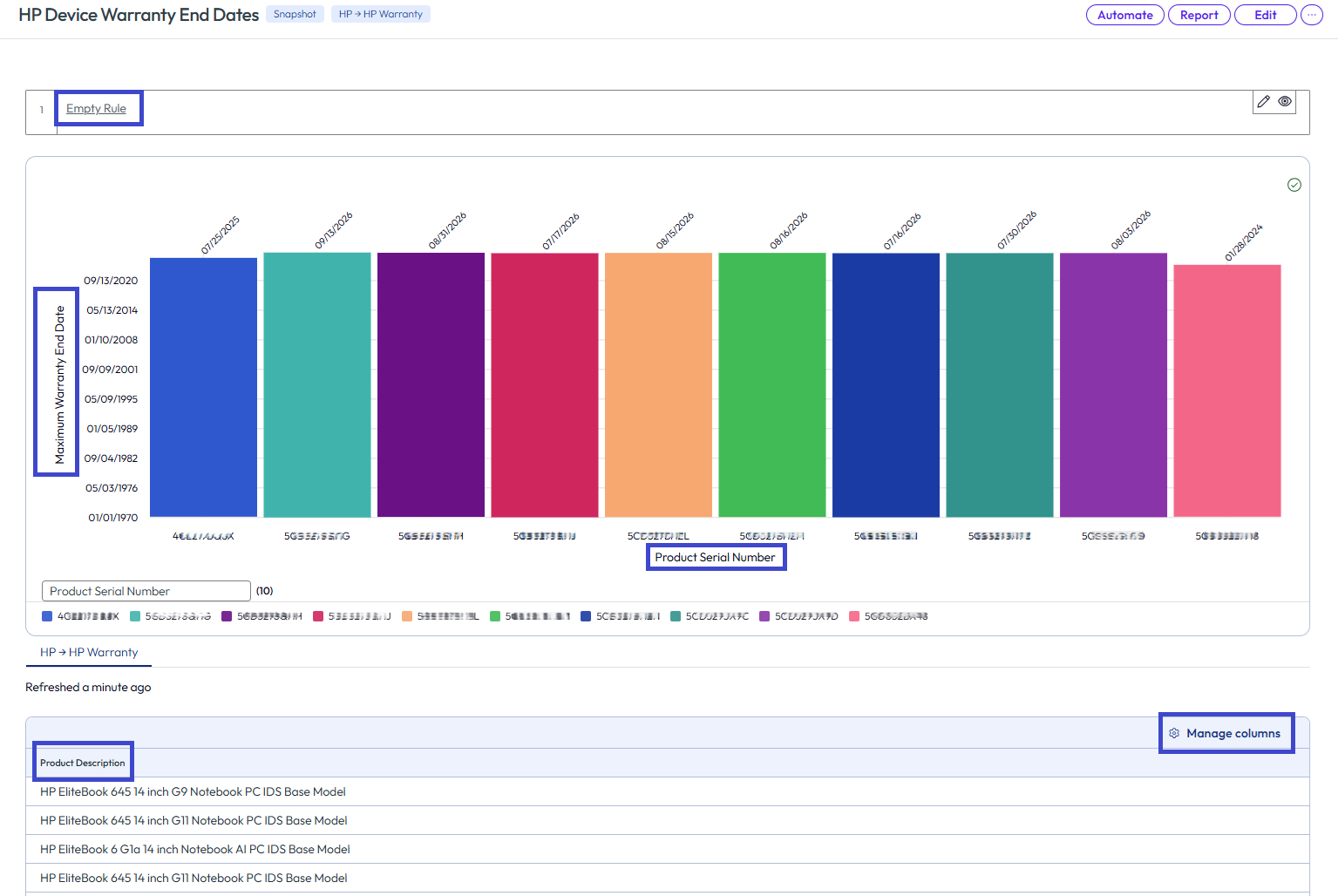
Use this example to build a dashboard that displays all your HP devices and their latest warranty end dates.
- In Intelligence, go to Dashboards and add a widget to an existing dashboard or create a custom dashboard to add the widget to.
- Add a widget to the dashboard. You can title it something like HP Device Warranty End Dates.
- Select HP > HP Warranty for the Data Source.
- Select the Vertical chart type.
- You can change the chart type to see if another type might fit your needs. However, be aware, not all widget options are available for other chart types.
- Measure by Max and Warranty End Date.
- Add a Group by entry as Product Serial Number.
- Select a number to display, for example 10.
- Use the preview to help you decide the number of devices you want to display per group.
- Do not select a filter because filtering on an event returns multiple rows per device. We want one device per bar.
- Save the widget.
- Open or View the widget and add a column for Product Description by selecting the Manage columns menu option.
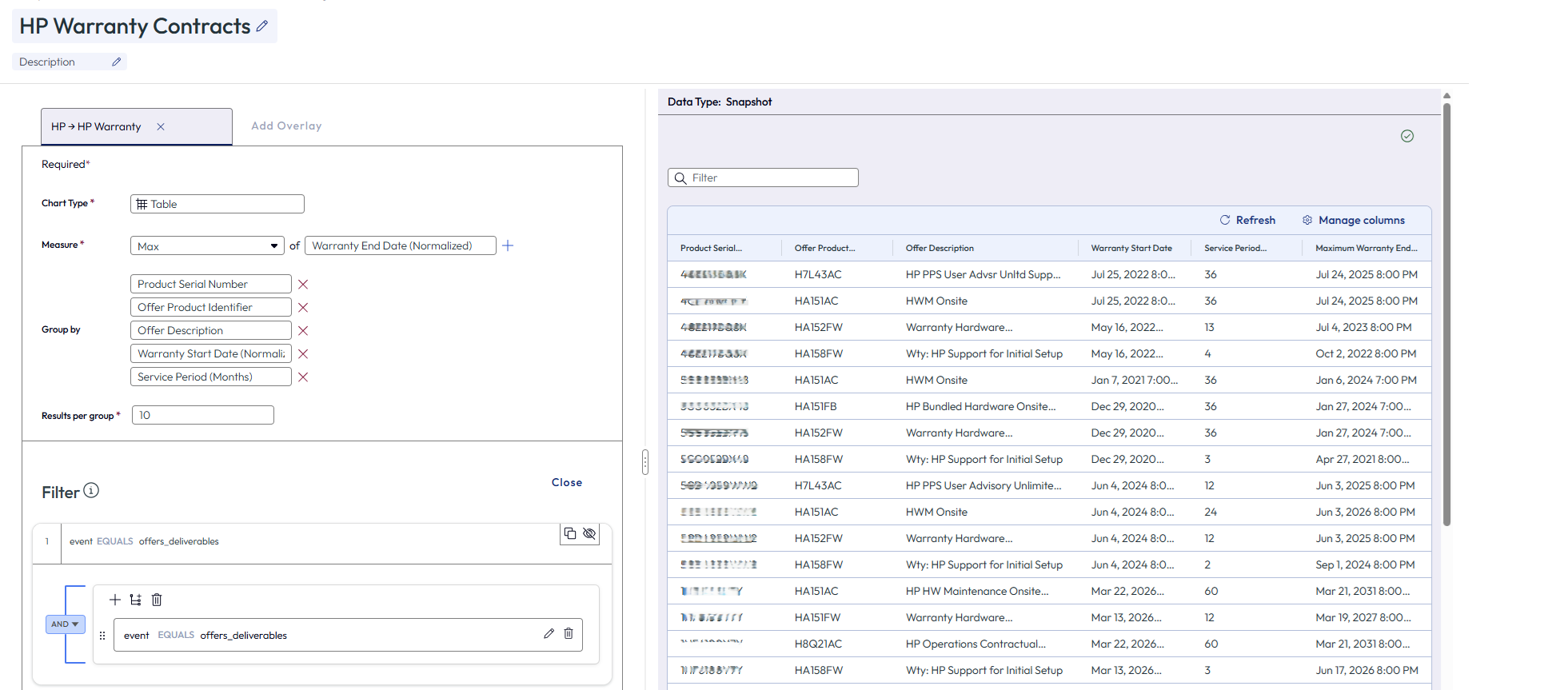
Example: Build a warranty contracts dashboard
Use this example to build a dashboard that lists the specific warranty agreements of each device that includes the start and end date and the coverage duration.
- In Intelligence, go to Dashboards and add a widget to an existing dashboard or create a custom dashboard to add the widget to.
- Add a widget to the dashboard. You can title it something like HP Warranty Contracts.
- Select HP > HP Warranty for the Data Source.
- Select the Table chart type.
- You can change the chart type to see if another type might fit your needs. However, be aware, not all widget options are available for other chart types.
- Measure by Max of Warranty End Date.
- Add five Group by entries.
- Product Serial Number
- Offer Product Identifier
- Offer Description
- Warranty Start Date
- Service Period (Months)
- Select a number to display, for example 10.
- Add a filter as event > Equals > offers_deliverables.
- Save the widget.
Example: Build a covered services dashboard
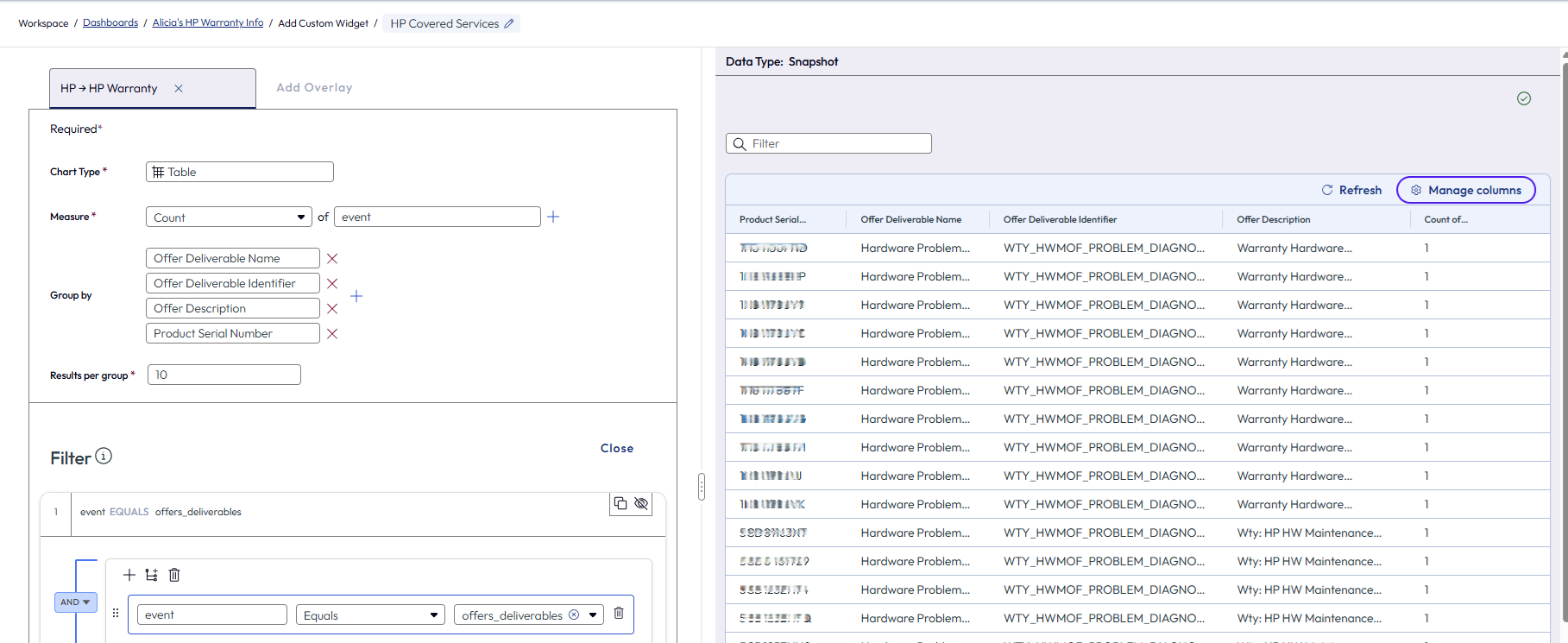
Use this example to build a dashboard that lists which services are covered in each device's warranty. Services can include on-site support and hardware diagnosis.
- In Intelligence, go to Dashboards and add a widget to an existing dashboard or create a custom dashboard to add the widget to.
- Add a widget to the dashboard. You can title it something like HP Covered Services.
- Select HP > HP Warranty for the Data Source.
- Select the Table chart type.
- You can change the chart type to see if another type might fit your needs. However, be aware, not all widget options are available for other chart types.
- Measure by Count of event.
- Add two Group by entries.
- Offer Deliverable Name
- Offer Deliverable Identifier
- Offer Description
- Product Serial Number
- Select a number to display, for example 10.
- Add a filter as event > Equals > offers_deliverables.
- Save the widget.
Example: Build an HP warranty characteristics dashboard
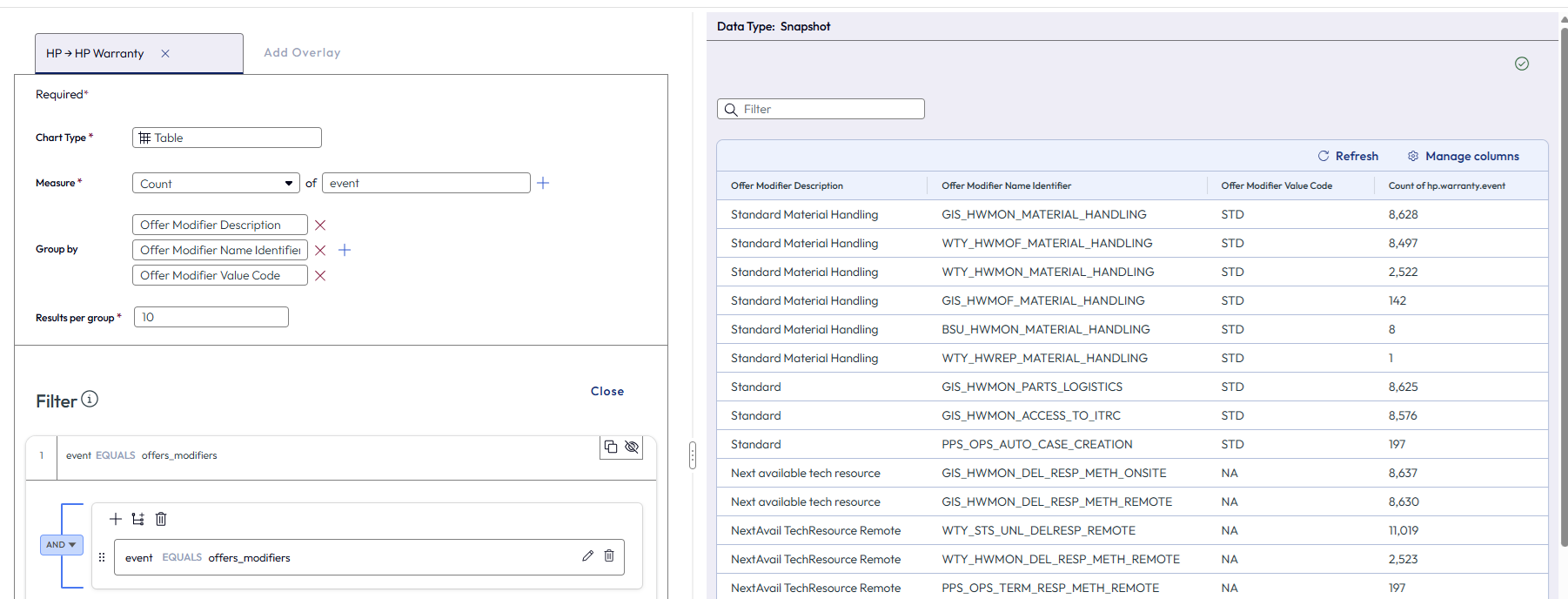
Use this example to build a dashboard that lists the warranty description, identifier, and value code.
- In Intelligence, go to Dashboards and add a widget to an existing dashboard or create a custom dashboard to add the widget to.
- Add a widget to the dashboard. You can title it something like HP Warranty Characteristics.
- Select HP > HP Warranty for the Data Source.
- Select the Table chart type.
- You can change the chart type to see if another type might fit your needs. However, be aware, not all widget options are available for other chart types.
- Measure by Count of event.
- Add two Group by entries.
- Offer Modifier Description
- Offer Modifier Name Identifier
- Offer Modifier Value Code
- Select a number to display, for example 10.
- Add a filter as event > Equals > offers_modifiers.
- Save the widget.
Quick reference: Event filter and columns by use case
| Use case | Event filter | Columns to add via Manage columns |
|---|---|---|
| Fleet overview — one row per device, latest coverage end date | None — aggregate by serial number | product_serial_number MAX (offers_service_obligation_line_item_end_date) |
| Warranty contracts per device | offers_deliverables group by serial + offer ID | offers_offer_description warranty start/end dates service period (months) |
| Services covered by each warranty | offers_deliverables | offers_deliverables_deliverable_name offers_deliverables_deliverable_identifier |
| Response time, coverage window, duration | offers_modifiers | offers_modifiers_modifier_description offers_modifiers_modifier_value_code |
| HP messages and warnings | messages | messages_message_code messages_message_text |
Was this page helpful?