Authorize Omnissa Intelligence to connect and share data with your Omnissa Workspace ONE UEM deployment so that you can use Workspace ONE UEM data in dashboards, workflows, and reports. You set up Workspace ONE UEM as a Data Source and as a Workflow Connector.
Workspace ONE UEM as a Data Source
Set up Workspace ONE UEM as a Data Source so the reports data warehouse can ingest UEM data for use in Intelligence dashboards and reports.
Requirements
Have the listed information to configure Workspace ONE UEM as a Data Source. If you have an on-premises deployment, ensure to meet the listed requirements.
- Have your Workspace ONE UEM console URL.
- Have your Workspace ONE UEM credentials.
- On-premises deployments
- On-premises deployments must install the Omnissa Intelligence Connector for communication between the reports infrastructure and dashboards. See the content for On-premises requirements for details.
- For on-premises deployments that put the Workspace ONE UEM server behind a firewall, you can use workflows and API functionality. However, these deployments must use the Unified Access Gateway and set it as a reverse proxy. For details, access Configure Reverse Proxy With Workspace ONE UEM API.
Procedure
- In Omnissa Intelligence, go to Integrations > Data Sources.
- Select Set Up on the UEM card.
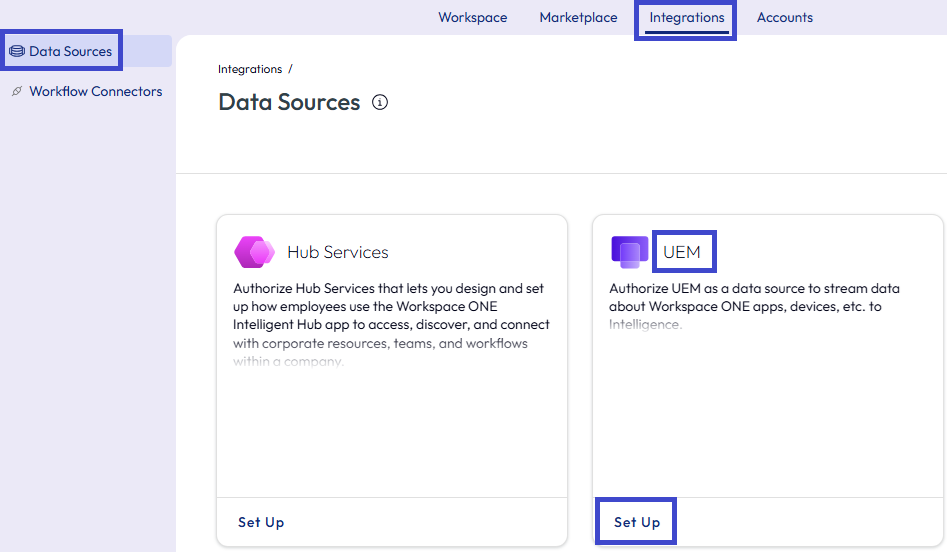
- Select Get Started in the Authorize: UEM window.
- On the Authorization Details tab, enter your Workspace ONE UEM console URL in the Authorized URI text field, and select Connect to UEM.
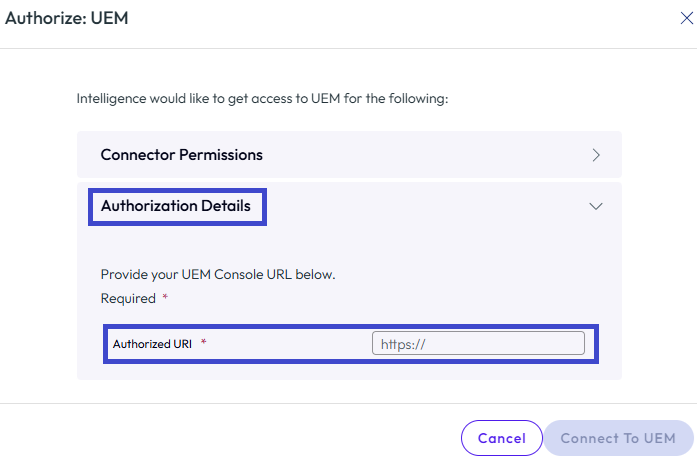
- The wizard directs you to your Workspace ONE UEM instance where you enter your Workspace ONE UEM credentials.
- For successful integration, you must Accept to share Workspace ONE UEM data with Intelligence.
Results: The system returns you to Omnissa Intelligence. The UEM card in Data Sources displays View instead of Set Up.
Workspace ONE UEM as a Workflow Connector
Set up Workspace ONE UEM as a Workflow Connector so that UEM actions are available for use in workflows.
Note: It is best to use OAuth2 Authentication if you can. If you use basic authentication, you must update the configuration often because the basic authentication process requires a password reset every 90 days.
Requirements
Requirements depend on the type of authentication you use and if you have an on-premises deployment.
- Get the Base URL for your Workspace ONE UEM instance. Find this URL in the UEM console at Groups & Settings > All Settings > System > Advanced > API > REST API, select the General tab, and copy the REST API URL entry.
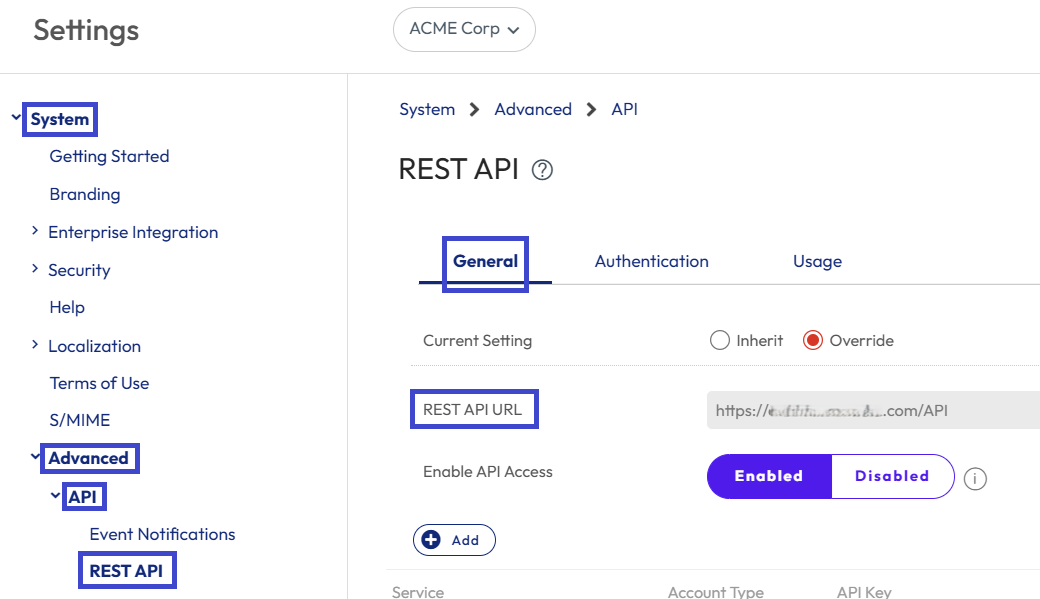
- You enter this URL as the Base URL in Intelligence when you configure Workspace ONE UEM as a Workflow Connector.
- Remove
/APIfrom the end of the string because you only need the base URL. For example, if the REST API URL ishttps://asxxx.xxxx.com/API, remove/API. You only needhttps://asxxx.xxxx.com.
- Decide if you are using OAuth2 authentication or basic authentication for the workflow connector section. Perform the listed steps based on your decision. If you are not using authentication, you can skip this requirement.
- OAuth2 Authentication (SaaS only)
- Create an OAuth client to use with Workspace ONE UEM APIs as described in Using UEM Functionality With a REST API > Create an OAuth Client to Use for API Commands.
- Find your supported Workspace ONE UEM Region and copy the Token URL as described in Using UEM Functionality With a REST API > Datacenter and Token URLs for OAuth 2.0 Support.
- Ensure you create the OAuth client at the organization group used to launch Omnissa Intelligence and provide a sufficient role to prevent API access issues.
- Basic Authentication
- Create a role that can successfully use REST APIs by following the UEM instructions Create a Role That Can Use REST APIs.
- If your organization group does not have the Monitor > Intelligence role or the Settings > Tags role, add these roles using the UEM instructions so that you can assign them to the admin.
- Use a Workspace ONE UEM administrator account specific for workflows with API permissions.
- For details on how to configure admin accounts in Workspace ONE UEM, see Admin Accounts.
- Give this admin the Monitor > Intelligence role with read permissions.
- Give this admin the Settings > Tags role with read permissions.
- Give this admin the role you created to use REST APIs.
- Configure this admin to use Basic Authentication for API communications.
- Continuing with basic authentication, create a Workspace ONE UEM API Key in UEM so that UEM can communicate with Omnissa Intelligence.
- In Workspace ONE UEM, select the organization group where you want to launch Intelligence.
- In the Workspace ONE UEM console, go to Groups & Settings > All Settings > System > Advanced > API > REST API.
- Configure the settings on the General tab.
- Select Enabled for Enable API Access to generate an API key for the service.
- Select Add to generate an API Key.
- Scroll down to the Service option that is empty but has a new string in the API Key field.
- Record the API Key value. You enter it in Intelligence as the Workspace ONE UEM API Key.
- Enter a descriptive name for the Service, such as Workflows.
- Select Admin for the Account Type.
- Select the Authentication tab and select Enabled for the Basic authentication type.
- Save your settings.
- OAuth2 Authentication (SaaS only)
- On-premises deployments
- On-premises deployments must install the Omnissa Intelligence Connector for communication between the reports infrastructure and dashboards. See the content for Installing the Intelligence Connector Service for details.
- For on-premises deployments that put the Workspace ONE UEM server behind a firewall, you can use workflows and API functionality. However, these deployments must use the Unified Access Gateway and set it as a reverse proxy. For details, access Configure Reverse Proxy With Workspace ONE UEM API.
Procedure
Add Workspace ONE UEM as a Workflow Connector in Intelligence.
- In Omnissa Intelligence, go to Integrations > Workflow Connectors.
- Select Add.
- In the Add New Workflow Connector wizard, select the Managed Connectors tab, choose Workspace ONE UEM, and then select Set Up Workspace ONE UEM.
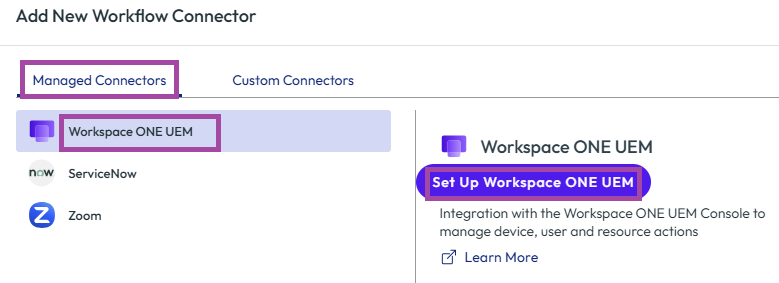
- Complete the configuration wizard.
- For the Base URL, enter the REST API URL from the UEM console and remove
/APIfrom the base URL as outlined in the Requirements section. - Select the Auth Type.
- OAuth2 Authentication: Complete the settings using your OAuth Client information and your UEM API key you created earlier.
- Enter the Client ID retrieved from the OAuth Client setup process.
- For the Client Authentication Location, the option Send client credentials in body is selected by default.
- For Grant Type, the option Client Credentials is selected by default.
- Enter the OAuth2 Token URL. Enter the Token URL from the supported region defined in the Using UEM Functionality with a REST API article.
- For Client Secret, enter the secret retrieved from the OAuth Client setup process.
- Scope is optional, and you can leave this menu item blank. Scope is a restricting mechanism to control access to data and operations.
- Basic Authentication: Complete the settings using your UEM administrator account and your UEM API key.
- Enter the UEM User Name for the Workspace ONE UEM administrator account you created specific for workflows with API permissions.
- Enter the Password for the UEM administrator.
- Enter the API key that the Workspace ONE UEM console generated when you activated REST API communications in the Workspace ONE UEM API Key field.
- No Authentication: This menu option requires no other configurations.
- OAuth2 Authentication: Complete the settings using your OAuth Client information and your UEM API key you created earlier.
- For the Base URL, enter the REST API URL from the UEM console and remove
- Save the settings.
Workspace ONE UEM actions for workflows
To decide which Workspace ONE UEM actions to use in your Omnissa Intelligence workflows, review action descriptions.
Requirements for using UEM actions
Before you can use profile, application, or scripted actions, you must configure them in Workspace ONE UEM with the listed settings and configurations.
- Configure a profile with an Assignment Type (Optional or Auto) in the profile's General payload.
- Configure and add an Assignment to an application.
- Configure and add an Assignment to a script.
- Note: You do not have to select a trigger for a Freestyle workflow to run the script.
- Deploy profiles, applications, or scripts in Workspace ONE UEM to devices in a smart group. This deployment to smart groups is part of the assignment process for these resources.
If you do not assign and deploy applications, profiles, or scripts before configuring the workflow, there is no data for Omnissa Intelligence to pull and the system cannot run the applicable workflow.
Descriptions of actions
| Action | Description |
|---|---|
| Add Tag to Device | Adds a tag to the selected device in the Workspace ONE UEM console. |
| Change Device Organization Group | Moves an enrolled device to another organization group. Consider the resource assignments the device loses and gains after it moves from its original group to the new group. |
| Change Ownership Type | Updates the device ownership to Corporate-Dedicated, Corporate-Shared, or Employee Owned. |
| Clear Passcode | Removes a passcode requirement off a device so that a user can authenticate without it. Anyone can use this device after you automate this action. |
| Data Roaming | Activates or deactivates data roaming on iOS devices. |
| Delete Device | Deletes a Device record from Workspace ONE UEM. |
| Enterprise Wipe Device | Removes management and corporate settings from an enrolled device. |
| Install Internal Application | Installs an internal application on a device that is uploaded and managed in Workspace ONE UEM. |
| Install Profile | Installs a Workspace ONE UEM profile to a device. |
| Install Public Application | Installs a public application on a device that is uploaded and managed in Workspace ONE UEM. |
| Install Purchased Application | Installs a purchased application on a device that is uploaded and managed in Workspace ONE UEM. |
| Lock Device | Forces a device to return to its lock screen. |
| Personal Hotspot | Activates or deactivates personal hot spot settings on iOS devices. |
| Query Device | Requests updated data from a device. |
| Remove Internal Application | Removes an internal application on a device that is uploaded and managed in Workspace ONE UEM. |
| Remove Profile | Removes a Workspace ONE UEM profile off a device. |
| Remove Public Application | Removes a public application on a device that is uploaded and managed in Workspace ONE UEM. |
| Remove Purchased Application | Removes a public application on a device that is uploaded and managed in Workspace ONE UEM. |
| Remove Tag from Device | Removes a Tag from the selected device in the Workspace ONE UEM console. |
| Reprocess Product | Initiates a reprocessing of a Product Provisioning product job by the policy engine. Supports a reprocess and force reprocess. |
| Run Script | Runs a script on a device. Associate your trigger with a UEM data source or with an Intelligence data source such as App Activity, Device Activity, or Device Experience Score. To test this action, set up a manual workflow with Run Script that targets a single device. Execute the workflow, and then check that the script ran successfully. |
| Schedule OS Update | Schedules an OS update and forces an iOS device that is supervised and that is on 10.3 or later (depending on configurations) to update to the latest OS version. DownloadOnly - Configures the action to download only the update to make it available for installation. InstallASAP - Installs the downloaded OS update. This action only works if the OS update is downloaded to the device. |
| Send Email | Sends an email to a user with the SMTP server configured in the Workspace ONE UEM environment. |
| Send Push Notification | Sends a push notification to a managed application, either the Workspace ONE Intelligent Hub or Omnissa Workspace ONE Content. |
| Send SMS | Sends a notification to a device with the SMS gateway configured in the Workspace ONE UEM environment. |
| Stop AirPlay | Stops an AirPlay session on iOS devices. |
| Sync Device | Evaluates applications currently installed on a device and compares that state to the required applications configured in the Workspace ONE UEM console. The action prompts an installation command for any required applications that are missing from the device. |
| Voice Roaming | Activates or deactivates the ability to use voice roaming settings on iOS devices. |
Was this page helpful?