We've updated our integration with Slack to use the Slack Web API connector in Omnissa Intelligence workflows. In this integration, create and configure a Slack App that uses Slack's APIs to deploy workflow actions, install the Slack App in your Slack workspace, and setup the Slack Web API connector. You can also add private channels and audit your existing workflows to use the Slack Web API connector.
Slack to deprecate webhooks
Although Slack has not yet provided an end-of-life date for webhooks, they do warn that webhooks will be deprecated and possibly removed.
Process overview
With this integration, create a Slack App in Slack's API site. Then, configure the Slack App for use in Intelligence workflows. This app uses Slack's APIs to deploy the listed outbound actions configured in Intelligence workflows.
- Send messages to public channels.
- Send messages to private channels.
Finish the integration by configuring the Slack Web API connector in the Integrations section of Intelligence to connect Slack and its APIs through your Slack App.
Use the Slack Web API for workflow templates
Use the Slack Web API connector to use workflow templates because the legacy Slack integration does not support their use.
Slack Web API action for workflows
You can use the Send message action in workflows to send a message through Slack.
Slack Web API integration procedure
Working in Slack's API site and in Intelligence, integrate you Slack workspace with Intelligence so you can use Slack's APIs for actions in workflows.
- At Slack's API site, create your Slack App.
- Go to https://api.slack.com/apps. You must be signed in to your Slack account to create a Slack App.
- Select Create an App.
- Select the option to create From scratch.
- Enter a name in the App Name field and select a space in the Pick a workspace to develop your app in drop-down menu.
- Select Create App.
- At Slack's API site, install your Slack App in the applicable Slack workspace for use in Intelligence.
- At https://api.slack.com/apps, select your Slack App, and then select Features > OAuth & Permissions.
- Go to the Scopes section and add the following Bot Token Scopes.
incoming-webhookchat:write.customizechat:writechat:write.public(this scope allows you to use this app in public channels.)
- Go to Settings > Basic Information.
- In the Building Apps for Slack section, select Install your app and then select to Install App to Workspace.
- Select the workspace and channel where you want to install the app.
- You can configure set up for additional individuals, private channels, and public channels to use in your Intelligence workflows.
- Navigate to Features > OAuth & Permissions and go to the OAuth Tokens for Your Workspace section.
- Copy the Bot User OAuth Token so you can add it to Intelligence.
- Set up the Slack Web API connector in Intelligence.
- In Intelligence, go to Integrations > Workflow Connectors > Slack Web API.
- Select Set Up for the Slack Web API card and enter the listed values.
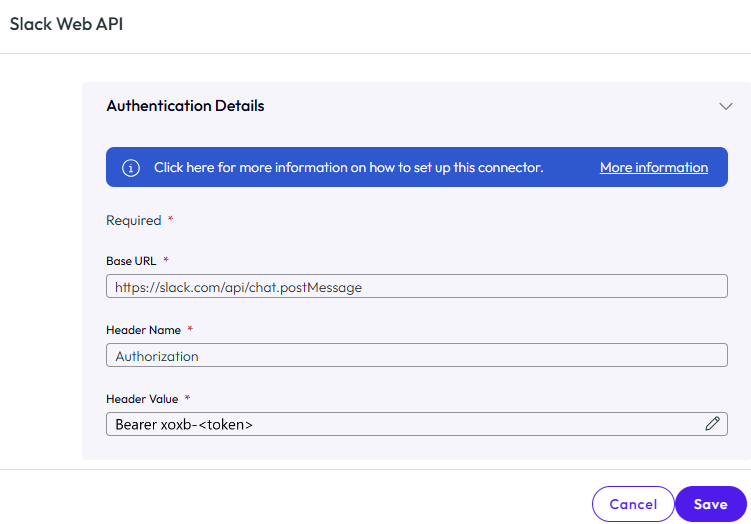
- Base URL: Enter the default URL, https://slack.com/api/chat.postMessage.
- Header Name: Enter Authorization.
- Header Value: You can use a text editor to create your header value and then copy it into the text field. You do not have to use a text editor. You can enter the value right into the Header Value text field.
- Open any text editor or put your cursor in the Header Value text field.
- Type the word
Bearer. - Enter a space after
Bearer. - Copy your token,
xoxb-<token>, and enter it after the space.
The final entry looks likeBearer xoxb-<token>. - If you used a text editor, copy your header value from the text editor into the Header Value text field.
- Save your settings.
You're now ready to use the Slack Web API connector with Intelligence workflows. Send messages to public channels, depending on the Slack Scopes you entered in Slack's API site.
Adding the Slack App to private channels
To send messages to private channels as an action in workflows, add the Slack App to the desired Slack channel.
- Open Slack and go to the private Slack channel.
- Select the drop-down next to the Slack channel name.
- Go to Integrations > Add an App.
- Select the app and add it to the Slack channel.
Take these steps if you are using the original Slack (Deprecated) connector
- Audit existing workflows and replace Slack (Deprecated) actions with Slack Web API actions.
- Disconnect the Slack (Deprecated) connector to avoid confusion when building future workflows.
Slack (Deprecated)
Although this legacy process continues to work and Slack has not yet provided an end-of-life date for webhooks, they do warn that webhooks will be deprecated and possibly removed.
Configure Slack for API communication so that you can register it with Intelligence and use Slack Workflow Actions.
Procedure
- In Slack Help, search for Incoming WebHooks.
- In Slack, configure an Incoming Webhook Integration so that you can connect to Slack API and send messages.
- Define a default channel for messages. You can override this channel when you create a message.
- In Intelligence, navigate to Integrations > Workflow Connectors > Slack > Set Up.
- On the Provide Credentials tab, enter the
Slack WebHook URLin the Base URL field. - Select No Authentication as the Authentication Type.
Was this page helpful?