Use Omnissa Workspace ONE Experience Management for Horizon data to understand the overall experience of your Horizon deployments and to take actions to improve or fix your users' experiences. You must meet the listed requirements and then complete several steps before you can access Experience Management for Horizon data in Omnissa Intelligence, so review the requirements and complete the listed steps.
Prerequisites
Before you can activate your Experience Management for Horizon deployment, ensure you have the listed Omnissa products and subscriptions.
- Use one of the listed Horizon subscription licenses.
- Horizon Apps Standard subscription
- Horizon Apps Universal subscription
- Horizon Cloud on Azure Standard subscription
- Horizon Universal subscription
- Purchase the Workspace ONE Experience Management for Horizon add-on SKU or Workspace ONE Experience Management for Horizon trial license.
- Use supported Horizon Connection Server, Horizon Agent, and Horizon Client versions.
- For newly released features, refer to the Experience Management for Windows and Horizon Release Notes for the required versions of the Horizon Client, Horizon Agent, and the Experience Management (telemetry) agent.
- For best results, use the current versions of the Horizon Connection Server and the Horizon Agent.
- For customer-managed Horizon 8 deployments, you must use Horizon Connection Server and Horizon Agent versions 2412 and later.
- If you use Horizon Cloud on Azure or a similar native cloud, follow upgrade and maintenance best practices.
- A separate Experience Management (telemetry) agent installation is needed on the Horizon VM alongside the Horizon Agent. The Experience Management agent gathers an expanded set of telemetry from the Horizon VM.
- Ensure the Horizon Client for Windows is at version 2312 or later and Horizon Client for macOS is at version 2406 or later.
- For best results, use the most current versions of Horizon Client for Windows and macOS.
- Check the applicable release notes for your Horizon Client for details.
- No separate Experience Management agent installation is needed on the Horizon Client.
Required steps on Horizon 8
Your Horizon deployment must include the listed Horizon components. Configuring a Horizon deployment is beyond the scope of this topic. Refer to the Getting Started with Horizon and the Getting Started with Horizon Cloud content on Omnissa Docs.
- Ensure the Horizon Edge Gateway is deployed across your Horizon 8 edges and pods.
- Validate Horizon Edge Gateway connectivity to the required Horizon Cloud services, Horizon Management Servers (including the Connection Server and the Unified Access Gateway), and VDI desktops using the ports and protocols in the topic Port and Protocol Requirements for Deploying Horizon 8 Edge.
- Connect your Horizon 8 deployment to Horizon Cloud and have Horizon Cloud manage the deployment.
- Use the Horizon Cloud Universal Console.
- Confirm the Horizon edges and pods are added to the Horizon Capacity in the Horizon Universal Console, including Connection Servers and Unified Access Gateways (UAGs).
Required integration steps with Intelligence and Experience Management
For successful activation of your Experience Management for Horizon deployment, you must complete the listed steps on your Horizon VM and in the Intelligence console before you can access Experience Management for Horizon telemetry in Intelligence. You can use this outline to navigate to each step on this page.
- Ensure that the Horizon VM can receive HTTPS API calls from listed URLs through port 443.
- Ensure that the Horizon VM can reach the HTTPS event proxy URL for your Intelligence region (outbound via port 443).
- See Check event proxies.
- Ensure that the Horizon VM can reach the Horizon Edge Gateway through listed data ports.
- Check CRL accessibility through port 80.
- Download and install the Experience Management agent.
- Activate Experience Management for Horizon in Intelligence.
Time taken to calculate scores and see telemetry
- Wait at most four hours after activating Experience Management for Horizon before viewing scores for your Horizon telemetry. The system takes this time to receive data and to calculate scores for your Horizon environment.
- To see data in Horizon dashboards in Intelligence, the system usually takes three to seven minutes to display Horizon telemetry data.
Step 1: HTTPS API Calls and TCP port 443
The Horizon VMs must reach the HTTPS API call URL through port TCP 443. Allowlist the API call URL for your Intelligence region.
- Canada (ca1):
api.ca1.data.workspaceone.com - Frankfurt (eu1):
api.eu1.data.workspaceone.com - India (in1):
api.in1.data.workspaceone.com - Ireland (eu2):
api.eu2.data.workspaceone.com - Singapore (ap2):
api.ap2.data.workspaceone.com - Sydney (au1):
api.au1.data.workspaceone.com - Tokyo (ap1):
ap1.data.workspaceone.com - United Kingdom (uk1):
api.uk1.data.workspaceone.com - United States (na1):
api.na1.data.workspaceone.com
Step 2: Check event proxies
Ensure that the Horizon VM can reach the HTTPS event proxy URL for your Intelligence region (outbound via port 443). The event proxy helps with the collection, filtering, and forwarding of Experience Management messages, metrics, and events.
- Canada (ca1):
eventproxy.ca1.data.workspaceone.com - Frankfurt (eu1):
eventproxy.eu1.data.workspaceone.com - India (in1):
eventproxy.in1.data.workspaceone.com - Ireland (eu2):
eventproxy.eu2.data.workspaceone.com - Singapore (ap2):
eventproxy.ap2.data.workspaceone.com - Sydney (au1):
eventproxy.au1.data.workspaceone.com - Tokyo (ap1):
eventproxy.ap1.data.workspaceone.com - United Kingdom (uk1):
eventproxy.uk1.data.workspaceone.com - United States (na1):
eventproxy.na1.data.workspaceone.com
Step 3: Check that the Horizon Edge Gateway is reachable
Ensure that the Horizon VM can reach the Horizon Edge Gateway on the MQTT (Message Queuing Telemetry Transport) and through data ports 32198/31883.
Check firewall rules to see that they permit outbound TCP calls on the listed ports from the Horizon VM.
Step 4: Check CRL accessibility
The Horizon VM must reach the Amazon Trust certificate revocation list (CRL), http://crl.r2m02.amazontrust.com/r2m02.crl, over HTTP on port 80.
- Check your proxy and firewall rules to ensure that they allow plain HTTP.
- Allow outbound TCP 80 to
http://crl.r2m02.amazontrust.com/r2m02.crl. - If this traffic is intentionally deactivated, review your TLS policy settings.
Step 5: Download and install the Experience Management agent
Install the Experience Management agent using command line on Horizon VMs that are on Windows VDI desktops and Windows RDSH servers.
Important: If you use Horizon VM versions 2409 and earlier, you cannot complete this step. You must upgrade to Horizon versions 2412 and later. The required Horizon VM version is listed in the prerequisites.
- Download the latest Experience Management for Windows and Horizon agent from Customer Connect.
- Install it directly into the Horizon VM or part of the VM’s gold image.
- Use the installer file name, specify the INTEGRATION property, and specify the MANAGEMENT_MODE property. You can also specify other installation commands and properties as needed.
- For the
INTEGRATIONproperty, useHorizonAgent. - For the
MANAGEMENT_MODEproperty, useHorizon.- Example:
Omnissa-Telemetry-Agent-x86_64-z.z.z-xxxx.exe /v INTEGRATION=HorizonAgent MANAGEMENT_MODE=Horizon
- Example:
- For large deployments, consider installing the separate agent in silent mode because silent mode removes the interactions with an installation wizard.
- Example:
Omnissa-Telemetry-Agent-x86_64-z.z.z-xxxx.exe /silent /v INTEGRATION=HorizonAgent MANAGEMENT_MODE=Horizon
- Example:
- For the
- Use the installer file name, specify the INTEGRATION property, and specify the MANAGEMENT_MODE property. You can also specify other installation commands and properties as needed.
Step 6: Activate Experience Management in Intelligence
Activate the collection and display of Horizon telemetry in Omnissa Intelligence for use in Experience Management.
You need to enter your Horizon Cloud Universal Console URL so retrieve this information.
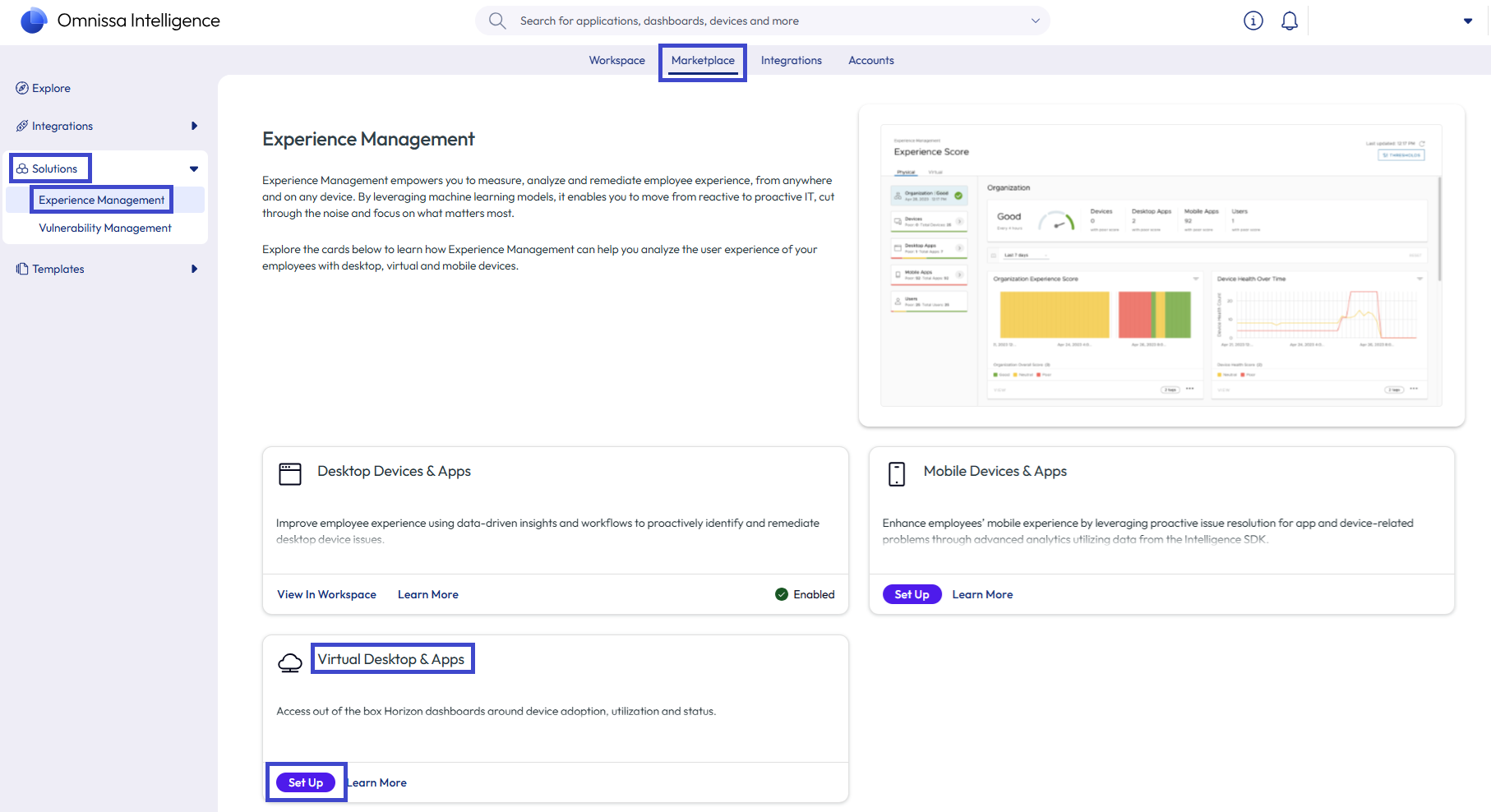
- In Omnissa Intelligence, go to Marketplace > Solutions > Experience Management.
- Select Set Up on the Virtual Desktop & Apps tile.
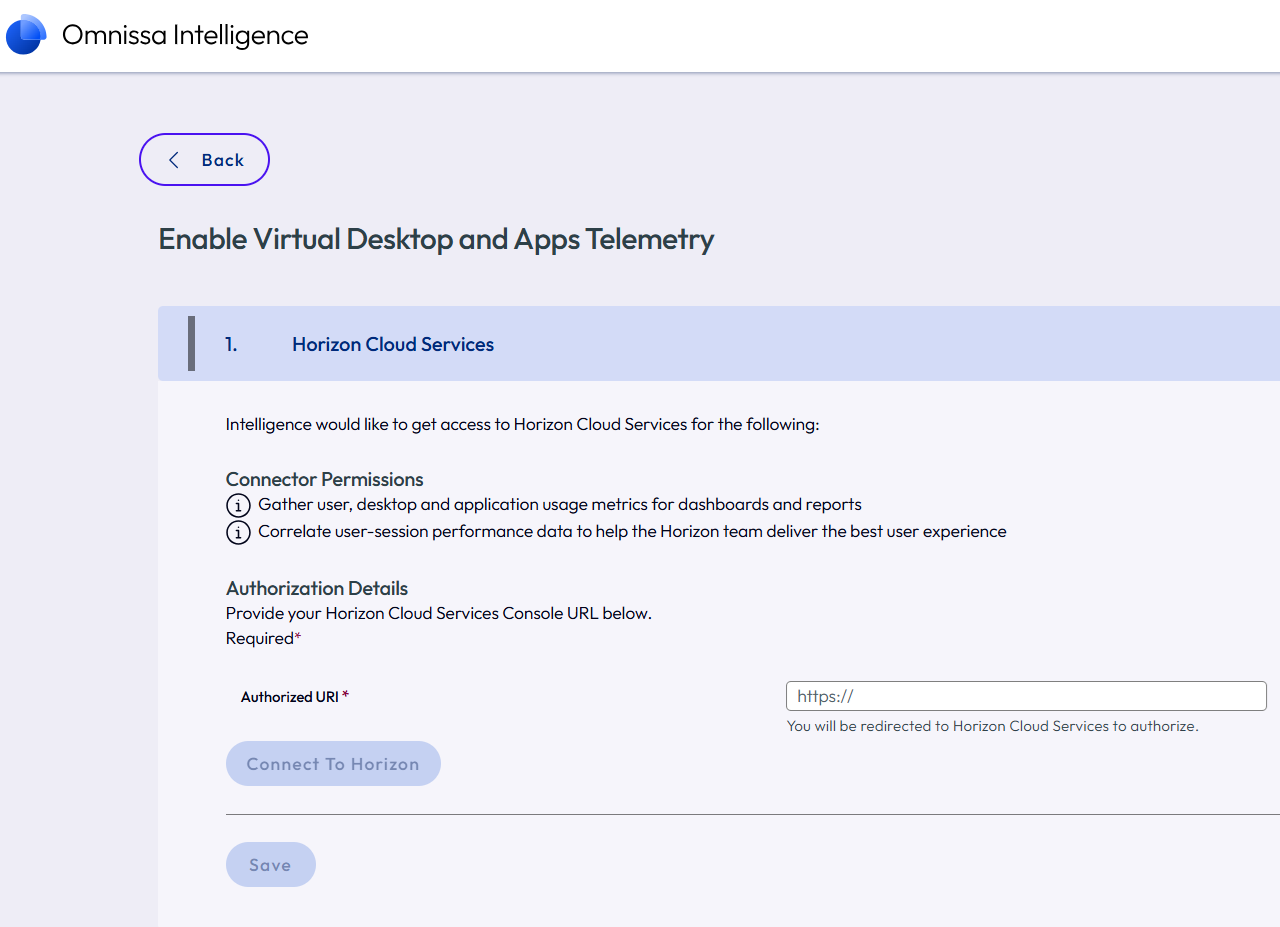
- On the Horizon Cloud Services tab, enter the URL for your Horizon Cloud Universal Console in the Authorized URI text field and connect to Horizon.
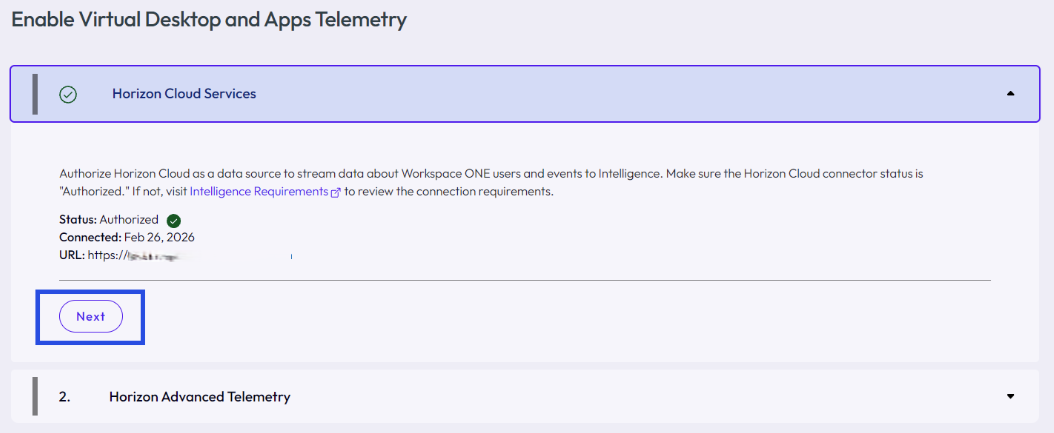
- Authorize Horizon Cloud Services as a Data Source. Back in the Intelligence console, select Next to move to the next tab.
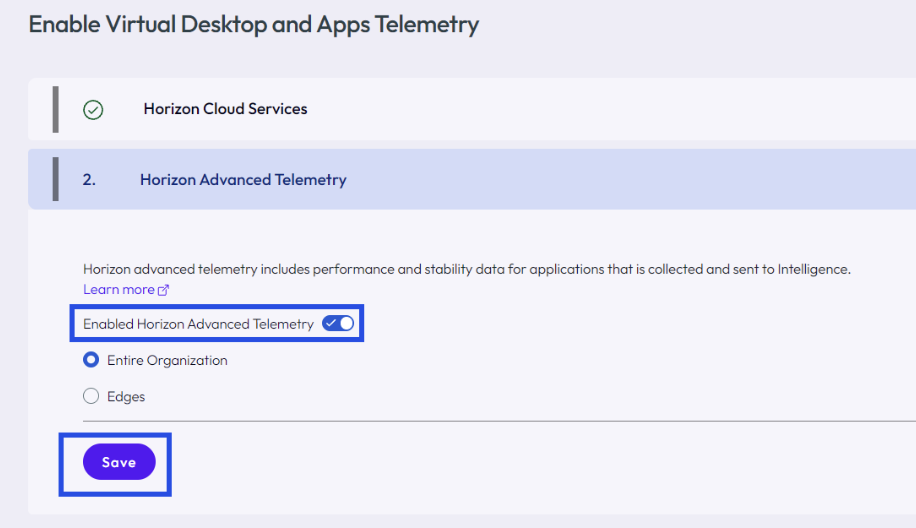
- On the Horizon Advanced Telemetry tab, configure the sending of advanced telemetry and save your settings.
- Horizon Advanced Telemetry helps to control the scope of Horizon data displayed in the console.
- You can select to display an entire organization's data, a single edge's data, or data for multiple edges.
Access telemetry
Access Experience Management for Horizon data in Intelligence in the Workspace > Experience Management area.
- To see Horizon telemetry data in dashboards, wait three to seven minutes.
- To see experience scores, wait at most four hours before interacting with Horizon telemetry in Intelligence so that the system can receive data and calculate experience scores.
Uninstall the Experience Management agent from Horizon Client
The Horizon Client for Windows and macOS installs the Experiment Management agent by default. If you do not want to use Experience Management solution and the collection of Horizon telemetry has been activated using Horizon Client, uninstall the Experience Management agent that is installed with Horizon Client. The Experience Management telemetry agent collects the last mile network telemetry (wifi related info, LAN and WAN latency) at the Horizon Client.
Important: Do not use the Windows Add or Remove Programs feature or the Windows Settings menu to uninstall Experience Management for Horizon that comes with the Horizon Client. Use the command line parameter with the Horizon Client installer to uninstall the feature.
- Windows: Use command line and run the Horizon Client installer with the parameter
"Remove=DeemAgent". For example, you can run this command line parameter"Omnissa-Horizon-Client-yymm-z.z.z-xxxxxxxx.exe Remove=DeemAgent" - macOS: Use the command client and run the command
"sudo sh /Library/Application\ Support/WorkspaceONE/EndpointTelemetryService/ws1etlm/uninstall.sh --force".
Uninstall the Experience Management agent from the Horizon VM
The Horizon Agent does not install the Experiment Management agent into the VM by default. If you previously installed the Experience Management agent on the VM or gold image and wish to remove the agent, simply uninstall the telemetry agent from the Windows OS to remove it.
Other considerations
Review the listed considerations to proactively identify possible issues before they arise.
Authentication Proxies are not supported
Use of authenticated proxies are not supported for this integration. Using an authenticated proxy prevents the sending of data to Intelligence, causing your dashboards and reports to not populate data correctly.
App Volumes limitations
When the App Volumes agent is installed, Experience Management's real-time configuration change is not operable for the functions setLogLevel, setLogConfiguration, Activate, or Deactivate.
- You can exclude registries in the App Volumes configuration file %svagent%\Config\Default\Snapvol.cfg to make real-time configuration changes operable.
exclude_registry=\REGISTRY\MACHINE\SOFTWARE\WorkspaceONE\Endpoint Telemetryexclude_registry=\REGISTRY\MACHINE\SOFTWARE\WorkspaceONE\EUC Telemetryexclude_registry=\REGISTRY\MACHINE\SOFTWARE\AIRWATCH\DEX
Virtual adapters are not supported
The use of virtual adapters is not supported.
- If you install virtual switches in Hyper-V for physical adapters in your Experience Management for Horizon environments, then you might notice that nettTracker identifies your virtual switch for the adapter as a software device. Since nettTracker tracks events for hardware, it excludes VPN adapters from tracking.
- This behavior might cause your Experience Management environment to report a false or reduced number of events for public IP tracking, latency tracking, and synthetic testing.
Unified Access Gateway
If you use the UAG in your Horizon deployment, review the UAG documentation for information on how to monitor and add UAGs. Access the guide Deploying and configuring Omnissa Unified Access Gateway.
Public IP
To use the Public IP address feature in the Network category, ensure Horizon VM endpoints have access to the listed domains.
ts.awmdm.comts4.awmdm.comts6.awmdm.com
Optional Windows settings using GPOs and templates
Go to Using group policy objects to configure Experience Management for Windows for the most current information on using GPOs and the Horizon template.
Was this page helpful?