Control the collection of Omnissa Workspace ONE Experience Management data on Windows and macOS machines. For Windows machines, use GPOs, the utility tool, or scripts and sensors. For macOS machines, use the utility tool.
Why would you want to control Experience Management locally?
The ability to control Experience Management on local machines is helpful in several scenarios.
- Example 1 (Windows): Domain admin needs control of resources: As a domain admin, you want to ensure that your local admins do not use the utility tool to deactivate Experience Management on local Windows machines. You can make the listed configurations.
- Configure the GPO Disable DEEM as Disabled or leave it as Not Configured.
- Configure the GPO Allow Local Disablement as Disabled.
- Local admins cannot use the utility tool to deactivate Experience Management.
- Example 2 (macOS and Windows): Support needs local control for escalations: As a domain admin, you want to ensure Support can deactivate Experience Management on a specific device to help with escalations. You can make the listed configurations.
- Windows
- Configure the GPO Disable DEEM as Disabled or leave it as Not Configured.
- Configure the GPO Allow Local Disablement as Enabled or leave it as Not Configured.
- Support personnel can use the utility tool to deactivate Experience Management.
- macOS
- Support personnel can use the utility tool to deactivate Experience Management.
- Windows
macOS
Control the collection of Experience Management data using the utility tool, tlmtool. The utility tool can deactivate Experience Management and stop the collection of data.
Utility tool commands
Control Experience Management from collecting and sending data using the utility tool.
- Run the utility tool,
tlmtool, on the local machine. - Use the command
-setDEEMDisabled <value>to control the collection and sending of Experience Management data through the utility tool.- To continue to collect and send Experience Management data, run
sudo tlmtool -setDEEMDisabled false. - To deactivate the collecting and sending of Experience Management data, run
sudo tlmtool -setDEEMDisabled true.
- To continue to collect and send Experience Management data, run
- (Optional) You can use the query
sudo tlmtool -getDEEMDisabledto see the Experience Management status.false: Experience Management is collecting and sending data.true: Experience Management is not collecting and sending data.
Windows
Control the collection of Experience Management data using administrative templates and GPOs and the utility tool (tlmtool).
- Use an administrative template to control several methods of deactivation.
- Find and download the Experience Management for Windows ADMX template file located in the etlm_extra_bundle as part of the separate agent ZIP file on Customer Connect.
- Allow or deny local deactivation of Experience Management using the utility tool.
- Allow or deny deactivation of Experience Management by administrative policy.
- Use the utility tool to deactivate Experience Management and to stop collecting data, if the administrative policy allows it.
What's the relationship between GPOs and the utility tool in the deactivation process?
To understand how GPOs and the utility tool work together in the deactivation of Experience Management on Windows, start with the GPO setting Disable DEEM and work through the flow chart to see what settings activate it and what settings deactivate it.
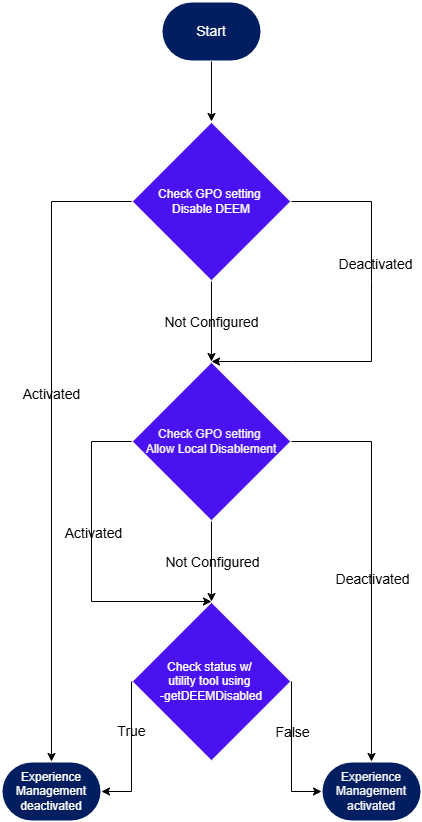
Configuring the administrative template
Install the administrative template that includes the custom GPOs and configure them.
- Get the administrative template and install it on the local machine.
- Configure the administrative template.
- On the local Windows machine, search for Local Group Policy and open the editor.
- Go to Computer Configuration > Administrative Templates > Endpoint Telemetry > DEEM.
- View the Settings for Experience Management , and use the Edit policy setting link to update the configuration.
- Configure the Allow Local Disablement setting to allow or deny a local admin from configuring the utility tool.
- Disabled: Deactivation by the utility tool has no effect.
- Enabled: Local deactivation by the utility tool is allowed.
- Not Configured: Local deactivation by the utility tool is allowed.
- Configure the Disable DEEM setting to control the Experience Management mechanism on the local machine.
- Disabled: Experience Management can still be locally deactivated depending on the Allow Local Disablement policy setting.
- Enabled: Experience Management stops collecting and sending telemetry data.
- Not Configured: Experience Management can still be locally deactivated depending on the Allow Local Disablement policy setting.
- Configure the Allow Local Disablement setting to allow or deny a local admin from configuring the utility tool.
Configuring the utility tool
Control Experience Management from collecting and sending data using command line.
- Run the utility tool on the local machine.
- Use the command
-setDEEMDisabled <value>to control the collection and sending of Experience Management data through the utility tool.-setDEEMDisabled false: Experience Management continues to collect and send data.-setDEEMDisabled true: Experience Management stops collecting and sending data.
- (Optional) You can use the query
-getDEEMDisabledto see the Experience Management status.false: Experience Management is collecting and sending data.true: Experience Management is not collecting and sending data.
Deprecated - Windows scripts and sensors for control
We have deprecated the control scripts and sensors. Use GPOs and the utility tool to control the collection of Experience Management data on Windows devices.
Was this page helpful?