Omnissa Intelligence limits the number of objects admins can create in the console. To know if your environment is close to reaching these limits, use the System Limits page. This page offers visibility into how many objects admins have created in your environment, and it is where you can change the set limits if needed.
Navigation
Find System Limits in the console at Accounts > System Limits.
What's displayed on the page?
The System Limits page displays metrics for the highest organization group in your environment, the customer tenant level, and it displays metrics for individual users throughout the other tenant levels in your deployment. Find metrics for created objects that include the following items.
- Custom dashboards (data visualization objects)
- Custom reports (reporting objects)
- Custom automations (action-oriented objects)
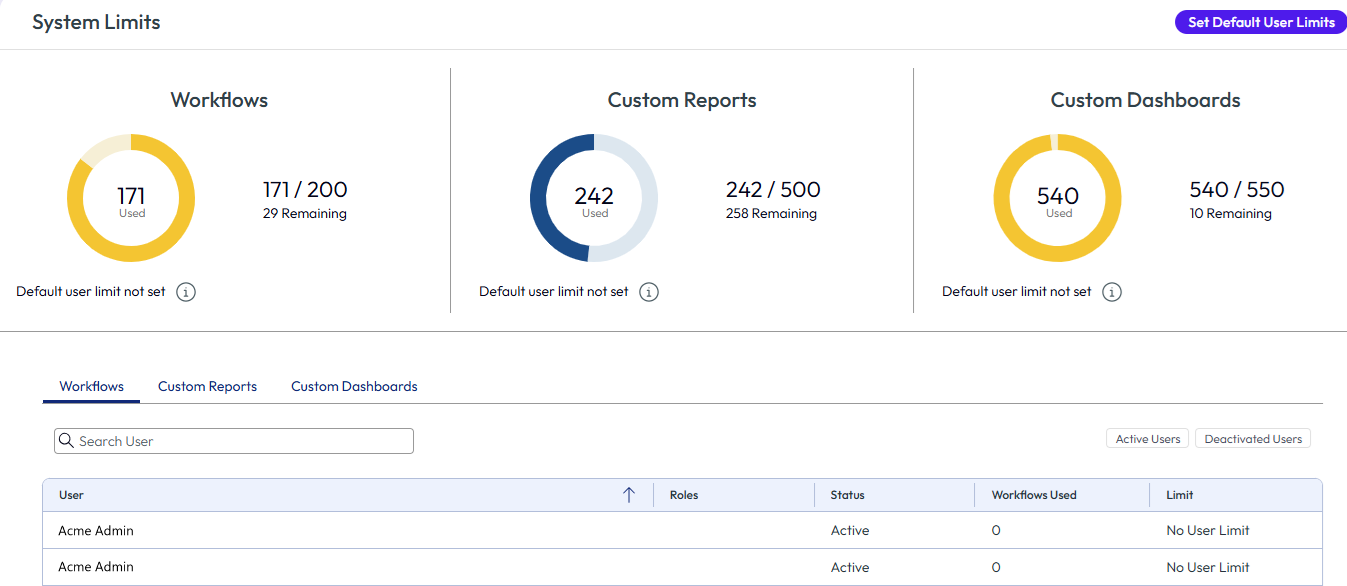
The cards at the top of the UI report the total values from across all your organization groups (all your tenant levels).
- Automations - This card displays data for only Active automations, and it does not include automations that are created and not active.
- Custom Reports - This card displays the number of all created and saved reports.
- Custom Dashboards - This card displays the number of all created and saved dashboards.
Was an object popular and shared with other admins?
The Automations, Custom Reports, and Custom Dashboards tabs below the customer tenant level cards list user-specific data. These tabs list all admins and their corresponding counts of created automations, custom reports, and custom dashboards. Use the tabs to see if an object was shared and with whom. Knowing if an object was shared suggests it was popular. Use this data to decide to keep a popular object or delete an unpopular one to make room for other objects.
RBAC permissions dictate available actions
Super admins, admininstrators, and moderators can see the System Limits page but super admins can take action on this page.
Super admins (admins with all RBAC permissions) can see and set limits at the customer tenant level. They have this visibility so they can monitor data access, process requests for limit increases, and change limit values. On the System Limits page, super admins can take various actions to manage the deployment.
- Super admins can monitor and control which admins can create objects.
- They can use the Set Default User Limits feature at the tenant level for all admins.
- This menu option gives super admins the ability to allocate an even number of objects to every admin or region of admins if needed.
- They can process requests for increases in the limits for any object.
- They can view individual admin objects.
- Search for users that left the company to see how many created objects they had.
- Transfer ownership of those objects or delete them to allow allocation of those unused objects to other admins.
- They can filter the entire admin list using the Deactivated Users filter to see what outstanding objects need a transfer of ownership.
Was this page helpful?