Extend your Freestyle Orchestrator workflow features by adding the Horizon Cloud as a managed connector in Omnissa Intelligence.
Limited availability
Intelligence offers Horizon Cloud as a managed connector with limited availability. These features are available to a limited number of customers for extended feedback.
Related documentation
- See Freestyle Orchestrator for details on workflows in Intelligence.
- See Managed Connectors for details on managed connectors in Intelligence.
Requirements
- Use the Omnissa Horizon Cloud Service on Azure.
- This integration does not work for Horizon on-premises deployments.
- Have the Omnissa Workspace ONE Experience Management subscription.
- You must have access to Omnissa Connect as an Organization Owner or as an Organization Member with the Developer role to create and managed the OAuth application in Omnissa Connect.
- If you do not have this access with these permissions, have someone who does set up and retrieve the authorization details.
- For details on Roles in Omnissa Connect, access Roles.
- You must have the Specific services permissions for a Horizon > Administrator in Omnissa Connect so that you have access to the APIs required to use the OAuth application in Freestyle Orchestrator.
- If you do not have this access with these permissions, have someone who does set up and retrieve the authorization details.
- For details on Specific services in Omnissa Connect, access Service roles and permissions.
- For details on Horizon roles and permissions, access Use the Horizon Universal Console to Assign Administrative Roles.
Prerequisites
Before adding the Horizon Cloud as a managed connector, you must configure and gather OAuth2 authorization details.
API Base URL
Get the API base URL of your Horizon Cloud Service so you can enter it as the Base URL in your managed connector. Here is a suggestion for getting the API base URL using the Chrome browser and Chrome DevTools.
- In Chrome, open your Horizon Cloud Console.
- Find the Request URL so you can use it as the Base URL in the integration widget in Intelligence.
- Inspect the Pools tab in the Chrome browser by right-clicking the Pools tab and selecting Inspect.
- In the DevTools panel, select the Network tab and look for an entry in the Name column that includes
templatesorpools. - Check that you are on the Headers tab, look in the General section, and then record the Request URL to the
.com.- An example URL is
https://cloud-sg.horizon.omnissa.com. Record your unique API base URL.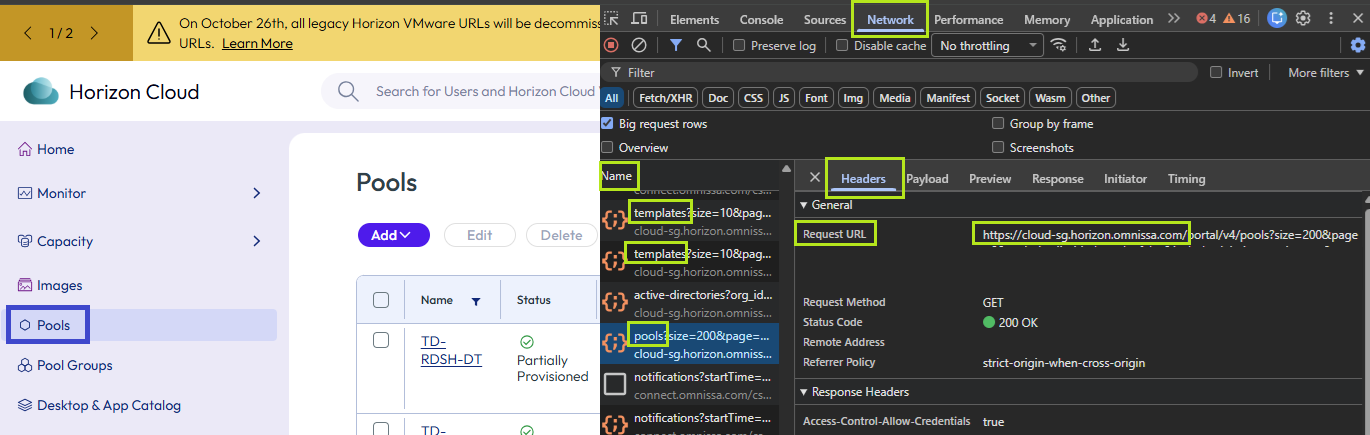
- An example URL is
OAuth Token
See the Omnissa Developer Portal - Horizon Cloud Service page for information on using POST https://{csp-url}/csp/gateway/am/api/auth/authorize to get the value for the Token URL when you configure the managed connector.
OAuth Client ID and Secret
Follow the instructions in the Omnissa Connect - OAuth Applications topic for details on how to add a server-to-server OAuth application to Connect to get authorization details for the Horizon Cloud managed connector.
Ensure you have the Connect roles and service permissions listed in the requirements section, and use the listed settings when you configure the OAuth app in Omnissa Connect.
- Use the type server-to-server app.
- Use an app name that is identifiable. For example, call the app, Intelligence Freestyle.
- Adjust the Access Token TTL (time-to-live) menu option. You can use the default 30 minutes.
- In the Define Scopes > Service Roles section, select the Horizon Cloud Services menu option and leave the child roles selected.
- After you create the app, ensure you gather the following information.
- Copy the App ID. This value goes in the Client ID menu option when you configure the managed connector.
- Copy the App Secret. This value goes in the Client Secret menu option when you configure the managed connector.
- You can download the JSON file with the authorization information for your records.
- In the Assign Service Roles > Select Service Roles section on the OAuth Applications page, select to Add the Horizon Cloud Services role you just configured.
You see your Intelligence Freestyle app on the Roles Assigned Apps tab of the OAuth Applications page in Connect.
Configure Horizon Cloud as a managed connector
Add Horizon Cloud as a managed connector using the information gathered in the prerequisites section.
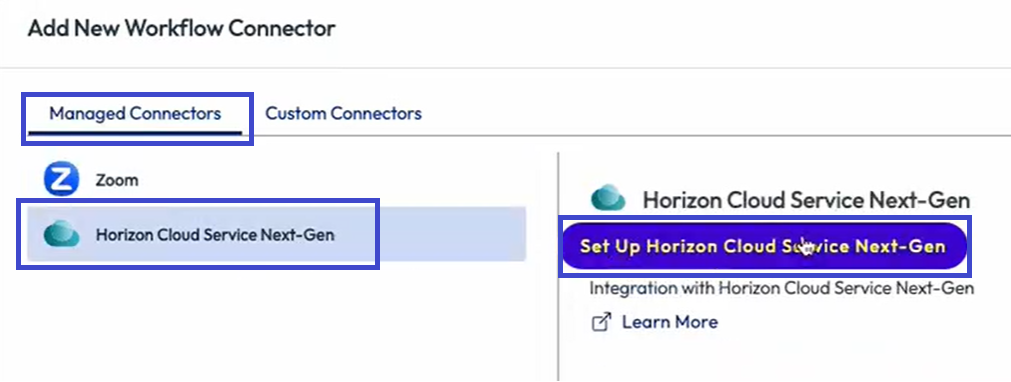
- In Intelligence, go to Integrations > Workflow Connectors and select Add.
- Select the Managed Connectors tab.
- Select the Horizon Cloud Service Next-Gen menu option and then select Set Up Horizon Cloud Service Next-Gen.
- In the Authorization Details section, enter the details you gathered earlier in the prerequisites.
- For Base URL, enter the API Base URL for your Horizon Cloud Console.
- For Auth Type, select OAuth2 Authentication.
- For the Client ID menu option, enter the App ID created while configuring the OAuth app in Omnissa Connect.
- For the Client Authentication Location, select Send as basic auth header.
- For the Grant Type, select Client Credentials.
- For the Token URL, enter the token URL you retrieved using the POST authorize API documented on the Horizon Cloud Service developer portal.
- For the Client Secret, enter the App Secret created while configuring the OAuth app in Omnissa Connect.
- Leave the Scope blank.
- Select Authorize.
- In your Horizon Cloud Service Next-Gen workflow connector, select the Actions tab to see the available actions for use in Freestyle workflows.
Was this page helpful?