Omnissa Workspace ONE Experience Management works on your macOS devices to provide you insights into your network health. Experience Management for macOS works with the Omnissa Workspace ONE Intelligent Hub for macOS, so when you deploy and install these apps to managed macOS devices, you can use Experience Management for macOS telemetry in your Omnissa Intelligence dashboards and reports.
GPU support
Experience Management for macOS supports GPUs (graphics processing units) running on physical machines. It does not support GPUs running on virtual machines.
How do you install the Experience Management for macOS agent?
For macOS devices, you must have both the Workspace ONE Intelligent Hub for macOS and Experience Management (called Digital Experience on the MyWorkspace site) for macOS installed. Get Experience Management for macOS at Customer Connect, Workspace ONE Experience Management. You can install the Experience Management for macOS package manually or by command line.
- Using a software delivery tool on the macOS device, extract the package using the command
sudo installer -pkg /tmp/WorkspaceONE.Deem.universal.24.12.00.400.pkg -target /. - Select to Allow location services access for the
ws1etlmuservice.- This service collects the WiFi SSID (service set identifier) and the Security Standard properties for the telemetry service.
- If you select Don't Allow, the service cannot obtain the WiFi SSID and the Security Standard properties.
- You can change this setting on the macOS machine in System Settings > Privacy & Security > Location Services by activating the Experience Management service in the list.
- Use Workspace ONE UEM and the Workspace ONE Admin Assistant for macOS to browse the Experience Management for macOS package and select the included PLIST file. For details about the Workspace ONE Admin Assistant, see Introduction to the Workspace ONE Admin Assistant for macOS.
How do you uninstall the Experience Management for macOS agent?
To uninstall the Experience Management for macOS agent, use the script /Library/Application Support/WorkspaceONE/EndpointTelemetryService/ws1etlm/uninstall.sh.
How do you verify that Experience Management is installed?
Verify that the package is installed and visible on the device at /Library/Application Support/WorkspaceONE/Deem/.{{ }}.
How do you check that the Workspace ONE Intelligent Hub is running?
Verify the agent is running by looking in the Activity Monitor, viewing all processes, and validating that the deemd process is visible and running.
How do you check the status of Experience Management for macOS?
Use the Activity Monitor on the macOS machine to view the status of the two services.
ws1etlmws1etlmu
Use a proxy server? You must configure proxy awareness on the device
If you use a proxy server in your Experience Management environment, you must configure proxy awareness on the macOS device.
Why?
We updated the code base for the agent from .NET Framework HTTP classes to the Yukon open-source integrated development environment. We added proxy support to the agent but you must configure the device for proxy awareness for successful operation behind a proxy server.
Procedures
Select one of the three methods to configure proxy awareness on the macOS device.
Static Proxy
You need the static IP and the port information for the proxy server to use this method.
Note: The Experience Management for macOS agent does not handle proxy server authentication, if required, so your proxy server environment must handle this interaction.
- On the macOS device, go to System Settings > Network > Select Network Adapter > Details > Proxies.
- Activate the Secure web proxy (HTTPS) menu option.
- Enter the static IP address in the Server field and enter the port information in the Port field for the proxy server.
- Save the settings.
Automatic
You must provide a PAC file URL that points to your Proxy Auto-Configuration file to use this method.
- On the macOS device, go to System Settings > Network > Select Network Adapter > Details > Proxies.
- Activate Automatic proxy configuration.
- In the URL field, enter the PAC file URL.
- Save the settings.
Auto Proxy Discovery
You need to know about Web Proxy Auto Discovery (WPAD) and use a supported discovery mechanism in your WPAD protocol so that the mechanism can discover the configuration URL to resolve the proxy address and port.
If you want to learn more about Web Proxy Auto-Discovery Protocol, here are some suggested sites.
- Internet-Draft paper: Web Proxy Auto-Discovery Protocol at this address, https://datatracker.ietf.org/doc/html/draft-ietf-wrec-wpad-01
- Wikipedia topic: Web Proxy Auto-Discovery Protocol at this address, https://en.wikipedia.org/wiki/Web_Proxy_Auto-Discovery_Protocol
- On the macOS device, go to System Settings > Network > Select Network Adapter > Details > Proxies.
- Activate Auto proxy discover.
- Save the settings.
How do you grant Experience Management full disk access?
For Experience Management to work on macOS devices, you must grant Experience Management (labelled WorkspaceONE DEX in the macOS app list) full disk access. You can grant full disk access locally or remotely.
- Locally: Grant full disk access on the local macOS machine in System Settings.
- Remotely: Grant full disk access using a Workspace ONE UEM Device Profile called Privacy Preferences.
Note: You do not need to grant the ws1etlmu service full disk access.
Local in System Settings
For Workspace ONE UEM managed devices, work in System Settings on the device.
Note: Although we've listed this procedure to help find System Settings on a macOS machine, you can also reference the applicable macOS User Guide for the latest content for granting an app full disk access.
- On the macOS machine, go to System Settings > Privacy & Security.
- Select Full Disk Access.
- Activate the WorkspaceONE DEX app in the list.
If you do not see the WorkspaceONE DEX app in the list, select + to add the app in the file path/Library/Application Support/WorkspaceONE/EndpointTelemetryService/ws1etlm/WorkspaceONE DEX.app.
Remote with a device profile (Privacy Preferences)
For Workspace ONE UEM managed devices, use a Device Profile called Privacy Preferences to push full disk access configurations to the machine.
For the latest content on how to configure and publish Workspace ONE UEM macOS Device Profiles, access the Workspace ONE UEM topic Configure a Privacy Preferences Profile.
Privacy Preferences profile settings
Use the listed settings when you configure and publish the profile.
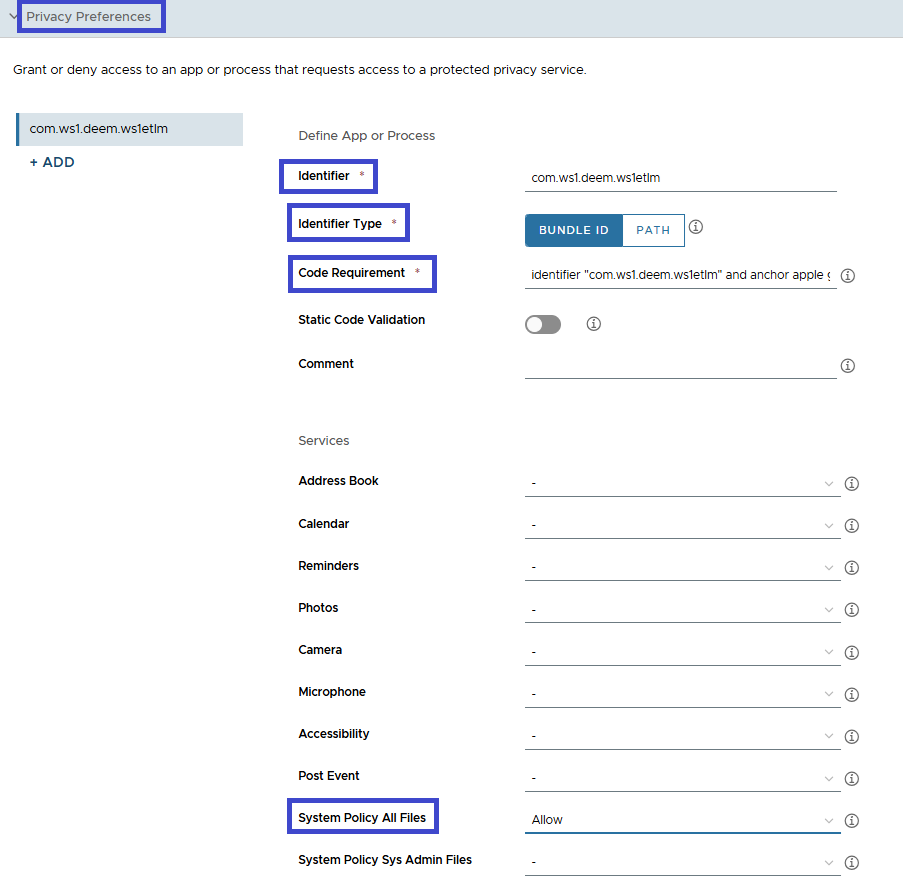
- Define App or Process > Identifier:
com.ws1.deem.ws1etlm - Define App or Process > Identifier Type: Bundle ID
- Define App or Process > Code Requirement:
identifier "com.ws1.deem.ws1etlm" and anchor apple generic and certificate 1[field.1.2.840.113635.100.6.2.6] /* exists */ and certificate leaf[field.1.2.840.113635.100.6.1.13] /* exists */ and certificate leaf[subject.OU] = S2ZMFGQM93 - Services > System Policy All Files: Allow
How do you work with Experience Management logs?
View the deemd logs on the macOS device in Log Reports.
Utility tool (tlmtool) for troubleshooting
To make troubleshooting easier, the Telemetry Agent comes with a utility tool called the tlmtool. Use the tlmtool to set log levels, collect log files, and package log files.
The tlmtool is installed on the device at /Library/Application Support/WorkspaceONE/EndpointTelemetryService/ws1etlm.
How do you run the utility tool?
Run tlmtool as an administrator.
- Run the Terminal app.
- Go to the installation path /Library/Application Support/WorkspaceONE/EndpointTelemetryService/ws1etlm.
- Run
sudo tlmtool <options> [arguments]. An example of what to enter in Terminal issudo tlmtool -setLogLevel Trace.
Commands for the utility tool
| Command | Usage | Description |
|---|---|---|
| collectLog | -collectLog | Collects and packages the log files, and stores them in /private/var/tmp by default. |
| getDEEMDisabled | -getDEEMDisabled | Gets the status of the collecting and sending of Experience Management data as set by the utility tool. - false: Experience Management is collecting and sending data.- true: Experience Management is not collecting and sending data. |
| getHealthStatus | -getHealthStatus | Reports the Experience Management agent's activation status, if the agent is connected, and if it is collecting telemetry. |
| help | -help | Displays the help information for the tool. |
| resetAllLogSettings | -resetAllLogSettings | Resets all the log settings to default, including log level and configurations. |
| resetLogConfiguration | -resetLogConfiguration maxLogSize | Resets the maximum size of the log file to the default 1MB. |
-resetLogConfiguration maxTraceLogSize | Resets the maximum size of the trace log file to the default 10MB. | |
-resetLogConfiguration maxLogFiles | Resets the maximum number of historical log files kept to the default 10. | |
| resetLogLevel | -resetLogLevel | Resets the log level to default settings. |
| setDEEMDisabled | -setDEEMDisabled false | Sets Experience Management to continue to collect and send data. |
-setDEEMDisabled true | Stops Experience Management from collecting and sending data. | |
| setLogConfiguration | -setLogConfiguration maxLogSize <1..50> | Sets the maximum size of a log file in MB, and the range is 1-50. |
-setLogConfiguration maxTraceLogSize <1..50> | Sets the maximum size of a trace log file in MB, and the range is 1-50. | |
-setLogConfiguration maxLogFiles <1..30> | Sets the maximum number of historical log files kept, and the range is 1-30. | |
| setLogLevel | -setLogLevel <Error\Info\Debug\Trace> | Sets the log level to <Error\Info\Debug\Trace>. |
Utility tool (tlmtool) to configure LAN and WAN latency testing
You can activate or deactivate LAN or WAN latency testing using the tlmtool with the command -setEventDisabled.
Activate or deactivate LAN
Use the listed commands to activate or deactivate LAN latency testing.
- To deactivate, run
sudo ./tlmtool -setEventDisabled true net_event lan_gw_latency. - To activate, run
sudo ./tlmtool -setEventDisabled false net_event lan_gw_latency.
Activate or deactivate WAN
Use the listed commands to activate or deactivate WAN latency testing.
- To deactivate, run
sudo ./tlmtool -setEventDisabled true net_event wan_dns_latency. - To activate, run
sudo ./tlmtool -setEventDisabled false net_event wan_dns_latency.
Issues when using different versions of Experience Management
The Experience Management mechanism is included in several Workspace ONE components so that the Experience Management component can capture and report data to help you analyze and improve your users' experiences using Workspace ONE products. Experience Management is included in various products including the mentioned list.
- Experience Management in the Horizon Client for Mac
- Experience Management for macOS
- Experience Management for Software Distribution for macOS applications
- Experience Management for Horizon
When we release an updated version of the Digital Experience for macOS, it is best to update your Experience Management versions everywhere in your deployment, when you can, because the older versions are often not compatible with other components of the Experience Management solution.
Experience Management versions and compatibility
- An older version of Experience Management can overwrite newer versions of Experience Management in other Workspace ONE components when that system with the older version of Experience Management is installed.
- This overwriting can result in the breaking of functionality because the older version is not compatible with the latest version of Experience Management.
- For example, if the latest Experience Management agent is rebranded and the older agent is not rebranded, Experience Management functionality does not work when the older agent overwrites the newer agent.
- It is best if the Workspace ONE components match in version number, if possible.
- Update your Software Distribution for macOS applications to use the same version of Experience Management as your other components like the Experience Management for macOS agent.
- The older version of Experience Management used in the Software Distribution agent is not compatible with the latest version of Experience Management for Horizon, Experience Management for macOS agent, and Experience Management in the Horizon Client for Mac.
- If your Software Distribution environment uses an older version of Experience Management, that older version overwrites the newer versions released in Experience Management for Horizon, Digital Experience for macOS, and Experience Management in the Horizon Client for Mac.
- With the 24.12 version of the Experience Management for macOS agent, it is possible to install the 24.12 version and then accidentally install an earlier version of the agent (for example, a version of Experience Management that comes with the Horizon Client).
- This scenario results in two instances of the agent running concurrently and sending data. It can also result in the duplicate reporting of events like Asset Info, Network, and Network Adapter in your environment.
- Check that only a single version of the Experience Management agent is installed.
- If you have more than one version, re-install the Experience Management for macOS 24.12 agent. Alternatively, use the other component to uninstall the earlier version of the agent. For the Horizon Client, see How do you uninstall the agent that comes with Horizon Client?.
Was this page helpful?