Omnissa Intelligence requires certain Omnissa components and processes to work. What components and processes are required depend on your deployment, on-premises or SaaS.
- On-Premises: For on-premises deployments, meet the general requirements for all deployments. For the components to move data in an on-premises deployment, you must trust listed URL destinations depending on your deployment region. You also need the Omnissa Intelligence Connector Service.
- High Availability: If you want to configure high availability and disaster recovery, there are some caveats to review before setting up the connectors in these on-premises environments.
- SaaS: For SaaS deployments, meet the general requirements for all deployments.
Encryption of communications
Omnissa Intelligence sends all system generated emails using Forced TLS in all environments, GovCloud and non-GovCloud.
With the use of Forced TLS, those email servers that do not support encryption do not receive system generated emails.
If your SMTP (email) server already supports encryption, then you do not need to make changes in your environment. If your SMTP server does not support encryption, then you must make changes to receive system generated emails.
General requirements
There are general requirements that all deployments (on-premises and SaaS) must meet to use Omnissa Intelligence.
Reports powered by Omnissa Intelligence
Before you can use Omnissa Intelligence features, you must turn on reports powered by Omnissa Intelligence. Reports powered by Omnissa Intelligence is different from Omnissa Workspace ONE UEM reporting.
How to access reports
- SaaS customers work with their account representatives to access reports powered by Omnissa Intelligence. These deployments do not need to install their own Omnissa Intelligence Connector server.
- Preferred SaaS customers work with their account representatives to access reports powered by Omnissa Intelligence. These deployments do not need to install their own Omnissa Intelligence Connector server.
- On-premises customers work with their account representative to access reports powered by Omnissa Intelligence. These deployments must install their own Omnissa Intelligence Connector server.
Required Workspace ONE UEM console version
Omnissa Intelligence requires the minimum supported version of the Workspace ONE UEM console. For general availability, end of availability, and the end of support dates for all Workspace ONE UEM console releases, see the knowledge base article Workspace ONE (WS1) UEM Console Release and End of General Support Matrix.
On-premises requirements
For on-premises deployments, you must install the Omnissa Intelligence Connector service on its own server before you can use Intelligence features. You must also allowlist these service destinations depending on your region for successful communication in your on-premises deployment.
Allowlisting URLs by region for service destinations
For successful communication in your on-premises deployment, you must trust specific URLs depending on your region. Configure these allowlists on your applicable on-premises components, for example configure allowlists so communication flows successfully between your region's cloud-based reports service and your on-premises Workspace ONE UEM database, or on your proxy server that you use with the Omnissa Intelligence Connector.
Trust the applicable URL destinations because they represent cloud service regions and are needed for communication between the Workspace ONE UEM console server, the Omnissa Intelligence Connector, and the cloud-based reports service.
Trust the api.sandbox.data.workspaceone.com, artifactrepo.data.workspaceone.com, config.na1.data.workspaceone.com, discovery.awmdm.com, and eventproxy.na1.data.workspaceone.com URLs for all regions. The Omnissa Intelligence Connector installer calls these endpoints for a list of all supported regions. If you use the Experience Management feature, you must also trust api.na1.region.data.workspaceone.com.
Select your region to get the destinations for your allowlists.
All Regions
Trust these URLs and trust the URLs in your region.
| URL Destination | Protocol | Port |
|---|---|---|
api.na1.region.data.workspaceone.com Allowlist this URL if you use Experience Management and mobile telemetry. If you do not use Experience Management, do not allowlist this URL. | HTTPS | 443 |
api.sandbox.data.workspaceone.com | HTTPS | 443 |
artifactrepo.data.workspaceone.com | HTTPS | 443 |
config.na1.data.workspaceone.com | HTTPS | 443 |
discovery.awmdm.com | HTTPS | 443 |
eventproxy.na1.data.workspaceone.com | HTTPS | 443 |
Canada
If this is your region, then trust these URLs and trust the URLs from the All Regions table.
| URL Destination | Protocol | Port |
|---|---|---|
api.ca1.data.workspaceone.com | HTTPS | 443 |
auth.ca1.data.workspaceone.com | HTTPS | 443 |
ca1.data.workspaceone.com | HTTPS | 443 |
config.ca1.data.workspaceone.com | HTTPS | 443 |
eventproxy.ca1.data.workspaceone.com | HTTPS | 443 |
Frankfurt
If this is your region, then trust these URLs and trust the URLs from the All Regions table.
| URL Destination | Protocol | Port |
|---|---|---|
api.eu1.data.workspaceone.com | HTTPS | 443 |
auth.eu1.data.workspaceone.com | HTTPS | 443 |
config.eu1.data.workspaceone.com | HTTPS | 443 |
eu1.data.workspaceone.com | HTTPS | 443 |
eventproxy.eu1.data.workspaceone.com | HTTPS | 443 |
India
If this is your region, then trust these URLs and trust the URLs from the All Regions table.
| URL Destination | Protocol | Port |
|---|---|---|
api.in1.data.workspaceone.com | HTTPS | 443 |
auth.in1.data.workspaceone.com | HTTPS | 443 |
config.in1.data.workspaceone.com | HTTPS | 443 |
in1.data.workspaceone.com | HTTPS | 443 |
eventproxy.in1.data.workspaceone.com | HTTPS | 443 |
Ireland
If this is your region, then trust these URLs and trust the URLs from the All Regions table.
| URL Destination | Protocol | Port |
|---|---|---|
api.eu2.data.workspaceone.com | HTTPS | 443 |
auth.eu2.data.workspaceone.com | HTTPS | 443 |
config.eu2.data.workspaceone.com | HTTPS | 443 |
eu2.data.workspaceone.com | HTTPS | 443 |
eventproxy.eu2.data.workspaceone.com | HTTPS | 443 |
Singapore
If this is your region, then trust these URLs and trust the URLs from the All Regions table.
| URL Destination | Protocol | Port |
|---|---|---|
api.ap2.data.workspaceone.com | HTTPS | 443 |
auth.ap2.data.workspaceone.com | HTTPS | 443 |
ap2.data.workspaceone.com | HTTPS | 443 |
config.ap2.data.workspaceone.com | HTTPS | 443 |
eventproxy.ap2.data.workspaceone.com | HTTPS | 443 |
Sydney
If this is your region, then trust these URLs and trust the URLs from the All Regions table.
| URL Destination | Protocol | Port |
|---|---|---|
api.au1.data.workspaceone.com | HTTPS | 443 |
auth.au1.data.workspaceone.com | HTTPS | 443 |
au1.data.workspaceone.com | HTTPS | 443 |
config.au1.data.workspaceone.com | HTTPS | 443 |
eventproxy.au1.data.workspaceone.com | HTTPS | 443 |
Tokyo
If this is your region, then trust these URLs and trust the URLs from the All Regions table.
| URL Destination | Protocol | Port |
|---|---|---|
ap1.data.workspaceone.com | HTTPS | 443 |
auth.ap1.data.workspaceone.com | HTTPS | 443 |
api.ap1.data.workspaceone.com | HTTPS | 443 |
config.ap1.data.workspaceone.com | HTTPS | 443 |
eventproxy.ap1.data.workspaceone.com | HTTPS | 443 |
United Kingdom
If this is your region, then trust these URLs and trust the URLs from the All Regions table.
| URL Destination | Protocol | Port |
|---|---|---|
api.uk1.data.workspaceone.com | HTTPS | 443 |
auth.uk1.data.workspaceone.com | HTTPS | 443 |
config.uk1.data.workspaceone.com | HTTPS | 443 |
eventproxy.uk1.data.workspaceone.com | HTTPS | 443 |
uk1.data.workspaceone.com | HTTPS | 443 |
United States
If this is your region, then trust these URLs and trust the URLs from the All Regions table.
UAT
| URL Destination | Protocol | Port |
|---|---|---|
auth.sandbox.data.workspaceone.com | HTTPS | 443 |
config.sandbox.data.workspaceone.com | HTTPS | 443 |
eventproxy.sandbox.data.workspaceone.com | HTTPS | 443 |
sandbox.data.workspaceone.com | HTTPS | 443 |
Production
| URL Destination | Protocol | Port |
|---|---|---|
api.na1.data.workspaceone.com | HTTPS | 443 |
auth.na1.data.workspaceone.com | HTTPS | 443 |
config.na1.data.workspaceone.com | HTTPS | 443 |
eventproxy.na1.data.workspaceone.com | HTTPS | 443 |
na1.data.workspaceone.com | HTTPS | 443 |
Allowlisting for Mobile Analytics (Mobile DEX)
If you use the Omnissa Intelligence SDK and the Mobile Analytics feature to gather mobile analytics data, you must allowlist these specific IP addresses and protocols or the system cannot successfully gather and report data in Intelligence or in Experience Management.
IP Address
1.1.1.1: The Mobile Analytics feature uses this IP address for ping and jitter calculations. If Mobile Analytics cannot access this address from the devices gathering information, the system returns blank results.
Ping protocol
Ping protocol (ICMP, Internet Control Message Protocol): You must allowlist the ping protocol for the IP address 1.1.1.1 so that Mobile Analytics can calculate and report average ping times and jitter deviations.
Proxy servers, if used, require an allowlist
If you use a proxy server with the Omnissa Intelligence Connector in an on-premises deployment, you must allowlist (trust) specific URLs on the proxy server or the Omnissa Intelligence Connector installation fails. The URLs should include the ones listed under All Regions and your specific region (such as Canada, Frankfurt, and so forth).
Workflow Connector trusted IP addresses
If you use a Workflow Connector, including a Custom Connector, requests originate from the listed IPs based on region. If you use allow and deny lists in your firewall for your Workflow Connector destinations, allow the listed IPs for your region.
Note: These static IP addresses are for requests coming from Omnissa Intelligence to your network.
| Region | IP Addresses |
|---|---|
| Canada | 35.182.84.243 35.182.84.210 3.97.124.108 |
| Frankfurt | 18.194.235.124 35.156.127.8 18.195.111.228 |
| India | 13.127.24.211 13.127.61.110 35.154.236.159 |
| Ireland | 52.50.246.37 54.76.120.187 52.214.71.240 |
| Singapore | 3.1.144.23 52.76.95.245 52.76.243.117 |
| Sydney | 52.63.121.101 13.54.94.114 13.236.27.201 |
| Tokyo | 54.64.134.5 13.114.203.203 |
| United Kingdom | 3.11.151.5 52.56.79.2 3.10.120.236 |
| United States Production | 52.41.14.207 34.212.69.126 34.211.153.193 |
| United States UAT | 50.112.69.240 52.10.157.26 52.89.177.218 |
Installing the Intelligence Connector Service
The Omnissa Intelligence Connector Service in an on-premises deployment collects data from your Workspace ONE UEM database and pushes it to the cloud service. To install and use the Omnissa Intelligence Connector in your on-premises deployment, you must meet the listed hardware, software, and network requirements.
Hardware requirements
| Component | Requirement |
|---|---|
| Server | 1 |
| CPUs | 4 (2 GHz Intel processor) |
| Memory | 8 GB |
| Storage | 25 GB |
Software requirements
Important: The Workspace One Intelligence connector based on Oracle JDK 8 will reach end-of-support in the future and will no longer receive feature upgrades. Follow the steps in the Upgrading the Connector - moving from Oracle JDK 8 to OpenJDK 11 section to move from JDK 8 to OpenJDK 11 on this page.
| Component | Requirement |
|---|---|
| Java | Java 8 (Connector support to end in the future) OpenJDK 11 |
| OS | Windows Server 2012 R2, 2016, and 2019 |
| SQL-based database for Workspace ONE UEM | Microsoft SQL Server, Standard and Enterprise, 2016 SP1 or later |
Network requirements
| Source | Target | Protocol | Port |
|---|---|---|---|
| Omnissa Intelligence Connector | Applicable Trusted URLs | HTTPS | 443 |
| Omnissa Intelligence Connector | Workspace ONE UEM Database | TCP | Use ports configured for secure communication in your individual Workspace ONE UEM on-premises deployment. For example, if you use Port 1433 for all internal network communication in your Workspace ONE UEM on-premises deployment, you can use port 1433 to communicate with the Workspace ONE UEM database. |
| Workspace ONE UEM Console Server | api.{regionID}.data.workspaceone.com auth.{regionID}.data.workspaceone.comFor example, the target URLs for a console server located in Canada are api.ca1.data.workspaceone.com and auth.ca1.data.workspaceone.com. | HTTPS | 443 |
| Workspace ONE UEM Device Services Server | api.{regionID}.data.workspaceone.com | HTTPS | 443 |
Required database permissions
To install the Omnissa Intelligence Connector, the person installing needs permissions for the following roles for the console and directory services servers.
- DB System Administrator for the Workspace ONE UEM database
- DBDatareader for the MSDB
- SQLAgentUserRole for the MSDB
Downloading the Intelligence Connector and CDC
Download the Intelligence Connector and use it for better performance on data import between your Workspace ONE UEM database and the cloud service.
If you have not already enabled this workflow, notice that the installer downloads a file on your desktop, cdc_enable_script.sql, and then stops. Open the cdc_enable_script.sql file and run the script manually on your Workspace ONE UEM database with DB System Administrator permissions to enable the improved performance workflow. After the script runs successfully, rerun the Intelligence Connector installer.
This workflow uses Change Data Capture (CDC), which is supported on SQL Server. CDC enhances the performance of data extraction by the Intelligence Connector. For details about Microsoft SQL Server and the Intelligence Connector, review the Software Requirements table.
As the Intelligence Connector starts importing new data entities into Intelligence, the CDC workflow becomes a prerequisite. The workflow is applicable to newly added data entities like device tags, device custom attributes, users, and product provisioning.
If you already have the Intelligence Connector Service configured, reinstall the latest installer to unlock the CDC features. You must install the Intelligence Connector on its own server. For additional information about the installation process of other Workspace ONE UEM application servers, refer to Workspace ONE UEM Installation.
Important
- If you upgrade the Workspace ONE UEM console server as part of the upgrade process, you must stop the Intelligence Connector Service during the Workspace ONE UEM console server upgrade. You must then restart the service after finishing the upgrade process.
- If you must change the setting for Deployment Region, do not run the installer again.
Prerequisites to installing the Connector
- Ensure you have allowlisted the regional URLs so the connector installation process can communicate with the correct cloud-based reports service.
- If you use a proxy server and want to use it with the Intelligence Connector, make sure you have allowlisted the regional destinations. If you do not trust the listed destinations, the installation can fail.
- Meet the hardware, software, and network requirements needed to install, configure, and use Intelligence.
Installation Procedure
- Download the Intelligence Connector installer on to the server you configured for the service.
- Run the installer.
- Accept the Terms of Use.
- Ensure that the Intelligence Connector Service is selected as a feature to install. The installer detects the version of Java installed on the application server. If the installer does not detect the required version, the required version installs.
- Select the Destination Folder in which to install the Intelligence Connector Service.
- Enter the database server settings.
- Database server that you are installing to: Select Browse next to the Database server text box and select your Workspace ONE UEM database from the list.
- If you use a custom port, do not select Browse. Instead, use the following syntax:
DBHostName,<customPortNumber>, then select Browse to select the database server. - For example, enter
db.acme.com, 8043. - If you use a custom port for database connections, you must manually update the separator between the host and the port in the installation directory. To make this update, follow the listed steps.
- After the Intelligence Connector is successfully installed, stop the Intelligence Connector Service.
- Update the JDBC_URL JVM parameter in the WDPETLService.etl.parameters file in the installation directory.
- Replace the comma (,) separator between the host and port with a colon (:).
- Example:
omnissa.workspaceone.sql:6521.
- Restart the Intelligence Connector Service.
Note: We are working to automate the replacement of the comma with the colon so you do not have to perform this manual step.
- If your Workspace ONE UEM database name has a space, you must perform extra steps.
- Open the WDPETLService.exe.parameters in the service folder of the Intelligence Connector installation in administrator mode.
- Update the parameter to ensure the databaseName value is enclosed in quotes. Here is an example,
JVM_ARG=-DJDBC_URL=jdbc:sqlserver://SQLSERVERNAME;databaseName="Workspace ONE UEM Database Name".
- If you use a custom port, do not select Browse. Instead, use the following syntax:
- Connect using: Select one of the following authentication methods.
- Windows Authentication uses a service account on the Windows server to authenticate. You are prompted to enter the service account that you want to use. This service account is used to run all the application pools and Workspace ONE UEM-related services. The service account must have Workspace ONE UEM database access.
- SQL Server Authentication uses the SQL server authentication method. You are prompted to enter the user name and password.
- Name of database catalog: Enter the name of the Workspace ONE UEM database or browse the SQL server and select it from a list.
- Database server that you are installing to: Select Browse next to the Database server text box and select your Workspace ONE UEM database from the list.
- (Optional) Enter proxy information. Find this information in the Workspace ONE UEM console in Groups & Settings > All Settings > Installation > Proxy > Console Proxy Settings.
- Configure the Intelligence Connector Service settings.
- Select the deployment region for your cloud service. Ensure that the right region is selected. Do not run the installer again if you must change this region in the future. If you upgrade your Intelligence Connector Service from a previous version, this screen does not display because you cannot change your region during an upgrade.
- Enter your Workspace ONE UEM Installation Token. This token is created as part of the Workspace ONE UEM Installation process.
- Select Install to install the Intelligence Connector Service. After the installation finishes, select Finish.
Connector installer troubleshooting tip - deactivate unblock in properties
If the Intelligence Connector installer does not launch, check the installer's properties. In the properties attributes for the Intelligence Connector installer, to to the General tab, Security section, and deactivate the Unblock check box.
Upgrading the Connector - moving from Oracle JDK 8 to OpenJDK 11
The Workspace One Intelligence Connector based on Oracle JDK 8 will reach end-of-life (EOL) and will no longer be supported after December 18, 2023. It will no longer receive feature upgrades.
How to check if your Connector uses JDK 8 or OpenJDK 11
If you are unsure which Connector you are currently using, follow the procedure to see if you have the JDK 8-based Connector or the OpenJDK 11-based Connector.
- Go to
{Connector Installation folder}/service directoryand locate the WDPETLService.exe.parameters file.
- Open the WDPETLService.exe.parameters file.
- If your Intelligence Connector uses Oracle JDK 8, you see the file path
JVM={Java Installation directory}/ Java/Jre1.8.0_301/bin/server/jvm.dll.
- If your Intelligence Connector uses OpenJDK 11, you see the file path
JVW={ETL Installation directory}/OpenJDK/bin/server/jvm.dll.
- If your Intelligence Connector uses Oracle JDK 8, you see the file path
Upgrading procedure
Upgrade your Intelligence Connector to OpenJDK 11 to receive the latest features. Follow the listed process to upgrade your existing Connector instances.
- Download the latest Intelligence Connector installer on to the server you configured for the service.
- Run the installer.
- Accepts the Terms of Use.
- Select to Update a WS1 Intelligence Service Instance and then select next.
- Select the ETL Service instance that you want to update.
- Select the Destination Folder in which to install the Intelligence Connector Service.
- Enter the database server settings.
- Database server that you are installing to: Select Browse next to the Database server text box and select your Workspace ONE UEM database from the list.
- If you use a custom port, do not select Browse. Instead, use the following syntax:
DBHostName,<customPortNumber>, then select Browse to select the database server. - For example, enter
db.acme.com, 8043. - If you use a custom port for database connections, you must manually update the separator between the host and the port in the installation directory. To make this update, follow the listed steps.
- After the Intelligence Connector is successfully installed, stop the Intelligence Connector Service.
- Update the JDBC_URL JVM parameter in the WDPETLService.etl.parameters file in the installation directory.
- Replace the comma (,) separator between the host and port with a colon (:).
- Example:
omnissa.workspaceone.sql:6521.
- Restart the Intelligence Connector Service.
Note: We are working to automate the replacement of the comma with the colon so you do not have to perform this manual step.
- If your Workspace ONE UEM database name has a space, you must perform extra steps.
- Open the WDPETLService.exe.parameters in the service folder of the Intelligence Connector installation in administrator mode.
- Update the parameter to ensure the databaseName value is enclosed in quotes. Here is an example,
JVM_ARG=-DJDBC_URL=jdbc:sqlserver://SQLSERVERNAME;databaseName="Workspace ONE UEM Database Name".
- If you use a custom port, do not select Browse. Instead, use the following syntax:
- Connect using: Select one of the following authentication methods.
- Windows Authentication uses a service account on the Windows server to authenticate. You are prompted to enter the service account that you want to use. This service account is used to run all the application pools and Workspace ONE UEM-related services. The service account must have Workspace ONE UEM database access.
- SQL Server Authentication uses the SQL server authentication method. You are prompted to enter the user name and password.
- Name of database catalog: Enter the name of the Workspace ONE UEM database or browse the SQL server and select it from a list.
- Database server that you are installing to: Select Browse next to the Database server text box and select your Workspace ONE UEM database from the list.
- (Optional) Enter proxy information. Find this information in the Workspace ONE UEM console in Groups & Settings > All Settings > Installation > Proxy > Console Proxy Settings.
- Configure the Intelligence Connector Service settings.
- Select the deployment region for your cloud service. Ensure that the right region is selected. Do not run the installer again if you must change this region in the future. If you upgrade your Omnissa Intelligence Connector Service from a previous version, this screen does not display because you cannot change your region during an upgrade.
- Enter your Workspace ONE UEM Installation Token. This token is created as part of the Workspace ONE UEM Installation process.
- Select Install to install the Intelligence Connector Service. After the installation finishes, select Finish.
High availability and disaster recovery support with the Intelligence Connector
You can use the Intelligence Connector in high availability (HA) deployments and for disaster recovery.
High availability
For HA, you need at least two connectors and you must set them for continuous access.
For HA to work with the Intelligence Connector, use the supported version of Workspace ONE UEM required by Intelligence.
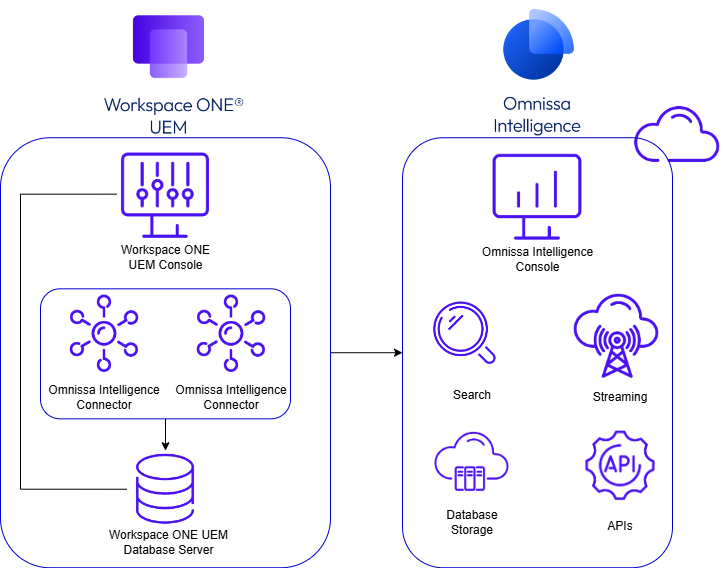
General high availability setup
Install and enable at least two Intelligence Connectors for a single Intelligence environment. Configure the connection between the Intelligence Connector and the Workspace ONE UEM Database server.
When you configure HA for the Workspace ONE UEM Database, configure the Intelligence Connector to connect to the SQL Server Always ON Listener.
Although all Intelligence Connectors listen, only one is active and pushes data from the database to Intelligence. If the active Intelligence Connector fails, one of the other connectors activates and pushes data to Intelligence.
Disaster recovery
For disaster recovery, set at least two Connectors within each recovery site to help you resume work when something happens to your Workspace ONE deployment.
For disaster recovery to work, use the supported version of Workspace ONE UEM required by Intelligence.
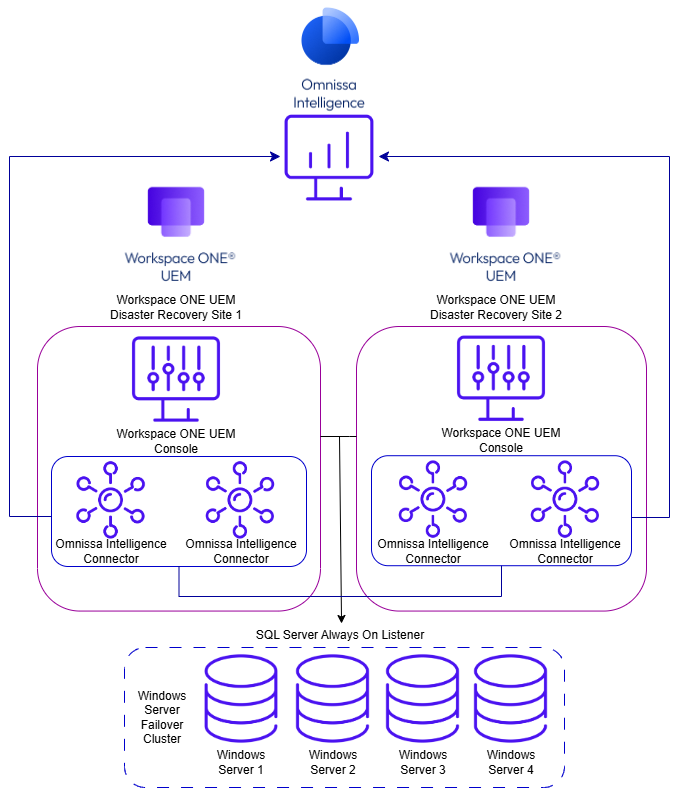
General disaster recovery setup
Install at least two Intelligence Connectors in each disaster recovery site. Depending on your disaster recovery strategy, you can enable all the connectors across all sites or leave them deactivated on the passive sites until an incident occurs. When a disaster recovery site becomes active, one of the Intelligence Connectors becomes active and starts pulling data from the Workspace ONE UEM Database server to Intelligence. If the active connector fails, the other connector remains available to push data.
Note: If your disaster recovery strategy does not have a recovery server cluster always listening, the Intelligence Connector still connects to the cluster during an event. However, it cannot support a comprehensive disaster recovery scenario because the cluster might have missed data from not listening.
Was this page helpful?