Workspace ONE Hub Services provides App Bundles functionality that allows administrators to group related applications together into a single collection. This feature helps you simplify the app catalog experience for end users by grouping apps or versions. For example, you can bundle multiple versions or delivery methods of the same application.
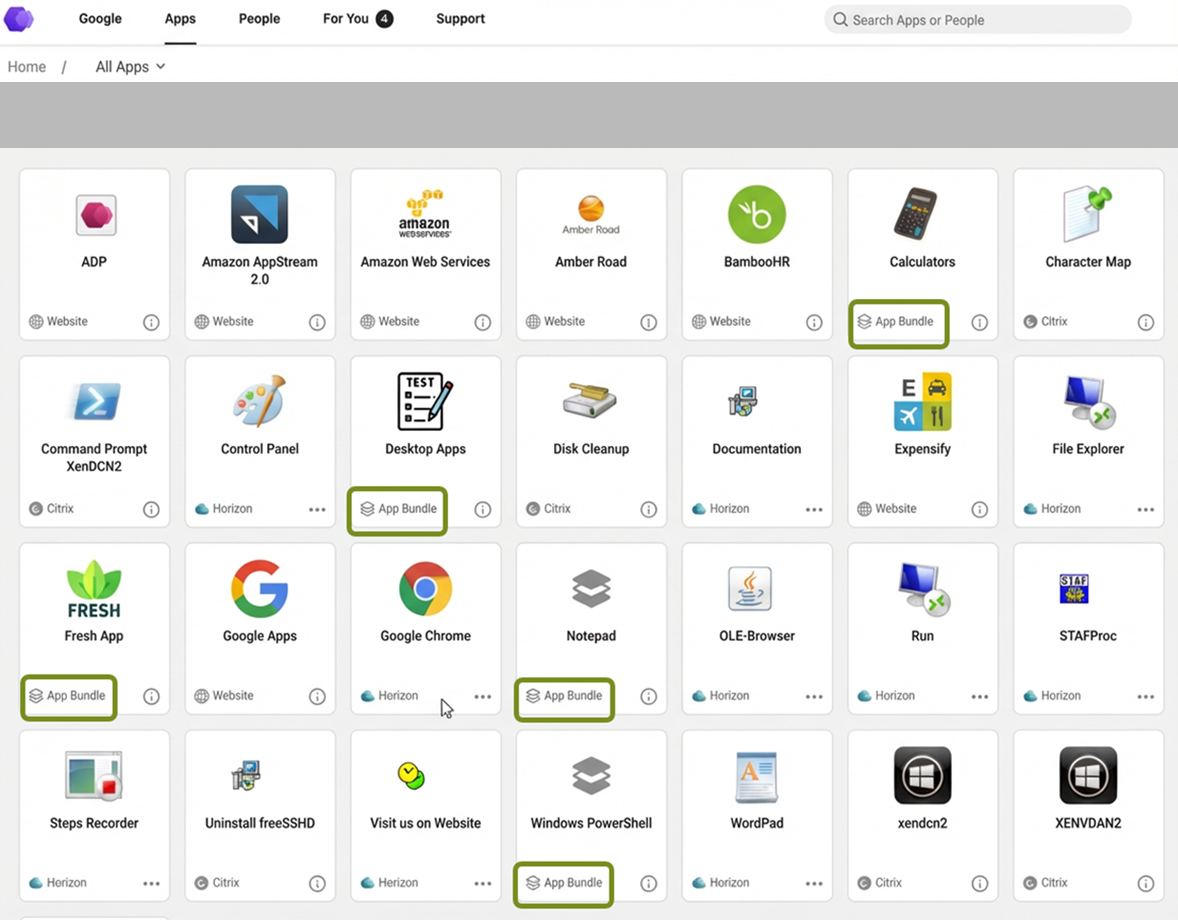
App Catalog with App Bundles Highlighted
About App Bundles
App Bundles address the challenge of application clutter in the Workspace ONE Intelligent Hub App Catalog. You can bundle apps in many ways depending on the needs of your organization.
For example, when organizations deploy the same application across multiple platforms or delivery methods, users can see multiple tiles for what is essentially the same application. App Bundles consolidate these related applications into a single, unified tile.
Common Use Cases
You can use App Bundles for purposes such as the following:
-
Consolidate Multiple Platforms - Combine web, native, Horizon, and virtual versions of the same application (such as Outlook or Excel) into a single bundle so users see one tile instead of multiple versions.
-
Reduce Application Clutter - Help users with large app catalogs by grouping related applications together, making it easier to find and launch the right application. How applications are related is up to you to decide. You might bundle the same application across platforms or delivery methods, or you might have your own way of grouping apps that is meaningful to your organization.
-
Simplify Application Selection - Provide users with a single entry point for an application while giving them the flexibility to choose which version or platform to launch based on their current context.
-
Prepare for Future Automation - Build bundles now with all platform versions included, preparing for future enhancements where the appropriate version automatically launches based on user context and policies.
Key Concepts
Understanding the following concepts will help you effectively manage App Bundles in Workspace ONE Hub Services:
App Bundles
An App Bundle is a collection of related applications that are grouped together under a single identity. The bundle appears as one tile in the Workspace ONE Intelligent Hub App Catalog, but contains multiple component applications that users can select from.
Component Apps
Component apps are the individual applications that make up an App Bundle. Each component app can represent a different version, platform, or delivery method of the same application. For example, a bundle for Outlook might contain component apps for:
- Outlook Web (website)
- Outlook for Windows (native application)
- Outlook for Horizon (virtual desktop)
- Outlook for iOS (mobile app)
- Outlook for Android (mobile app)
Platform Support
App Bundles are currently available in Workspace ONE Intelligent Hub for the following platforms:
- Web - Supported in the current release
In subsequent releases, additional client platform support will be provided, potentially including iOS, Android, macOS, and Windows platforms.
Note: Administrators can include component apps for all platforms when creating bundles, even if those platforms are not yet supported for bundle display. When client support becomes available, these bundles will already contain the appropriate component apps.
Bundle Identity
Each bundle has its own identity separate from its component apps, including:
- Bundle Name - The name displayed to users in the App Catalog.
- Bundle Description - Descriptive text that can be browsed from component apps or customized.
- Bundle Icon - Visual representation of the bundle (icon browsing from component apps will be available in a future release).
Single Bundle Display
When component apps are added to a bundle, they lose their individual visibility in the App Catalog. Users see only the bundle tile, not the individual component apps. This applies to the following situations:
- App Catalog views
- Search results
- Categories
- Favorites
- Promotions
What to Expect
Admin Experience
As an administrator, you manage App Bundles through the following capabilities:
-
Create Bundles - Build new collections of applications by searching for and selecting component apps.
-
Configure Bundle Properties - Set the bundle name, description, and icon. You can browse descriptions from existing component apps and customize them as needed.
-
Add Component Apps - Include any number of applications in a bundle, regardless of platform. Applications can be from different delivery methods (website, Horizon, native, etc.).
-
View Bundle Information - See the number of component apps and the platforms represented in each bundle from the App Bundles list page.
-
Edit Bundles - Modify bundle properties, add or remove component apps, or delete bundles as organizational needs change.
User Experience
End users interact with App Bundles in the following ways:
-
Discover Bundles - Bundles appear in the App Catalog with a distinctive "App Bundle" indicator at the bottom of the tile, differentiating them from individual applications.
-
View Component Apps - Select the View Details option on a bundle tile to see all available component apps within the bundle.
-
Launch Applications - Choose a specific component app to launch from the View Details screen. Each component app shows its delivery platform (website, Horizon, and such).
-
Set Default Launch Method - Optionally, set one component app as the default. When a default is set, clicking the bundle tile directly launches that component app without showing the selection screen. Users can skip setting a default by selecting Skip when prompted.
-
Change Default - Return to View Details at any time to launch a different component app or change the default selection. Important: Once a default is set, at least one component app must remain as the default. Users can change which component app is the default, but cannot remove the default setting entirely.
Backward Compatibility
App Bundles maintain backward compatibility with existing Hub Services features. When you add component apps to a bundle that were previously configured in other Hub Services features, the bundle inherits these configurations:
-
Search Results - When users search for a component app by name, the search results display the bundle instead of the individual component app. This ensures users can still find applications they're looking for, even after bundling.
-
Categories - If a component app was assigned to one or more categories, the bundle appears in those same categories. If multiple component apps in a bundle belong to different categories, the bundle appears in all of those categories.
-
Favorites - If a user previously marked a component app as a favorite, the bundle automatically appears in the user's Favorites view, ensuring users don't lose access to applications they favorited before bundling.
-
Promotions - If an administrator promoted a component app, the bundle appears in the Promotions section instead of the individual component app. This preserves the administrative intent to highlight important applications.
This backward compatibility ensures that creating App Bundles does not disrupt the user experience or require users to re-discover or re-configure their preferred applications.
Create an App Bundle
Before creating App Bundles, plan your bundles by identifying applications that have multiple versions, platforms, or delivery methods. For best results, include component apps for all platforms your organization uses, even if some platforms don't yet support bundle display. This prepares your environment for future platform support and ensures a consistent experience as new capabilities become available.
Procedure
-
Navigate to the Hub Services Console.
-
Select App Catalog > App Bundles.
-
Select Add.
-
In the Bundle Name field, enter a descriptive name for the bundle that clearly identifies the application to users.
-
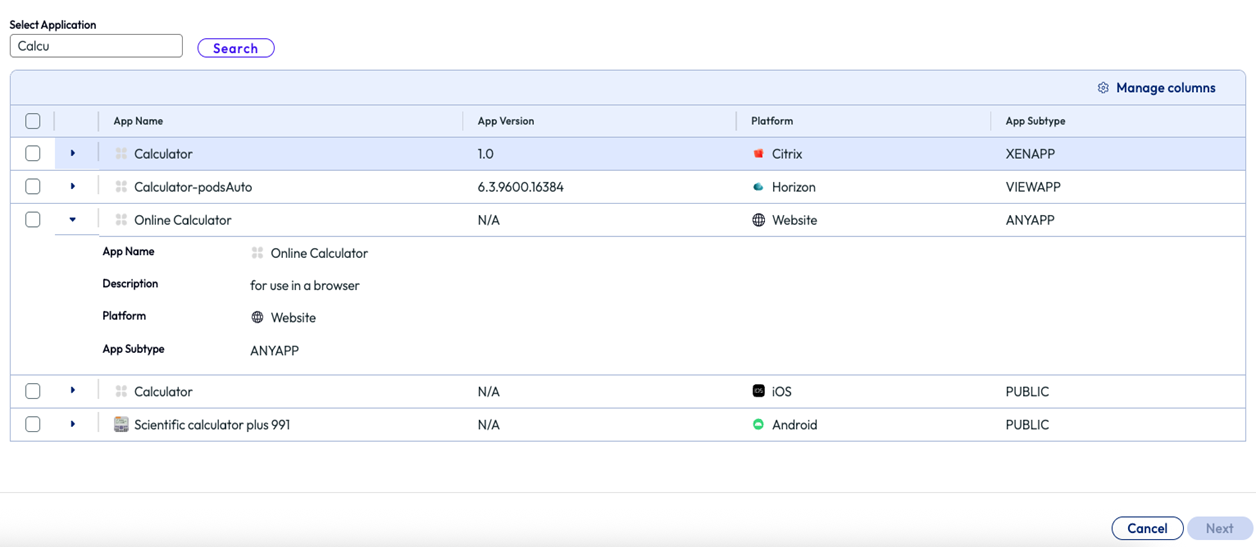
In the Search for applications field, search for the first component app you want to include in the bundle.
-
Select the application from the search results to add it to the bundle.
-
Repeat steps the two previous steps to add all related component apps to the bundle.
You can add any number of applications, regardless of platform or delivery method.
-
Select Next.
-
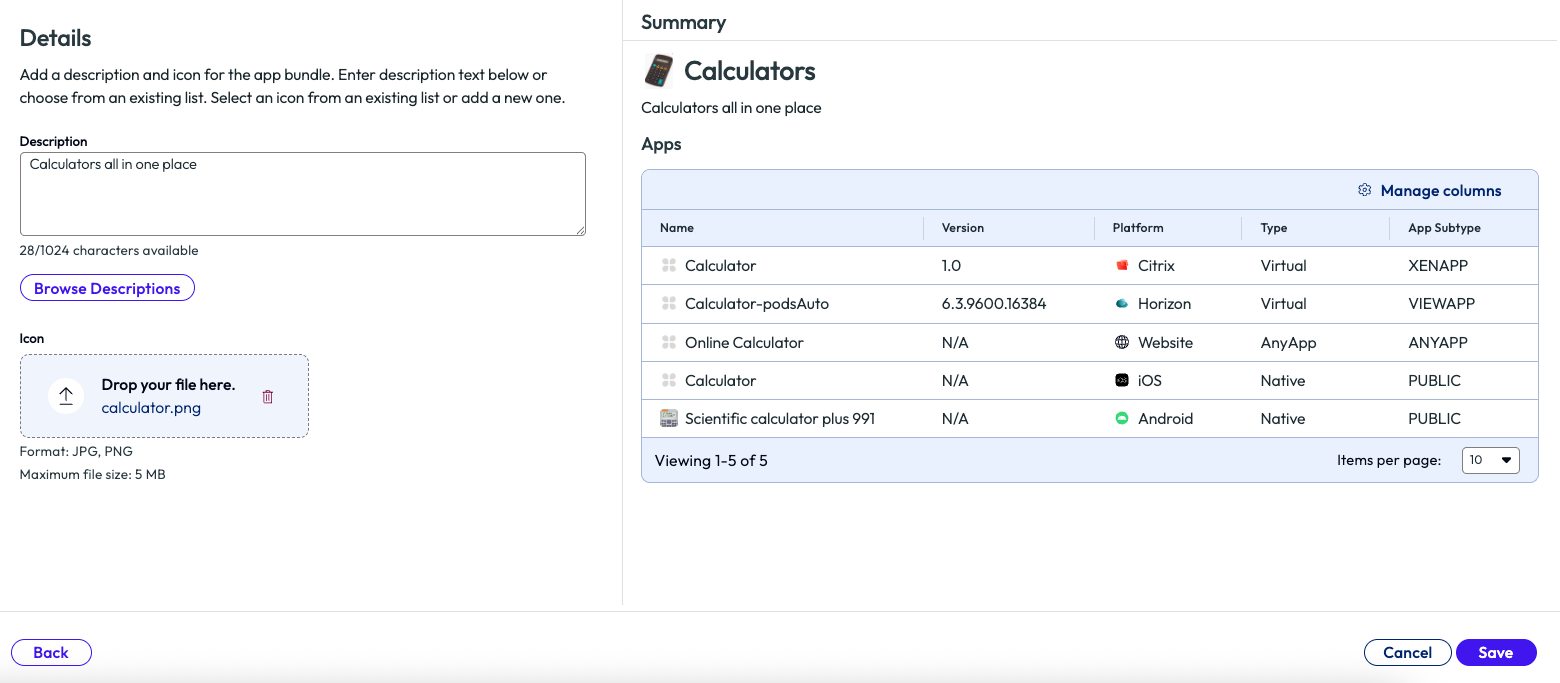
In the Description field, enter or edit the bundle description:
-
You can type a custom description
-
Or select Browse Descriptions to view descriptions from the component apps and use one as a starting point
-
After browsing, you can edit the selected description as needed
-
-
For the bundle icon, upload an icon image that represents the bundle. (Icon browsing from component apps will be available in a future release.)
-
Review the bundle preview to verify the name, description, and icon appear as intended.
-
Select Save.
The bundle is soon visible to end users who have access to at least one of the component apps. The component apps no longer appear individually in the App Catalog.
Edit an App Bundle
You can modify an existing App Bundle to update its properties, add or remove component apps, or change its description and icon.
Procedure
-
Navigate to the Hub Services Console.
-
Select App Catalog > App Bundles.
-
Locate the bundle you want to edit in the App Bundles list.
-
Click the name of the bundle.
-
To modify the bundle name or component apps:
- Update the Bundle Name field as needed
- To add component apps, search for and select additional applications
- To remove component apps, select the remove icon (X) next to the component app
- Select Next to proceed to the description and icon settings
-
To modify the description:
- Edit the text in the Description field
- Or select Browse Descriptions to choose a description from component apps
- After browsing, you can edit the selected description as needed
-
To update the bundle icon, upload a new icon image.
-
Review your changes in the bundle preview.
-
Select Save.
The updated bundle soon reflects the changes in the App Catalog for end users.
Delete an App Bundle
When you delete an App Bundle, the component apps that were part of the bundle become individually visible again in the App Catalog. Any configurations applied to those apps (such as category assignments, promotions, or user favorites) are restored to their original state.
Procedure
-
Navigate to the Hub Services Console.
-
Select App Catalog > App Bundles.
-
Locate the bundle you want to delete in the App Bundles list.
-
Select the Delete icon (trash can) for the bundle.
-
Confirm the deletion when prompted.
The component apps that were part of the deleted bundle soon appear individually in the App Catalog for end users.
Was this page helpful?