To see Mobile Analytics (Mobile DEX) data for your apps and devices that use the Omnissa Intelligence SDK, activate Mobile Analytics in Omnissa Intelligence and add a key-value pair (KVP) to a supported Omnissa Workspace ONE productivity app. Optionally, you can also deploy an SDK profile in Omnissa Workspace ONE UEM to control the collection of battery, network, and device related Mobile Analytics and SDK data.
Developer documentation: Telemetry privacy configuration
See Telemetry Privacy Configuration, iOS or Telemetry Privacy Configuration, Android on the Omnissa Developer Portal for details about the privacy config JSON payload.
Data collection and transmission
See the Mobile topic for details.
Allowlisting IP addresses and protocols
For on-premises deployments, the Mobile Analytics feature needs access to some IP addresses and protocols to successfully gather and report data. See the topic Allowlisting for Mobile Analytics (Mobile DEX) for details.
Check quotation mark characters in your KVPs
Ensure that the quotation marks in your key-value pairs are straight " " and not curved “ ”. The curved quotation marks render the KVPs useless.
Example
View the example KVPs with quotation marks that work and quotation marks that don't work.
- Work:
"CaptureDEXData":true - Do not work:
“CaptureDEXData”:true
Levels of control
By default, the Mobile Analytics feature does not send data to Intelligence. You must follow a multiple step process to use this feature.
- Turn on Mobile Analytics in the Intelligence console as outlined in App analytics - activate Mobile Analytics.
- Configure a KVP in UEM using a profile to instruct Mobile Analytics to send data to Intelligence, as outlined in Device telemetry - use a Workspace ONE productivity app and an SDK profile to get device data.
- Optionally, if you do not want to send ALL data to Intelligence, you must turn off categories, attributes, or events depending on what you do or don't want to use in Intelligence.
- The prevention mechanism also uses KVPs and a UEM profile.
- These KVPs can prevent sending data at various levels of granularity.
- Deactivate an entire Mobile DEX category.
- Mobile DEX categories are app usage data, battery data, network data, and device data.
- See Stop sending Mobile DEX category data for details.
- Deactivate specific attributes.
- For example, deactivate sending GPS coordinates.
- See Stop sending Mobile DEX attribute data for details.
- Deactivate specific events.
- For example, deactivate sending battery state changes or network state changes.
- See Stop sending Mobile DEX event data for details.
- Deactivate an entire Mobile DEX category.
- If you use more than one supported productivity app, select which one sends Mobile Analytics.
- If you do not select an app to send Mobile Analytics, your environment could report duplicate data from the same device.
- Use the productivity app ID, a UEM profile, and a KVP.
- See Select an app to send Mobile Analytics
Default KVPs
The Mobile Analytics mechanism, after activation, uses the listed default KVPs to control the applicable Omnissa Workspace ONE productivity app to send or not send data to Intelligence. You do not need to add these KVPs to a productivity app.
Supported productivity apps
- Omnissa Workspace ONE Content for Android and iOS
- Omnissa Workspace ONE Intelligent Hub for Android and iOS
- Omnissa Workspace ONE Launcher (Android)
- Omnissa Workspace ONE Web for Android and iOS
KVPs
"PolicyAllowCrashReporting": true,
    "PolicyAllowFeatureAnalytics": 1,
    "DisplayPrivacyDialog": 0
If you want to provide an opt-in for end users, or turn off the functionality completely and not allow users to opt in, use the KVPs in the section Edit default KVPs to customize configurations.
1. App analytics - activate Mobile Analytics
Intelligence receives data for the listed categories for your Intelligence SDK apps when you turn on Mobile Analytics. Intelligence SDK apps include Omnissa productivity apps and custom apps your organization developed using the Intelligence SDK.
- App Loads (iOS/Android)
- Crashes (iOS/Android)
- Handled Exceptions (iOS/Android)
- Network Errors (iOS/Android)
- Network Events (iOS/Android)
- User Flows (iOS/Android)
For Intelligence SDK data definitions, access Supported Device Wide Data by Productivity App and Intelligence SDK App Specific Analytics.
Requirements
- Have one of the listed Intelligence add-ons or licenses.
- Mobile Analytics Add-on
- Experience Management Add-on
- Intelligence Add-on
- Workspace ONE Enterprise
- Use Mobile Analytics.
- Deploy the Intelligence SDK to apps.
Procedures
Activate Mobile Analytics using the applicable method for your license or add-on.
- Intelligence Premium: Turn on Mobile Analytics to gather data for Intelligence SDK apps using the Marketplace.
- In Intelligence, go to Marketplace > Solutions > Experience Management.
- Select Set Up in the Mobile Devices & Apps tile.
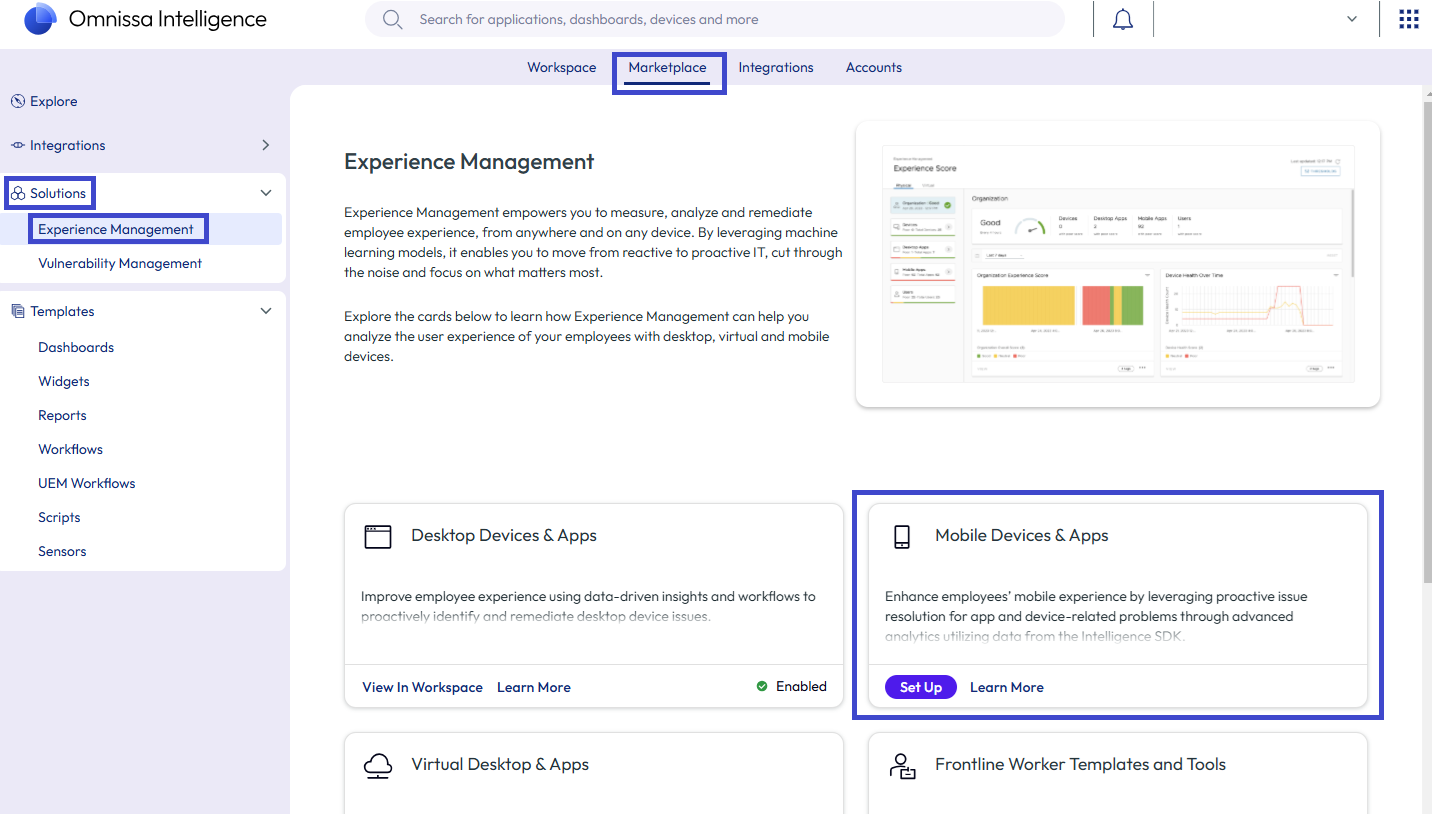
- Select the Mobile Advanced Telemetry tab and then select Save.
- Mobile Analytics add-on: Turn on Mobile Analytics to gather raw data for Intelligence SDK apps using the Integrations section.
- In Intelligence, go to Integrations > Data Sources.
- Select Set Up on the Mobile Advanced Telemetry tile.
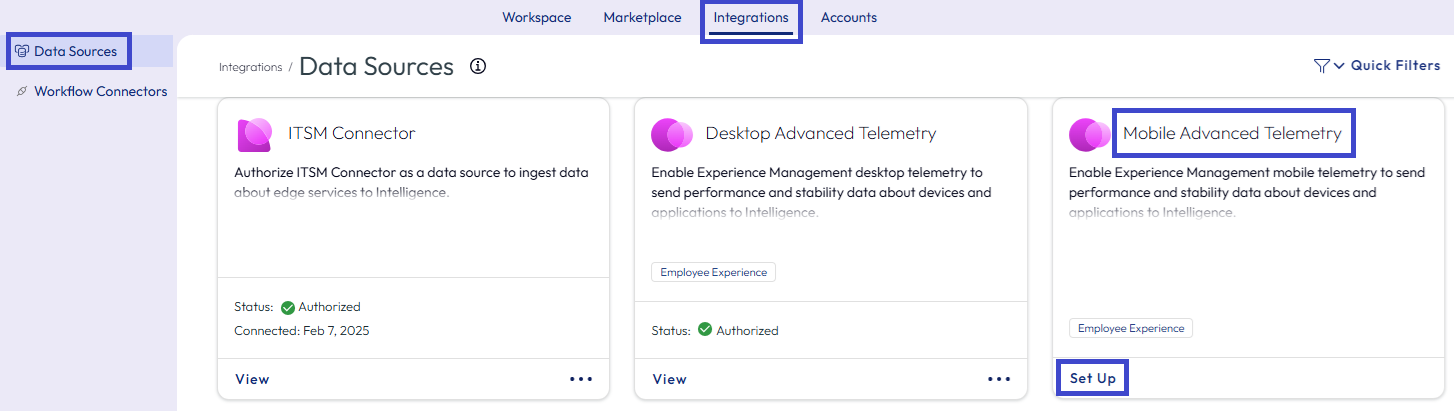
- Select Enable in the Enable Mobile Telemetry window.
2. Device telemetry - use a Workspace ONE productivity app and an SDK profile to get device data
Configure and deploy the default SDK profile or a custom SDK profile to devices that also use a supported Workspace ONE productivity app. The SDK profile works with the Workspace ONE productivity app to collect and send Mobile Analytics data related to app usage, battery, network, and device information to Intelligence. You can use this device telemetry in Intelligence dashboards to help troubleshoot devices in various scenarios like service desk and support.
Supported Omnissa Workspace ONE productivity apps
You can send Mobile Analytics device data from your Omnissa Workspace ONE UEM managed devices that use the listed Workspace ONE productivity apps.
- Omnissa Workspace ONE Content for Android and iOS
- Omnissa Workspace ONE Intelligent Hub for Android and iOS
- Omnissa Workspace ONE Launcher (Android)
- Omnissa Workspace ONE Web for Android and iOS
Requirements
- Use Android or iOS devices that are managed with Workspace ONE UEM.
- Use one of the supported Omnissa Workspace ONE productivity apps.
- Configure a custom SDK profile or the default SDK profile.
- Use Mobile Analytics and activate it in Intelligence using the applicable method.
Procedure
In Workspace ONE UEM, add a key-value pair to an SDK profile so that you can use the device telemetry in service desk scenarios in Intelligence.
- In Workspace ONE UEM, add a key-value pair to an SDK profile.
- Select the organization where you manage your Workspace ONE productivity apps.
- Configure the default SDK profile or configure a custom SDK profile.
Custom SDK profiles are beneficial to use in cases where a specific application requires different SDK settings than the rest of an organization group. If there is no custom SDK profile assigned to an application, the system applies the default SDK profile to the application.- Default SDK profile:
- Go to Groups & Settings > All Settings > Apps > Settings and Profiles > Settings.
- Activate the Custom Settings menu option.
- Enter the key-value pair
{"CaptureDEXData":true}to the Custom Settings text field.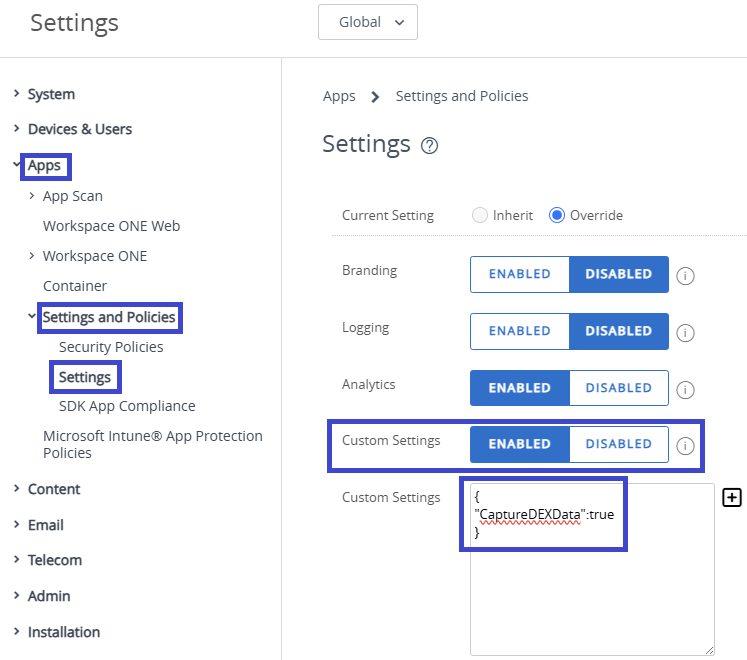
- Select Save.
- Custom SDK profile, Launcher example
- Go to Resources > Profiles & Baselines > SDK Profiles > Add Profile > SDK Profile > Android.
- Select Next and on the General menu option, enter a name for the profile so that you can identify it, for example, DEX Telemetry With Launcher.
- Select Custom Settings and then select Configure.
- Enter the key-value pair
{"CaptureDEXData":true}to the Custom Settings text field.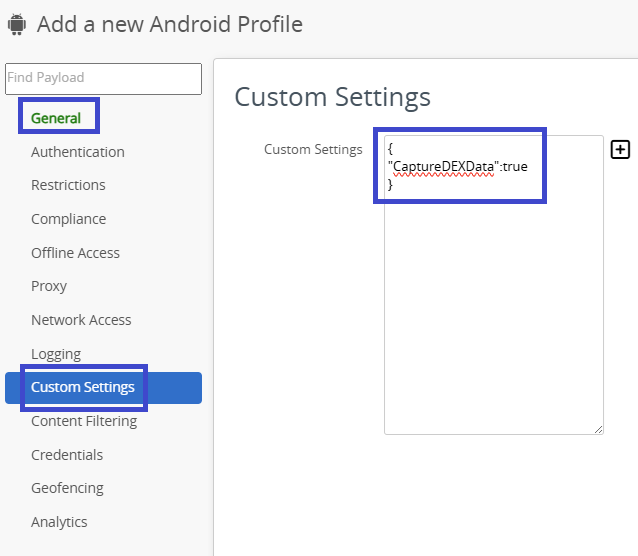
- Select Save.
- Custom SDK profile, Web for iOS example
- Go to Resources > Profiles & Baselines > SDK Profiles > Add Profile > SDK Profile > iOS.
- Select Next and on the General menu option, enter a name for the profile so that you can identify it, for example, DEX Telemetry With Web.
- Select Custom Settings and then select Configure.
- Enter the key-value pair
{"CaptureDEXData":true}to the Custom Settings text field. - Select Save.
- Default SDK profile:
- Devices retrieve the new settings the next time they sync with Workspace ONE UEM.
- In Omnissa Intelligence, add dashboards that display Mobile Analytics information for Intelligence SDK apps.
- Go to Marketplace > Templates > Dashboards and select the Frontline tag to find dashboard templates that display Intelligence SDK and Mobile Analytics data.
- Select a desired template and select to Add to Workspace.
- View and work with the dashboard in Workspace > Dashboards.
3. (Optional) Stop sending Mobile DEX categories, attributes, or events
You can control the data that the system sends to Intelligence with KVPs. For example, if you want to know about Android network events, but you don't need information concerning network categories or attributes, use the KVPs for network category and network attribute to block the sending of network categories and network attributes. You would not set the KVP for network events.
Stop sending Mobile DEX category data
If you know you do not need Mobile DEX category data for app usage, batteries, networks, or devices, but you have activated the sending of Mobile Analytics, use a key-value pair to stop sending telemetry for a specific Mobile DEX category.
KVP examples for categories
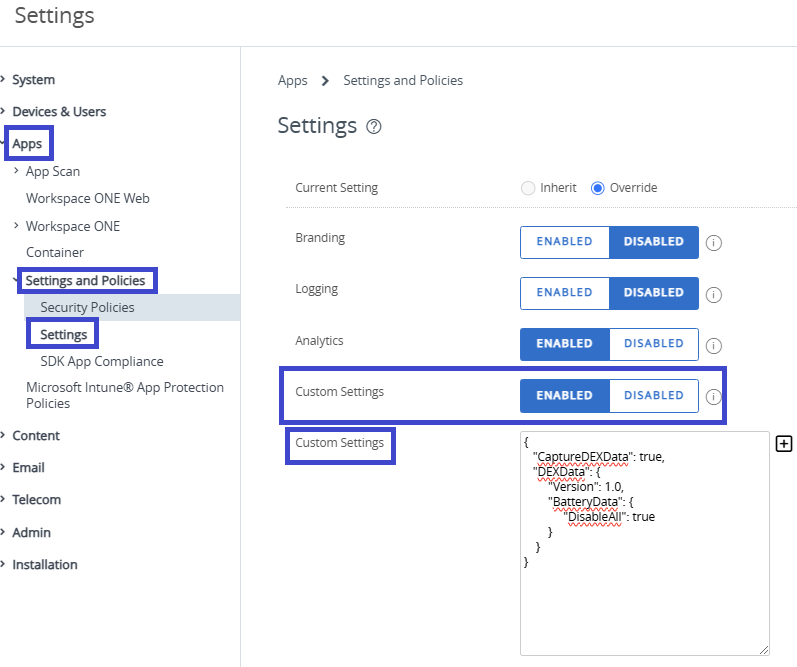
Here are examples of the key-value pairs to prevent sending Mobile DEX category data to Intelligence. These custom settings include the key-value pair to activate Mobile Analytics "CaptureDEXData": true,.
App Usage
{
   "CaptureDEXData": true,
   "DEXData": {
        "Version": 1.0,
        "AppUsageData": {
             "DisableAll": true
        }
    }
}
Battery
{
   "CaptureDEXData": true,
   "DEXData": {
        "Version": 1.0,
        "BatteryData": {
             "DisableAll": true
        }
    }
}
Device
{
   "CaptureDEXData": true,
   "DEXData": {
        "Version": 1.0,
        "DeviceData": {
             "DisableAll": true
        }
    }
}
Network
{
   "CaptureDEXData": true,
   "DEXData": {
        "Version": 1.0,
        "NetworkData": {
             "DisableAll": true
        }
    }
}
Requirements
- Use Android or iOS devices that are managed with Workspace ONE UEM.
- Use one of the supported Omnissa Workspace ONE productivity apps.
- Configure a custom SDK profile or the default SDK profile.
- Use Mobile Analytics and activate Mobile Devices & Apps in Intelligence.
Procedure
In Workspace ONE UEM, add a key-value pair to an SDK profile to prevent the sending of Mobile DEX telemetry category data.
- In UEM, select the organization where you manage your Workspace ONE productivity apps.
- Configure the default SDK profile or configure a custom SDK profile.
Custom SDK profiles are beneficial to use in cases where a specific application requires different SDK settings than the rest of an organization group. If there is no custom SDK profile assigned to an application, the system applies the default SDK profile to the application.- Default SDK profile:
- Go to Groups & Settings > All Settings > Apps > Settings and Profiles > Settings.
- Activate the Custom Settings menu option.
- Enter the key-value pair for the applicable category to the Custom Settings text field.
- Select Save.
- Custom SDK profile:
- Go to Resources > Profiles & Baselines > SDK Profiles > Add Profile > SDK Profile > Android or iOS.
- Select Next and on the General menu option, enter a name for the profile so that you can identify it.
- Select Custom Settings and then select Configure.
- Enter the key-value pair for the applicable category to the Custom Settings text field.
- Select Save.
- Default SDK profile:
- Devices retrieve the new settings the next time they sync with Workspace ONE UEM.
Stop sending Mobile DEX attribute data
If you know you do not need Mobile DEX attribute data for batteries, networks, or devices, but you have activated the sending of Mobile Analytics, use a key-value pair to stop sending telemetry for a specific Mobile DEX attribute.
Note: You cannot control app usage data at the attribute level.
Super attributes
Some attributes are common across all entities and are required for Mobile Analytics to work. These attributes are known as super attributes, and these attributes are always sent to Intelligence when you activate Mobile Analytics. The only super attributes you can control with a key-value pair are location_latitude, location_longitude, and manufacturer.
Super attributes always sent by Mobile Analytics
Except for the noted attributes, Mobile Analytics always sends the listed attribute data when activated.
app_idevent_namelocation_latitude(supported for use in key-value pair)location_longitude(supported for use in key-value pair)manufacturer(supported for use in key-value pair)modelos_nameos_versiontenant_onlyuem_device_udiduem_serial_numberuem_username
KVP examples for attributes
Here are examples of the key-value pairs to prevent sending Mobile DEX attribute data to Intelligence.
These custom setting examples include the key-value pair to activate Mobile Analytics "CaptureDEXData": true,. These examples send Mobile DEX category data because they omit that key-value pair that prevents the sending of Mobile DEX category data.
You do not have to limit the number of key-value pairs used in the SDK profile. You can enter the key-value pair that activates Mobile Analytics, the key-value pair that prevents the sending of Mobile DEX category data, and the key-value pair that prevents the sending of Mobile DEX attribute data. In this scenario, the system would send Mobile DEX event data to Intelligence.
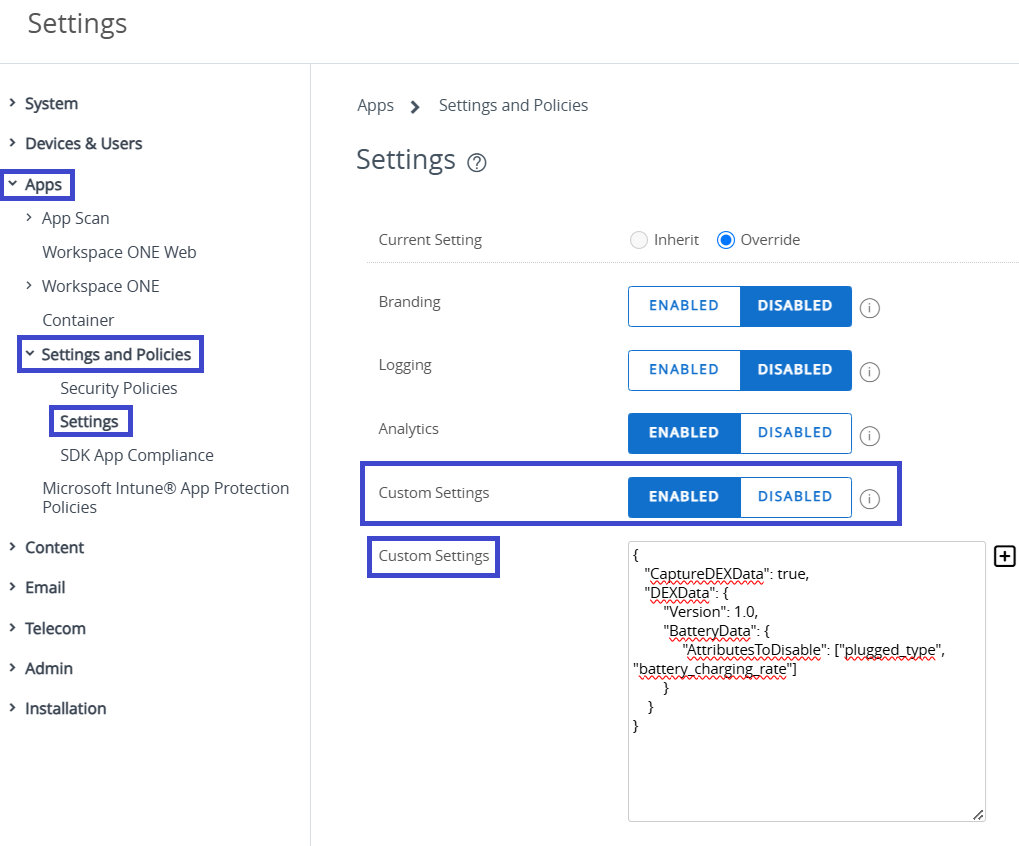
Battery
{
   "CaptureDEXData": true,
   "DEXData": {
        "Version": 1.0,
        "BatteryData": {
             "AttributesToDisable": ["plugged_type", "battery_charging_rate"]
        }
    }
}
Device
{
   "CaptureDEXData": true,
   "DEXData": {
        "Version": 1.0,
        "DeviceData": {
              "AttributesToDisable": ["location_latitude", "location_longitude"]
        }
    }
}
Network
{
   "CaptureDEXData": true,
   "DEXData": {
        "Version": 1.0,
        "NetworkData": {
              "AttributesToDisable": ["jitter", "latency"]
        }
    }
}
Requirements
- Use Android or iOS devices that are managed with Workspace ONE UEM.
- Use one of the supported Omnissa Workspace ONE productivity apps.
- Configure a custom SDK profile or the default SDK profile.
- Use Mobile Analytics and activate Mobile Devices & Apps in Intelligence.
Procedure
In Workspace ONE UEM, add a key-value pair to an SDK profile to prevent the sending of Mobile DEX telemetry attribute data.
- In UEM, select the organization where you manage your Workspace ONE productivity apps.
- Configure the default SDK profile or configure a custom SDK profile.
Custom SDK profiles are beneficial to use in cases where a specific application requires different SDK settings than the rest of an organization group. If there is no custom SDK profile assigned to an application, the system applies the default SDK profile to the application.- Default SDK profile:
- Go to Groups & Settings > All Settings > Apps > Settings and Profiles > Settings.
- Activate the Custom Settings menu option.
- Enter the key-value pair for the applicable attribute to the Custom Settings text field.
- Select Save.
- Custom SDK profile:
- Go to Resources > Profiles & Baselines > SDK Profiles > Add Profile > SDK Profile > Android or iOS.
- Select Next and on the General menu option, enter a name for the profile so that you can identify it.
- Select Custom Settings and then select Configure.
- Enter the key-value pair for the applicable attribute to the Custom Settings text field.
- Select Save.
- Default SDK profile:
- Devices retrieve the new settings the next time they sync with Workspace ONE UEM.
Stop sending Mobile DEX event data (Android)
If you know you do not need Mobile DEX event data for batteries, networks, or devices, but you have activated the sending of Mobile Analytics, use a key-value pair to stop sending Mobile DEX data for a specific event.
Notes:
- We plan to release supported events for the device category in the future.
- You cannot control app usage data at the events level.
Supported events
You can control the sending of the listed event data using key-value pairs.
- Charging State Change
- Category: Battery
- Event string:
charging_state_change - Description: This event is triggered when the device charging state changes.
- Critical Battery Level
- Category: Battery
- Event string:
critical_battery_level - Description: This event is triggered when the battery level reaches 20, 15, and 10%, and then every percentage drop below 10.
- Critical Cell Strength
- Category: Network
- Event string:
critical_cell_signal - Description: This event is triggered when the device has detected the cellular signal strength level has reached a 1 or lower on a scale from 0-4.
- Network State Change
- Category: Network
- Event string:
network_change - Description: This event is triggered when there is a switch in network SSID, cellular type, Ethernet, or a disconnection. Disconnections are reported if 5 seconds have past and a reconnection of the same network type has not occurred.
KVP examples for events
Here are examples of the key-value pairs to prevent sending Mobile DEX event data to Intelligence. These custom settings include the key-value pair to activate Mobile Analytics "CaptureDEXData": true,. These examples send Mobile DEX category and attribute data because they omit that key-value pairs that prevent the sending of Mobile DEX category and attribute data.
You do not have to limit the number of key-value pairs used in the SDK profile. You can enter the key-value pair that activates Mobile Analytics, the key-value pair that prevents the sending of Mobile DEX category data, and the key-value pair that prevents the sending of Mobile DEX event data. In this scenario, the system would send Mobile DEX attribute data to Intelligence.
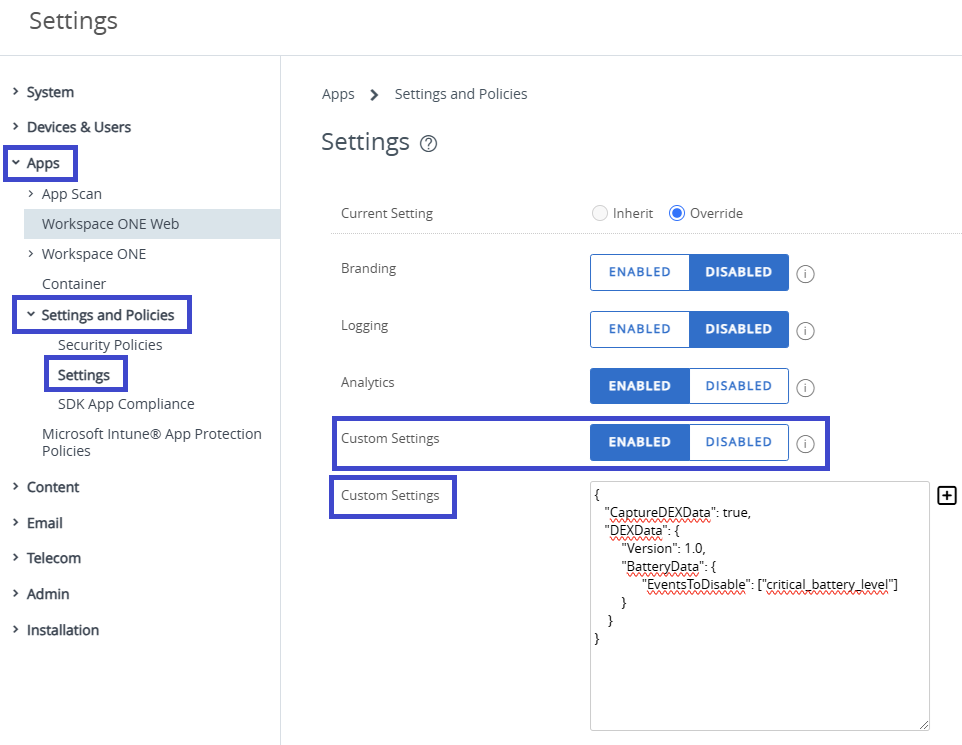
Battery
{
   "CaptureDEXData": true,
   "DEXData": {
        "Version": 1.0,
        "BatteryData": {
              "EventsToDisable": ["critical_battery_level"]
        }
    }
}
Network
{
   "CaptureDEXData": true,
   "DEXData": {
        "Version": 1.0,
        "NetworkData": {
               "EventsToDisable": ["network_change"]
        }
    }
}
Requirements
- Use Android or iOS devices that are managed with Workspace ONE UEM.
- Use one of the supported Omnissa Workspace ONE productivity apps.
- Configure a custom SDK profile or the default SDK profile.
- Use Mobile Analytics and activate Mobile Devices & Apps in Intelligence.
Procedure
In Workspace ONE UEM, add a key-value pair to an SDK profile to prevent the sending of Mobile DEX telemetry event data.
- In UEM, select the organization where you manage your Workspace ONE productivity apps.
- Configure the default SDK profile or configure a custom SDK profile.
Custom SDK profiles are beneficial to use in cases where a specific application requires different SDK settings than the rest of an organization group. If there is no custom SDK profile assigned to an application, the system applies the default SDK profile to the application.- Default SDK profile:
- Go to Groups & Settings > All Settings > Apps > Settings and Profiles > Settings.
- Activate the Custom Settings menu option.
- Enter the key-value pair for the applicable events to the Custom Settings text field.
- Select Save.
- Custom SDK profile:
1.Go to Resources > Profiles & Baselines > SDK Profiles > Add Profile > SDK Profile > Android or iOS.
- Select Next and on the General menu option, enter a name for the profile so that you can identify it.
- Select Custom Settings and then select Configure.
- Enter the key-value pair for the applicable events to the Custom Settings text field.
- Select Save.
- Default SDK profile:
- Devices retrieve the new settings the next time they sync with Workspace ONE UEM.
4. Select an app to send Mobile Analytics
If a device has more than one supported Workspace ONE productivity app installed, select the one to send Mobile Analytics telemetry.
If you do not select an app, your environment could report duplicate data. For example, if Intelligent Hub and Launcher are on the same Android device, each app collects and sends Mobile DEX data independently. Intelligence then receives duplicate data for that device.
Use the IntelSDKAllowedApps key-value pair to restrict Mobile DEX reporting to a single app, or to a specific set of apps.
Requirements
- Use Android or iOS devices that are managed with Workspace ONE UEM.
- Use one of the supported Omnissa Workspace ONE productivity apps.
- Configure a custom SDK profile or the default SDK profile.
- Use Mobile Analytics and activate Mobile Devices & Apps in Intelligence.
Application IDs by productivity app
| Platform | App | Application ID |
|---|---|---|
| Android | Content | 9f378bc776734674bb624a67fa25d97d00555300 |
| iOS | Content | 86cf46b0875542a1bbb1bacd72d1602000555300 |
| Android | Intelligent Hub | 4d10cad410e043e0901c4fc0f5c0c0b600555300 |
| iOS | Intelligent Hub | 196803430925461a8f57cbc07f5c857d00555300 |
| Android | Launcher | 99f33af0a4ec4590ae5840158d58750d00555300 |
| Android | Web | aff63ae1667b4302893f3dc9f21acdee00555300 |
| iOS | Web | b585a747882941568f38a1a1d41f4dee00555300 |
| {.filterTable} |
Procedure
In Workspace ONE UEM, add a key-value pair to an SDK profile to limit which productivity app reports Mobile Analytics data.
- In UEM, select the organization where you manage your Workspace ONE productivity apps.
- Configure the default SDK profile or configure a custom SDK profile.
- Custom SDK profiles are useful when you want a specific app (for example, only Launcher) to report Mobile DEX data, while other apps on the same device group do not.
- Default SDK profile: Go to Groups & Settings > All Settings > Apps > Settings and Profiles > Settings > Custom Settings.
- Custom SDK profile: Go to Resources > Profiles & Baselines > SDK Profiles > Add Profile > SDK Profile > Android or iOS > Custom Settings > Configure.
- Enter the
IntelSDKAllowedAppskey-value pair, listing the Application ID of the app that reports Mobile DEX data. - Select Save.
Devices retrieve the new settings the next time they sync with Workspace ONE
UEM.
KVP example
This example restricts Mobile DEX reporting to only the Intelligent Hub for Android or the Intelligent Hub for iOS on devices.
{
"WifiSupportFullClientCertChain": true,
"CaptureDEXData":true,
    "IntelSDKAllowedApps": [
      "196803430925461a8f57cbc07f5c857d00555300",
      "4d10cad410e043e0901c4fc0f5c0c0b600555300"
    ]
}
Activate displaying device locations
Use the Third-Party Services tab in Experience Management > Settings to display device locations using a Mobile Analytics integration with Microsoft Bing Maps. After you activate this feature, find the device's location using the Device Timeline in Intelligence.
Requirements
For this feature to work, ensure you have completed the listed procedures.
- Turn Mobile Analytics on.
- Activate device telemetry with a Workspace ONE productivity app, an SDK profile, and KVPs.
Procedure
Work in the Experience Management area of the Intelligence console to activate this feature.
- In Intelligence, go to Experience Management > Settings and select the Third-Party Services tab.
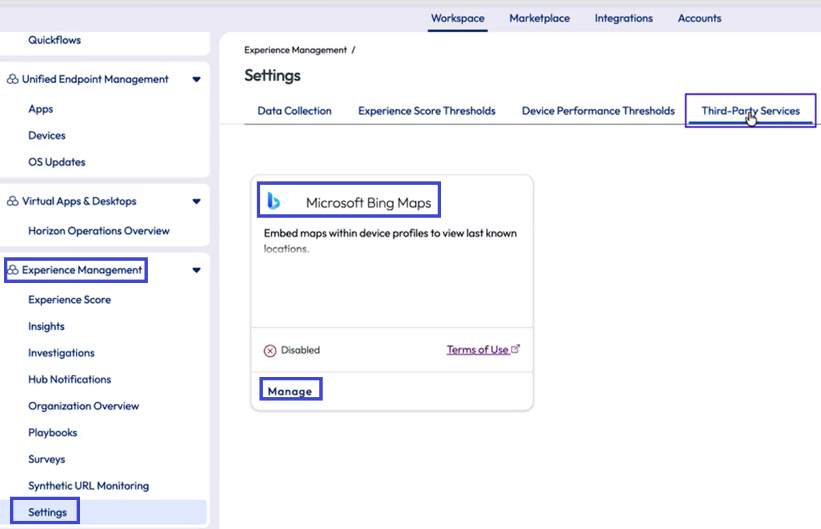
- In the Microsoft Bing Maps tile, select Manage.
- Activate the slider button for the menu option Enable embedded maps on device profile and save your settings.
- Search for the device in the Intelligence search text box and see a device's location in the Device Timeline immediately after activating the feature.
Activate Daily App Usage and Performance (Android)
You can collect the attributes for the Daily App Usage and Performance category with Intelligent Hub for Android 26.05 and later. Previously, you could only collect these attributes with Launcher.
Use the listed KVP in the default or custom SDK profile.
{
  "DEXData": {
    "Version": 1.0,
    "AppUsageData": {
      "DisableAll": false
    }
  }
}
Notes:
- On non-Zebra/Samsung devices, end users see a one-time prompt to manually grant Usage Access permission because the silent-grant mechanism only works on Zebra/Samsung.
- If you want to push permission grants silently on Samsung devices, you must use Samsung Knox Focus Monitoring.
Procedure
- In UEM, select the organization where you manage your Workspace ONE productivity apps.
- Configure the default SDK profile or configure a custom SDK profile.
- Default SDK profile: Go to Groups & Settings > All Settings > Apps > Settings and Profiles > Settings > Custom Settings.
- Custom SDK profile: Go to Resources > Profiles & Baselines > SDK Profiles > Add Profile > SDK Profile > Android or iOS > Custom Settings > Configure.
- In the Custom Settings payload, enter the required KVP settings in the text box and save your settings.
Edit default KVPs
You can control an Omnissa Workspace ONE productivity app using KVPs to provide an opt-in for end users, or turn off the functionality completely and not allow an opt-in option. Use the listed KVPs to customize configuration by adding the KVP in the profile controlling your productivity app.
For similar documentation for the Workspace ONE SDK, see Entering Privacy Policy Key Values for Data Collection.
Procedure
Here is an example of how to add or edit the KVPs "DisplayPrivacyDialog" and "PolicyAllowCrashReporting", if desired, in the default SDK profile to control the Intelligent Hub.
- In Workspace ONE UEM, navigate to Groups & Settings > All Settings > Apps > Settings and Policies > Settings > Custom Settings.
- In the Custom Settings menu option, select Enabled.
- Enter the required KVP settings in the Custom Settings text box and save your settings. You can add other KVPs to meet the needs of your deployment.
"DisplayPrivacyDialog" = 1"PolicyAllowCrashReporting" = true- Here is an example.
- It configures the Intelligent Hub to send data as reported by the Intelligence SDK.
- It configures the Intelligent Hub to allow users to decide if they want to share their usage data by displaying a Data Sharing page.
- It configures the Intelligent Hub to display the opt-in, opt-out page. Users must opt-in to transmit data.
{
	"PolicyAllowCrashReporting": true,
	"PolicyAllowFeatureAnalytics": 1,
	"DisplayPrivacyDialog": 1
}
Optional KVPs
| Name | Key | Value | Description |
|---|---|---|---|
| Display the Privacy Dialogue Screen | "DisplayPrivacyDialog" | 1 - Activated- Displays the opt-in, opt-out dialogue page to users for configuration. - Users must opt-in to transmit data. 0 - Deactivated- Prevents displaying the opt-in, opt-out dialogue page to users. | This key controls the display of the opt-in, opt-out page within the Intelligent Hub. If you want to collect data, the user must opt-in. |
| Diagnostics Data Through Omnissa Intelligence and Omnissa Intelligence SDK | "PolicyAllowCrashReporting" | true - Activated- Sends diagnostic data for productivity applications as reported by Omnissa Intelligence SDK and Omnissa Intelligence. - When set to true, your system receives diagnostic data for productivity applications from the Omnissa Intelligence SDK and Omnissa Intelligence to help with investigating and resolving problems.false - Deactivated- Prevents the reporting of diagnostic data for productivity applications as reported by Omnissa Intelligence SDK and Omnissa Intelligence. -When deactivated, your ability to investigate and resolve problems is reduced because your system receives no diagnostic data for productivity applications from Omnissa Intelligence SDK or Omnissa Intelligence. | This key controls reporting diagnostic data from the Omnissa Intelligence SDK and Omnissa Intelligence. |
| Feature Usage Analytics | "PolicyAllowFeatureAnalytics" | 1 - Activated- Users can decide if they want to share their usage data for the Intelligent Hub. - This value does display the Data Sharing page in the Intelligent Hub. 0 - Deactivated- Prevents data sharing for all users of the Intelligent Hub. - This value prevents the display of the Data Sharing page in the Intelligent Hub. | This key controls the display of the Data Sharing page within the Intelligent Hub. Users can opt in or out of sharing their feature usage analytics. Feature usage analytics collection helps Omnissa improve existing products and to develop new ones. |
Was this page helpful?