Integrate Zoom as a Data Source in Omnissa Intelligence through a webhook mechanism that obtains Zoom Quality of Service Subscription (QSS) data. The Zoom QSS data is the basis for Intelligence's Zoom Session Experience Analytics. Use the data in Intelligence to help with audio, video, and screen share quality during Zoom meetings and webinars. The integration also collects meeting and webinar participant data to offer insights into the Zoom user's experience.
Limited availability
Intelligence offers Zoom integration with limited availability. These features are available to a limited number of customers for extended feedback.
Why integrate Zoom and Intelligence?
Obtain Quality of Service Subscription (QSS) data and generate Session Experience Analytics in Intelligence to analyze the user experience for audio, video, screen share quality, webinars, and phone calls. IT administrators, help desk personnel, management, and HR teams can use Zoom Session Experience Analytics to resolve issues, offer personalized assistance, and to make informed decisions for using the Zoom cloud-based video conferencing platform.
What data does Intelligence collect?
Intelligence collects audio quality, video quality, and screen sharing data from meeting sessions to display for use in dashboards, workflows, and reports. Zoom events include those in the list.
- meeting.ended
- meeting.joined
- meeting.left
- meeting.participant_data
- meeting.participant_data_summary
- meeting.participant_qos
- meeting.participant_qos_summary
- meeting.started
- webinar.ended
- webinar.joined
- webinar.left
- webinar.participant_data
- webinar.participant_data_summary
- webinar.participant_qos
- webinar.participant_qos_summary
- webinar.started
See the listed Zoom Developers topics for details about Zoom APIs used for QSS - Events.
- meeting.participant_data
- meeting.participant_data_summary
- meeting.participant_qos
- meeting.participant_qos_summary
Data definitions
See Zoom Integration Data Definitions for a list of data points and their descriptions.
Requirements to integrate
You must use the listed platforms, plans, permissions, and subscriptions to set up the integration.
- Use Zoom on Android, Apple (macOS and iOS), or Windows platforms.
- Have the listed roles and credentials.
- Have an admin role in Intelligence.
- Have credentials for a Zoom Enterprise account.
- Activate the Quality of Service Subscription (QSS).
- Activation is a separate process that requires you to have a Business, Business Plus, or Enterprise Zoom account.
- You can only activate QSS for the Business, Business Plus, or Enterprise Zoom account types.
- Zoom QSS is an add-on plan associated with a Zoom account.
- Ask your Zoom account team to confirm that you have this add-on license.
If you do not have this add-on, consider activating a trial license. - Zoom customers automatically receive QSS events after a license is refreshed or renewed.
- You do not need to resubscribe to the Zoom application.
- To integrate the systems, you must authorize and add Intelligence (Workspace ONE Experience Management-[Region]) to your Zoom Marketplace.
Workspace ONE Experience Management regions
Find your Intelligence region in the listed table to determine which version of Zoom to authorize during integration.
| Your Intelligence region | Region identifier | Authorize the listed version of Workspace ONE Experience Management |
|---|---|---|
| Canada | CA1 | Workspace ONE Experience Management-Canada(Central) |
| Frankfurt | EU1 | Workspace ONE Experience Management-Europe(Frankfurt) |
| Ireland | EU2 | Workspace ONE Experience Management-Europe(Ireland) |
| Mumbai | IN1 | Workspace ONE Experience Management-Asia-Pacific(Mumbai) |
| Sydney | AU1 | Workspace ONE Experience Management-Asia-Pacific(Sydney) |
| Tokyo | AP1 | Workspace ONE Experience Management-Asia-Pacific(Tokyo) |
| United Kingdom | UK1 | Workspace ONE Experience Management-Europe(London) |
| United States - Federal | GOV | Workspace ONE Experience Management-Gov-Cloud |
| United States - Production | NA1 | Workspace ONE Experience Management-North-America(Oregon) |
| United States - UAT | sandbox | Workspace ONE Experience Management-Sandbox(Oregon) |
Integrate Zoom
Register Zoom with Intelligence so the two systems can communicate and you can view and work with Zoom data in Intelligence. This process requires you to work in two consoles. Start in Intelligence, and Intelligence directs you to your Zoom console.
Important: Ensure you authorize the version of Workspace ONE Experience Management-[Region] that matches your Intelligence region.
- In Intelligence, go to Integrations > Data Sources, find the Zoom tile, and select Set Up.
- The system directs you to your Zoom instance.
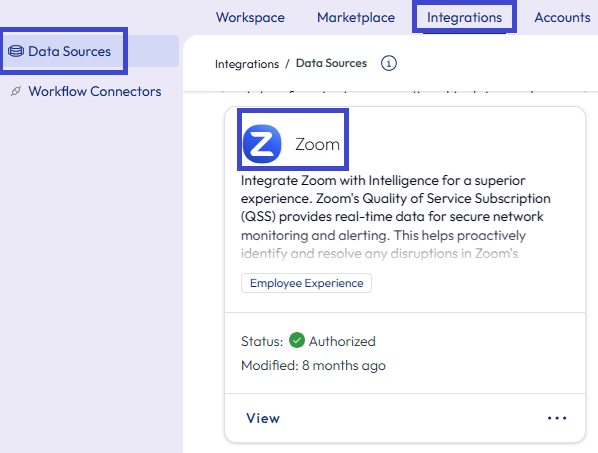
- The system directs you to your Zoom instance.
- Log in to Zoom with your Zoom admin credentials.
- The integration process confirms that you are about to add Workspace ONE Experience Management-[Region] to your Zoom Marketplace.
- Check that the Workspace ONE Experience Management app displayed is in the correct region.
- If you see the incorrect app displayed, use the Switch Account menu option to select the correct app in your region.
- You must Allow this request for successful integration.
Deauthorize integration
You can deauthorize Zoom using two methods. You can use the Zoom tile used to set up the integration or you can deauthorize from the Zoom Marketplace. Whichever method you use, the deauthorization action results in the system deleting all your data collected since authorizing the integration.
Deauthorize the integration using the Zoom tile in Intelligence
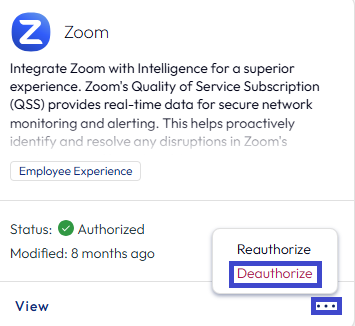
- In Intelligence, go to Integrations > Data Sources.
- Find the Zoom tile and select the ellipses (...).
- Select Deauthorzie to stop streaming data between the two systems.
Deauthorize the integration using the Zoom Marketplace
- Go to the Zoom Marketplace.
- Find the Workspace ONE Experience Management app you authorized and unapprove it.
Manage the integration
Use the Zoom tile in the Integrations > Data Sources area to get logs for the integration, see its status, see usage analytics, and see actions performed while the integration is authorized.
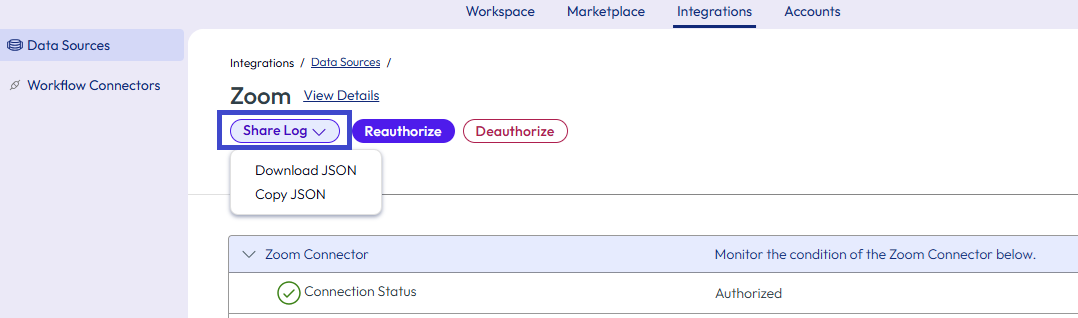
- In Intelligence, go to Integrations > Data Sources.
- Find the Zoom tile and select View.
- Select Share Log to download or copy a JSON log file.
- See the current status of your integration on the Status tab.
- See analytics for dashboards, workflows, and reports used and created on the Usage tab.
- On the Actions tab, see if admins have taken any actions since the authorization of the integration.
Analyze employee experiences with the Experience Score dashboard
Experience Management data for Zoom displays on the Experience Score dashboard. Find possible issues including app crashes and app hangs, possible network problems, audio quality issues, and video quality issues.
- In Intelligence, go to Workspace > Experience Management > Experience Score, select the Physical tab, and choose the App Integrations tile.
- Look for the Zoom app in the App Integrations list.
- Use the displayed widgets to analyze the current state of your integration or to help troubleshoot an issue.
- See the score displayed as Poor, Bad, Fair, or Good.
- See the Meetings and Users views to understand the Zoom experience for your organization from different perspectives.
- Select Audio Quality, Video Quality, or Screen Share Quality to get specific details for Zoom.
For example, the widgets for audio quality display the average bit rate, jitter, latency, and packet loss for both the receiving (input) and sending (output) audio. - You can also take a deeper look into a particular Zoom Meeting or a Zoom User’s experience and find possible contributing factors for a poor experience.
- Intelligence computes the Meeting Quality Score by taking the average score of all participant’s in that meeting.
- Use widgets like the Top Devices with Poor/Bad Audio Quality to get a list of impacted devices.
Alert admins of poor experiences with Freestyle workflows
Use Freestyle workflows to alert admins of poor user experiences. For specifics on how to configure workflows, see the topic Freestyle. Here are some suggestions for creating a custom workflow (not from a template).
- Use Zoom and its available categories as the Data Source.
- For Trigger Rules, use App Name > includes > (zoom).
- When you add an Action, select the Intelligence connector and use its action to Send Email to a group of admins that can help with app issues.
Communicate experiences with reports
Use reports to communicate poor, neutral, or good employee experiences when using an app. For specifics on how to configure reports, see the topic Reports.
Was this page helpful?