Omnissa Workspace ONE Experience Management has updated how you can activate and collect Experience Management telemetry. You can activate and collect it at an Omnissa Workspace ONE UEM organization group or a smart group level rather than across your entire device fleet. Learn how this feature works, how to opt in to this feature, how to add, prioritize, and manage policies, and how to pause and deactivate telemetry collection. If you do not want to update your Experience Management telemetry collection, you continue to collect telemetry using the legacy process.
Limited availability
Experience Management offers the Experience Management Telemetry Enablement feature with limited availability (LA). These features are available to a limited number of customers for extended feedback.
LA limitations
The LA release includes the listed limitations and behaviors.
- Persisted settings after unenrolling a device from a UEM organization.
- When you enroll device-A into organization-A, and you activate Experience Management Telemetry in organization-A, the system pushes the telemetry activation setting to device-A.
- However, if you uninstall Experience Management from device-A and then enroll it into organization-B where Experience Management Telemetry is not activated, the Experience Management Telemetry activation setting from organization-A persists on device-A.
- Device-A continues sending Experience Management data to Omnissa Intelligence.
How does it work?
Experience Management Telemetry Enablement replaces the legacy all-or-nothing telemetry switch with a push-based, policy-driven model. Previously, activating Experience Management set a global flag that turned on telemetry for every device at enrollment. Admins had no control over which specific devices got Experience Management activated.
Now, Omnissa Intelligence pushes enablement policies to UEM, which delivers the policies to devices at the next Omnissa Workspace ONE Intelligent Hub check-in (within approximately 4 hours). For new customers, Experience Management is deactivated by default — admins activate it explicitly for the organization or for specific smart groups.
Policies
Policies are the unit of telemetry enablement. Each policy defines:
- Scope: Organization-wide or scoped to one or more smart groups.
- Priority: An integer from 0 (highest) to 99999 (lowest).
- When multiple policies could apply to a device, the highest-priority policy wins.
- Data collection setting: Whether to collect all data or no data for covered devices.
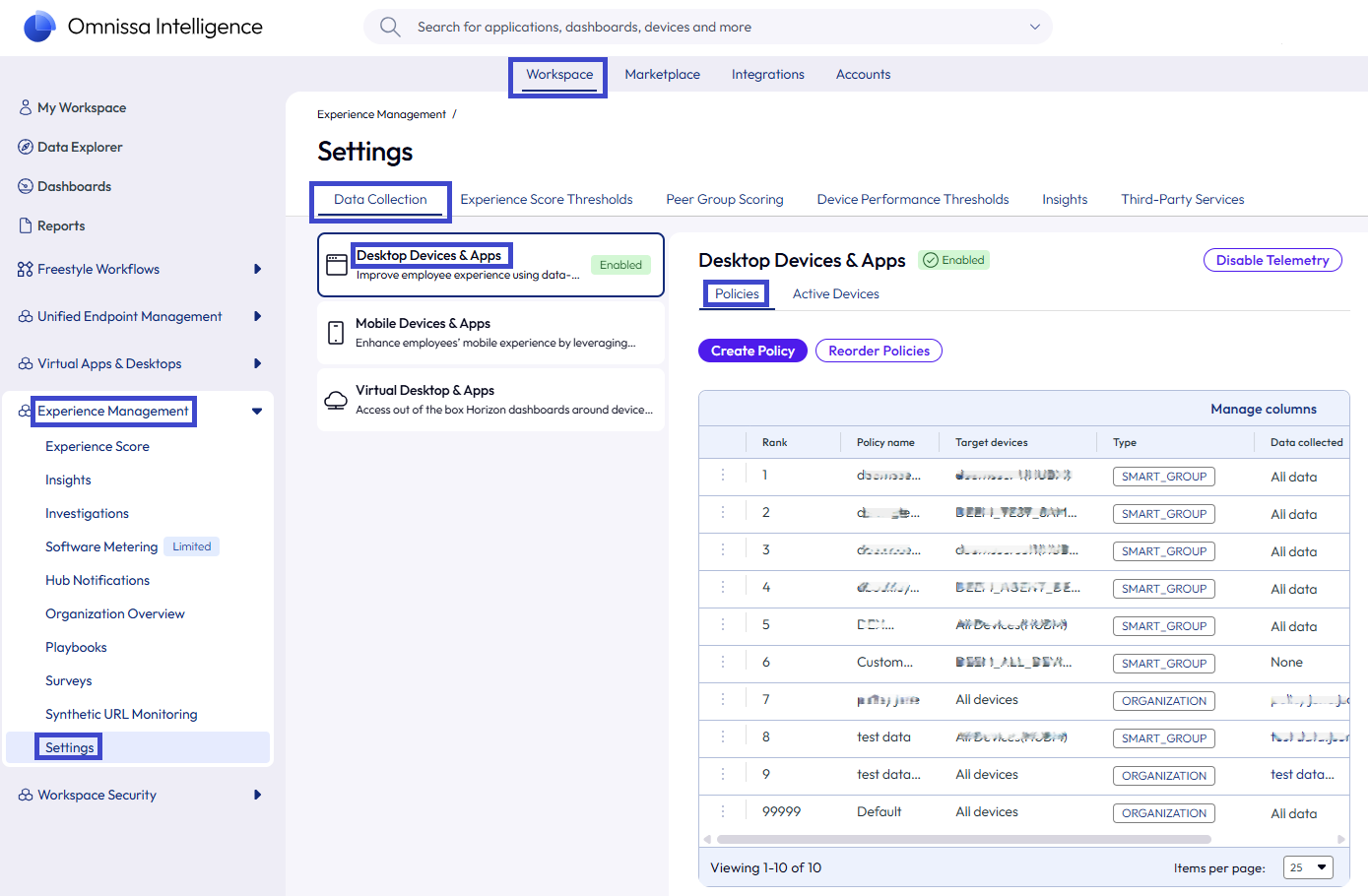
Policy resolution on a device
When a device checks in, UEM determines which policy it applies in the listed order.
- Smart Group policy: UEM applies the highest-priority smart group policy the device belongs to.
- Organization policy: UEM applies the policy located at the organization group where the device resides if there is no smart group policy applied.
- Default policy (priority 99999): UEM applies the default policy to the device if no other policy is applied.
- Legacy pull model: The device falls back to polling Intelligence directly if no policies exist at all.
Default policy
The default policy is a non-deletable organization-level policy automatically created when you first set up Experience Management Telemetry Enablement. It has the lowest priority (99999). By default it is set to Do not collect data. Experience Management telemetry collection is deactivated across all devices until you explicitly activate it. Changes propagate to devices within approximately 4 hours using the UEM-Intelligent Hub check-in cycles.
New versus existing customers
The behavior you experience for the collection of Experience Management telemetry depends on if you are a new Experience Management customer or an existing one.
| Customer Type | Behavior |
|---|---|
| New Experience Management customers | The Experience Management Telemetry Enablement setup is shown when you first access the feature. The system creates the default policy when you save your initial configuration. Experience Management is deactivated by default and you can activate it for your organization or target smart groups. |
| Existing Experience Management customers | The legacy telemetry model continues until you explicitly upgrade. On a supported UEM version, Intelligence shows an Upgrade prompt. After you upgrade, the system creates a default policy and push-based delivery begins. Devices on older Intelligent Hub or Experience Management agent versions continue using the legacy settings and model. |
UEM sync limitation
When you have not activated the Experience Management Telemetry policy, a device receives policies from UEM at a regular sync schedule. This schedule does not include an immediate push notification.
After you activate Experience Management Telemetry, UEM sends a push notification to trigger the device to check in with the UEM console. The system does not wait for the device to check-in at its regular sync. After the device checks in with UEM, UEM publishes the policy to the device and the device sends Experience Management data to Omnissa Intelligence.
However, if a smart group contains more than 2,000 devices, the system does not send the push notification to devices in that smart group. Expect a delay in the publishing of the Experience Management Telemetry policy for smart groups with over 2,000 devices because the system waits to push the policy at the device’s next, regular check-in.
Requirements
To use Experience Management Telemetry Enablement, you must meet the listed requirements.
- Have the Experience Management Add-on or have the Workspace ONE Enterprise entitlement.
- Use the minimum supported version of the Workspace ONE UEM console.
- For general availability, end of availability, and the end of support dates for all Workspace ONE UEM console releases, see the knowledge base article Workspace ONE (WS1) UEM Console Release and End of General Support Matrix.
- Have an active Workspace ONE UEM workflow connector configured in Intelligence.
- You must have the Administrator role in Intelligence.
- The Analyst role does not have access to Experience Management Telemetry Enablement settings.
- You must use and deploy a supported version of the Workspace ONE Intelligent Hub to devices.
- In LA, so contact your Omnissa GCS representative to turn the feature on.
- Workspace ONE Intelligent Hub 26.07 for Windows or later
- Workspace ONE Intelligent Hub 26.08 for macOS or later
Supported platforms
Experience Management Telemetry Enablement supports Windows and macOS devices managed by Workspace ONE UEM.
Benefits
The Experience Management Telemetry Enablement feature offers benefits for the listed scenarios.
- Enable Experience Management telemetry for a targeted subset of devices.
- This method is useful when running a trial or when Experience Management licenses cover only part of the fleet.
- Roll out Experience Management incrementally by activating telemetry for specific smart groups before expanding to the full organization.
- Deactivate telemetry for specific smart groups to meet privacy or compliance requirements.
- Temporarily pause telemetry across all devices without deleting existing policies.
- Manage telemetry state across mixed fleets where some devices run older agent versions that use the legacy pull model.
Compatibility matrix
Experience Management Telemetry Enablement requires minimum versions of Workspace ONE UEM, Workspace ONE Intelligent Hub, and the Experience Management telemetry agent. Devices running older agent versions fall back to the legacy telemetry behavior and do not receive telemetry enablement policies.
Note: This feature is in LA so contact your Omnissa GCS representative if interested.
| Component | Minimum Version | Notes |
|---|---|---|
| Workspace ONE UEM | 2604 or later | Required for push-based telemetry enablement. Earlier versions show the legacy telemetry experience. |
| Workspace ONE Intelligent Hub for Windows | 26.07 Off by default for LA. You must contact your GCS representative to use this feature. | Required to receive and apply telemetry enablement policies on Windows devices. |
| Workspace ONE Intelligent Hub for macOS | 26.08 Off by default for LA. You must contact your GCS representative to use this feature. | Required to receive and apply telemetry enablement policies on macOS devices. |
| Experience Management for Windows agent | 26.07 | Required to send telemetry data to Omnissa Intelligence. |
| Experience Management for macOS agent | 26.07 | Required to send telemetry data to Omnissa Intelligence. |
Older agent behavior
Devices running Intelligent Hub or the Experience Management agent versions earlier than the minimums listed in the compatibility matrix do not receive telemetry enablement policies. These devices continue to follow the legacy Experience Management enablement settings from the Intelligence backend.
A Do not collect data policy does not stop older agents. Only a permanent deactivation updates the organization-level setting that older agents consume. In a mixed fleet, verify that critical devices are on supported versions before relying on policy-level enablement control.
Navigation
You can find the Experience Management Telemetry Enablement feature in the Intelligence console at Experience Management > Settings > Data Collection > Desktop Devices & Apps and then selecting the Setup data collection menu option.
First-time setup
The process you follow depends on if you are a new Experience Management customer or if you are an existing Experience Management customer.
New Experience Management customers
- In Intelligence, navigate to Experience Management > Settings > Data Collection > Desktop Devices & Apps.
- The first-time setup view appears with a default policy pre-configured to Do not collect data.
- Experience Management telemetry is deactivated by default.
- Activate Experience Management telemetry by selecting Collect all data (or configure a smart group policy for a targeted rollout) and then select Save.
- Intelligence creates the policy and begins pushing it to devices using UEM.
Existing Experience Management customers
- In Intelligence, navigate to Experience Management > Settings > Data Collection > Desktop Devices and & Apps.
- If your UEM version supports Experience Management Telemetry Enablement and is on version 2604, the system prompts you to upgrade.
- If the Upgrade prompt does not appear, verify that your UEM is running version 2604 or later and that the UEM workflow connector is authorized in Intelligence.
- Select Upgrade.
- Intelligence creates the default policy and push-based delivery begins.
- Existing devices continue using the legacy model until they receive the new policy using the Intelligent Hub check-in (within approximately 4 hours).
- Devices on older Intelligent Hub or Experience Management agent versions continue using the legacy settings and model.
Pausing telemetry collection
Temporarily pausing telemetry creates a highest-priority override policy with the Do not collect data that overrides all other policies without deleting them.
- In Intelligence, in the Data Collection > Desktop Devices & Apps area, select the Policies tab.
- Select Disable Telemetry telemetry.
- Select the option Pause data collection and retain existing policies. Resume any time. and then select Pause.
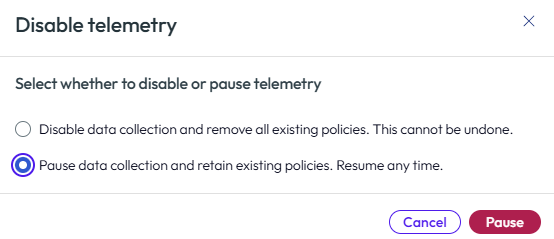
- To resume, select Resume telemetry.
- The system removes the override and devices resume the previously applicable policy at the next check-in.
Older agents
Devices running the Intelligent Hub or Experience Management agent versions that do not support telemetry enablement policies might continue sending telemetry during a temporary pause because they do not receive the override policy payload. To stop these devices, use a permanent deactivation or upgrade agents to a supported version.
Permanently deactivating telemetry collection
A permanent deactivation stops telemetry collection for all devices and updates the organization-level Experience Management activation, which also stops older agents on unsupported Intelligent Hub or Experience Management agent versions.
- In Intelligence, in the Data Collection > Desktop Devices & Apps area, select the Policies tab.
- Select Disable Telemetry telemetry.
- Select the option Disable data collection and remove all existing policies. This cannot be undone. and then select Disable.
- To re-activate telemetry collection, select Enable telemetry and configure the default policy.
- Intelligence reactivates the default policy and resumes push-based delivery.
Active Devices tab
The Active Devices tab located at Experience Management > Settings > Data Collection > Desktop Devices & Apps, lists the Intelligent Hub agent versions running in your Experience Management Telemetry Enablement deployment. This tab is helpful for finding out if you have the latest version of the Hub app or if you need to update it.
Working with policies
Use policies to define the scope, priority, and data collection method for your devices.
Policy settings
Each policy contains one data collection setting. Currently, the setting applies to all telemetry data.
| Setting | Description |
|---|---|
| Collect all data | The Experience Management agent collects all available telemetry from covered devices. |
| Do not collect data | The Experience Management agent collects no telemetry from covered devices. This is the default for new setups. |
| Configure with JSON file | Upload a custom JSON policy file to configure app network and high frequency events. |
Policy limits
The Experience Management Telemetry Enablement feature supports a maximum of 10 policies per organization, including the default policy.
Creating a policy
Create policies to activate Experience Management telemetry for specific device groups using smart groups. This is the best approach for partial rollouts, trials, or when Experience Management licenses cover only a subset of your fleet. Devices not covered by any smart group policy fall to the default policy.
- In Intelligence, navigate to Experience Management > Settings > Data Collection > Desktop Devices & Apps.
- Select the Policies tab.
- Select Create policy.
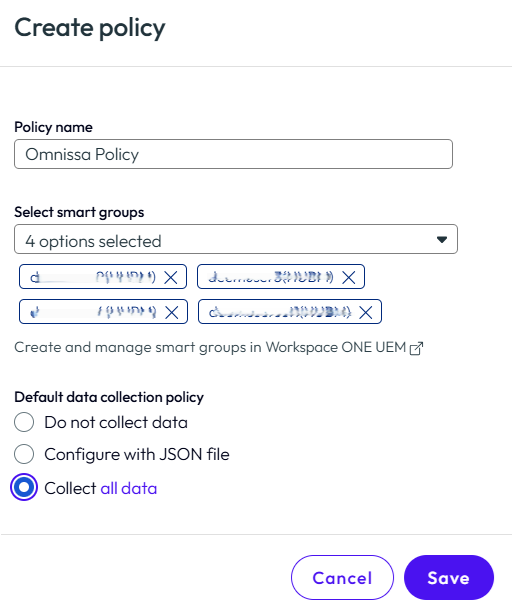
- Enter a policy name.
- Enter two characters of the smart group names and select the Select smart groups drop-down to select all the desired smart groups.
- This entry is optional.
- If you do not enter a smart group, the system applies the telemetry collection policy to the UEM organization where a device resides.
- Select the telemetry setting:
- Collect all data activates Experience Management for a single or multiple smart groups.
- Do not collect data deactivates telemetry collection for a single or multiple smart groups.
- Configure with JSON file defines app network and high frequency events across a managed device fleet.
- Select Save.
- Intelligence pushes the policy to UEM.
- Devices in the assigned smart groups receive the policy at the next Intelligent Hub check-in (within approximately 4 hours).
Use the Reordering policy priorities process to put policies in the applicable order.
Editing a policy
- In Intelligence, in the Data Collection > Desktop Devices & Apps area, select the Policies tab.
- Select the three dots beside the policy and select Edit.
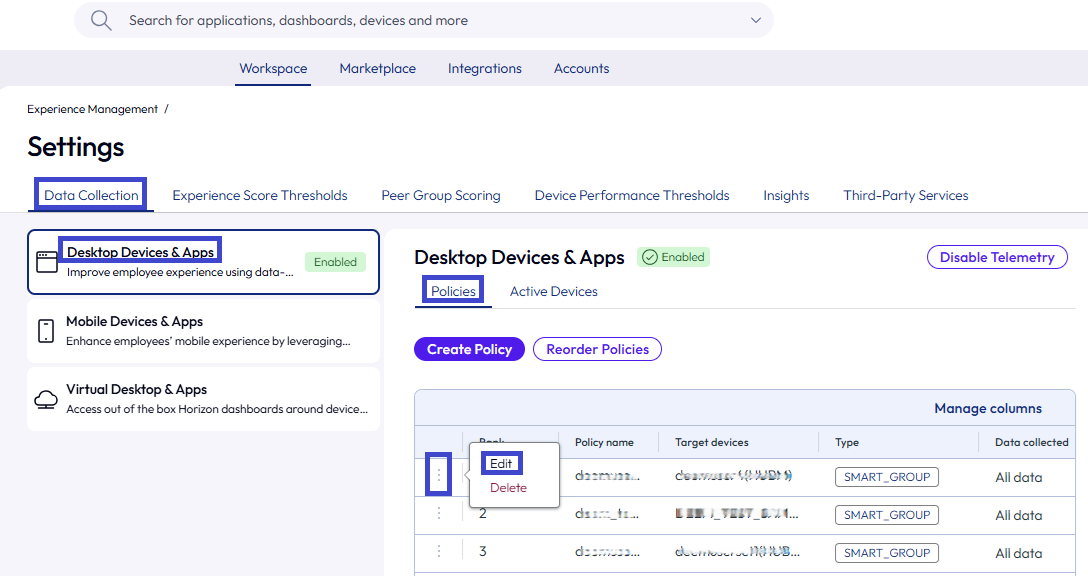
- Modify the data collection setting or smart group assignments.
- Select Save.
- Changes propagate to devices within approximately 4 hours.
Reordering policy priorities
- In Intelligence, in the Data Collection > Desktop Devices & Apps area, select the Policies tab.
- Select Reorder Policies.
- Assign the desired priority order by dragging and dropping policies.
- Priority 0 is the highest.
- Priority 99999 is reserved for the default policy and cannot be reordered above other policies.
- Select Save.
Deleting a policy
- In Intelligence, in the Data Collection > Desktop Devices & Apps area, select the Policies tab.
- Select the three dots by the policy and select Delete.
- Confirm your selection.
- Devices previously covered by this policy fall back to the next applicable policy, the organization-level policy or the default policy.
Deleting considerations
- You cannot delete the default policy (priority 99999).
- For new customers, Experience Management is deactivated by default and the default policy is Do not collect data unless you have changed it.
- Deleting a smart group type policy causes those devices to fall back to the deactivated state.
Additional documentation
Was this page helpful?