Quickflows in Omnissa Intelligence are Freestyle workflows that you can run on-demand on selected targets (such as devices) in dashboards, reports, Playbooks, or the Data Explorer.
Why use Quickflows?
Quickflows are Freestyle Orchestrator workflows that don't require filter rules because their main function is to run workflow actions against selected targets within a dashboard, report, or playbook only when needed. Intelligence lets you create quickflows while you are working within the UI. No need to stop to create a new workflow while your are analyzing employee experiences or troubleshooting app and device issues.
Freestyle workflow documentation
For details on the components of a workflow in Intelligence, see Freestyle Orchestrator.
Requirements
You must meet the listed requirements to use quickflows.
- Have one of the Intelligence Premium licenses.
- Intelligence Add-On
- Experience Management Add-On
- Risk Analytics Add-On
- Enterprise
- Integrate Omnissa Workspace ONE UEM with Intelligence.
- Have the listed roles and permissions.
- Use the listed supported Omnissa components.
Roles and permissions
You must have the listed Intelligence RBAC roles and permissions. If you do not have the listed combinations of roles and permissions, you cannot manage or run quickflows because you do not have the needed roles, system or custom, to manage quickflows.
For details on how to add a custom role in Intelligence, see Custom Roles.
- You must have one of these roles.
- Automator – Gives full access to managing quickflows and other Freestyle workflows. Permissions include viewing, creating, editing, and running.
- Custom Role with the scope of Quickflows.
- Read Only – Allows admins to view quickflows and their execution history, also known as their activity.
- Execute – Allows admins to run quickflows against selected targets in reports, dashboards, and playbooks, and it gives Read Only permissions.
- Edit – Allows admins to create, edit, and delete quickflows, and it gives Execute and Read Only permissions.
- You must have a role that allows you to view dashboards, reports, or playbooks.
- A system role or a custom role meets this requirement.
- An example of a system role that allows you to view dashboards or reports is the Analyst role or the Auditor role.
- An example of a custom role that allows you to view dashboards or reports is a custom role with the Read Only permission for the Dashboards scope or the Reports scope.
DAP and custom roles
If the configured custom role is DAP (Data Access Policy) Compliant and DAP is activated in the Intelligence tenant, you must have an active DAP for the custom role to function.
Supported Omnissa components
- Omnissa Workspace ONE UEM: Quickflows support running actions against Workspace ONE UEM managed devices.
- Quickflows use the workflow pairing of the entity - Devices with the attribute - Workspace ONE UEM Device GUID as a target.
- The use of this entity and attribute are why quickflows do not need trigger rules.
- More Omnissa component support is planned for the future.
Service limits
- You can select up to 100 targets to run against in a single quickflow.
- For any given quickflow, there is a limit of 200 request runs every hour.
- You can create a total number of 50 quickflows in the console. If you need 51 quickflows, you must remove a quickflow you no longer need to add a new one.
Creating a Quickflow
Add a quickflow that covers common actions that your colleagues can quickly use in the console.
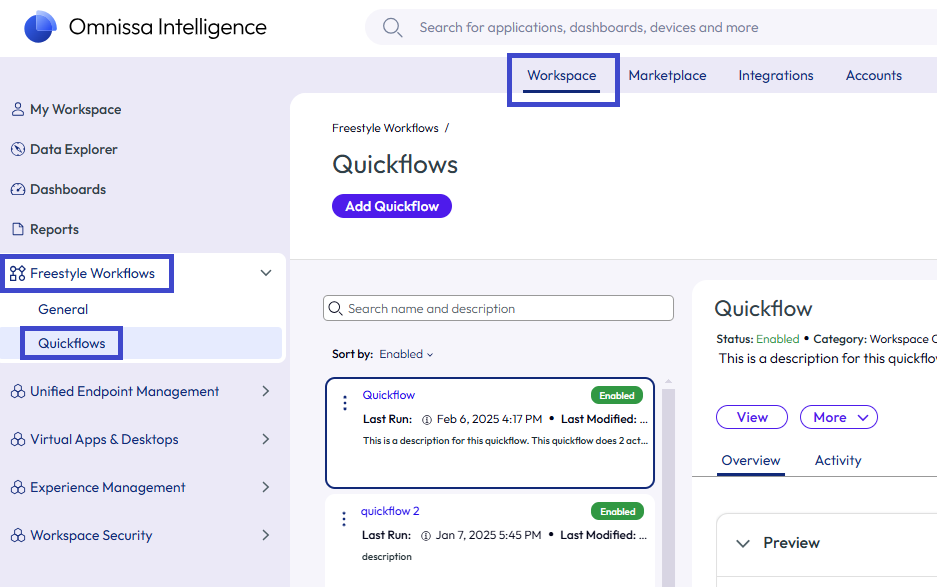
- In Intelligence, go to Workspace > Freestyle Workflows > Quickflows.
- Select Add Quickflow.
- The components Data Source, Trigger Settings, and Trigger Rules are read-only. You cannot configure them. If you need to configure these settings, then use a General workflow.
- Add an Action, Group, or Condition depending on what you want to accomplish.
- Actions: Freestyle offers many actions that help solve problems related to daily IT tasks, deployment, and compliance across Workspace ONE and third-party products. The workflow engine executes actions in a sequential order based on the configuration within the canvas.
- Conditions: Freestyle uses conditions to add further evaluation and alternate execution paths mid-workflow.
- Groups: Freestyle offers groupings so that you can organize actions into groups. The workflow engine executes actions in the group in parallel rather than sequentially. Each group gets a unique name which is convenient for filtering in logs. You can have a maximum of five actions in a group.
- Select a Connector and choose an available action from that connector.
- Name the quickflow and add a description so that your colleagues can quickly tell if the quickflow works for their situation.
- Your colleagues must select a quickflow from a list so name your quickflow so that its actions are easily identifiable.
- For example, name the quickflow, Find Device so that another user knows that the action helps with locating a device.
- Add a description so that your colleagues know the settings used in the quickflow.
- For example, a device tag is just a number so use the description to explain what the quickflow does relating to the device tag number (tag ID).
- Your colleagues must select a quickflow from a list so name your quickflow so that its actions are easily identifiable.
- Save the quickflow. See the activation toggle for the quickflow near the name. You can activate the quickflow at any time.
Running a Quickflow
Run a quickflow from a dashboard, report, or a playbook. Listed is an example of using a quickflow in a dashboard.
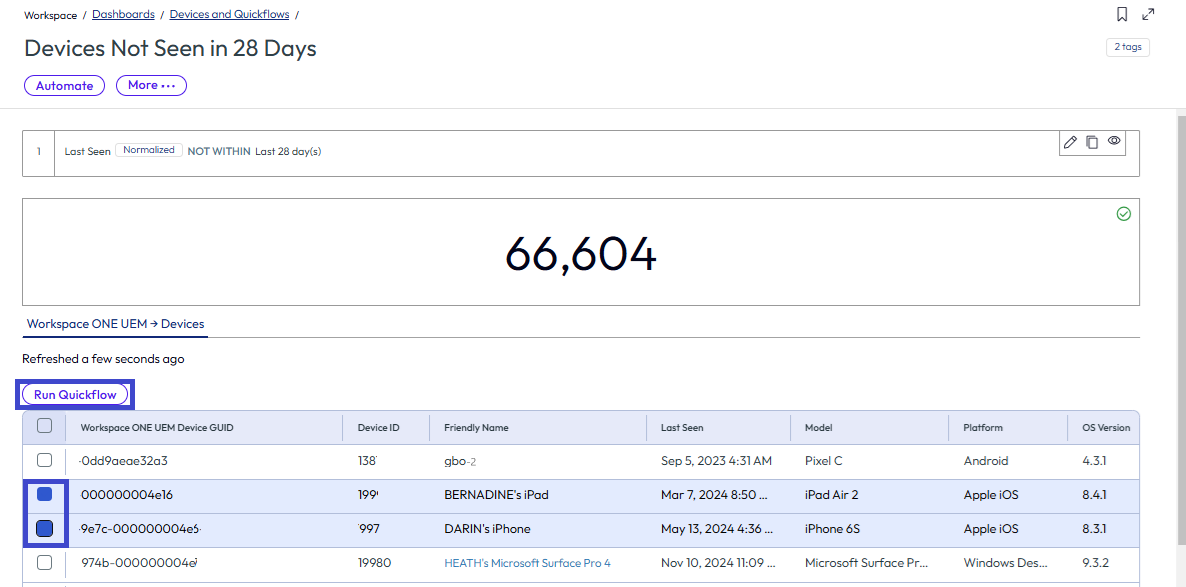
- In Intelligence, go to Workspace > Dashboards and select a relevant dashboard that has Workspace ONE UEM-managed devices in it. For example, select a dashboard that displays UEM devices that have not been seen in 28 days.
- Select applicable devices in the device list view using the check boxes next to the Workspace ONE UEM Device GUID column.
- Select the Run Quickflow button.
- This button is not accessible unless all the requirements for this procedure are met.
- This action opens the Select a Quickflow widget.
- In the Select a Quickflow widget, select the quickflow you want to run.
- You can preview the quickflow to see the settings it contains.
- Select Execute to run the quickflow.
Checking run status
Check the status of your quickflows and ensure the console displays a matching pair of statuses. Status pairs include the Active status matched with an Error status or the Active status matched with a Complete status.
Activity tab displays details
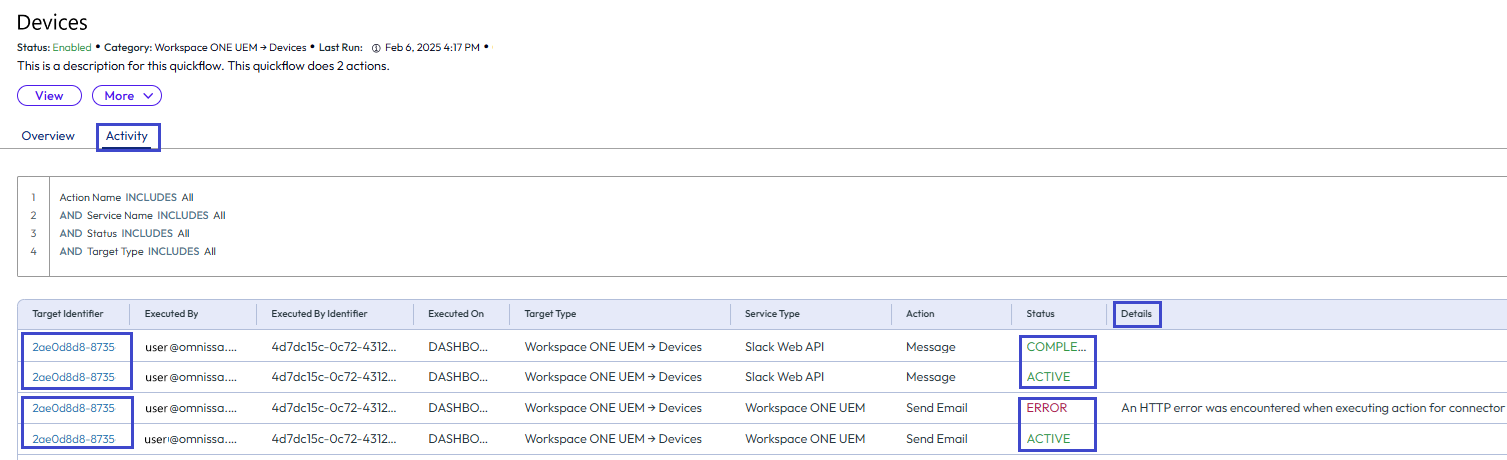
Use the Activity tab to find details about the quickflow like who triggered the quickflow, if it was executed using a service like Slack, what the action was, and the run status pairs.
Run statuses
- Active: The action started.
- Complete: The action completed successfully.
- Error: Indicates that a failure occurred while running the action. You can look at the Details column to see what occurred.
Procedure
- In Intelligence, go to Workspace > Freestyle Workflows > Quickflows.
- Select a quickflow from the list and select the Activity tab in the right panel.
- Look for two entries for the desired Target Identifier (device GUID), the Active status and the matching Complete or Error status to check if the run was successful.
- Active paired with Complete indicates the run was successful.
- Active paired with Error indicates the run was not successful. Look in the Details column to see why the run failed.
Example Quickflow
You can create quickflows with a single action like Change Organization Group or Add Tag, with multiple actions, and with multiple groups and conditions.
Let's create a quickflow that updates the VPN settings on a UEM-managed device.
This example assumes that there is a Workspace ONE UEM profile that updates device VPN settings. For details on VPN profiles in Workspace ONE UEM, see the UEM documentation.
- In Intelligence, go to Workspace > Freestyle Workflows > Quickflows.
- Select Add Quickflow.
- Select Add Step and add a Condition that checks if the device is the iOS platform.
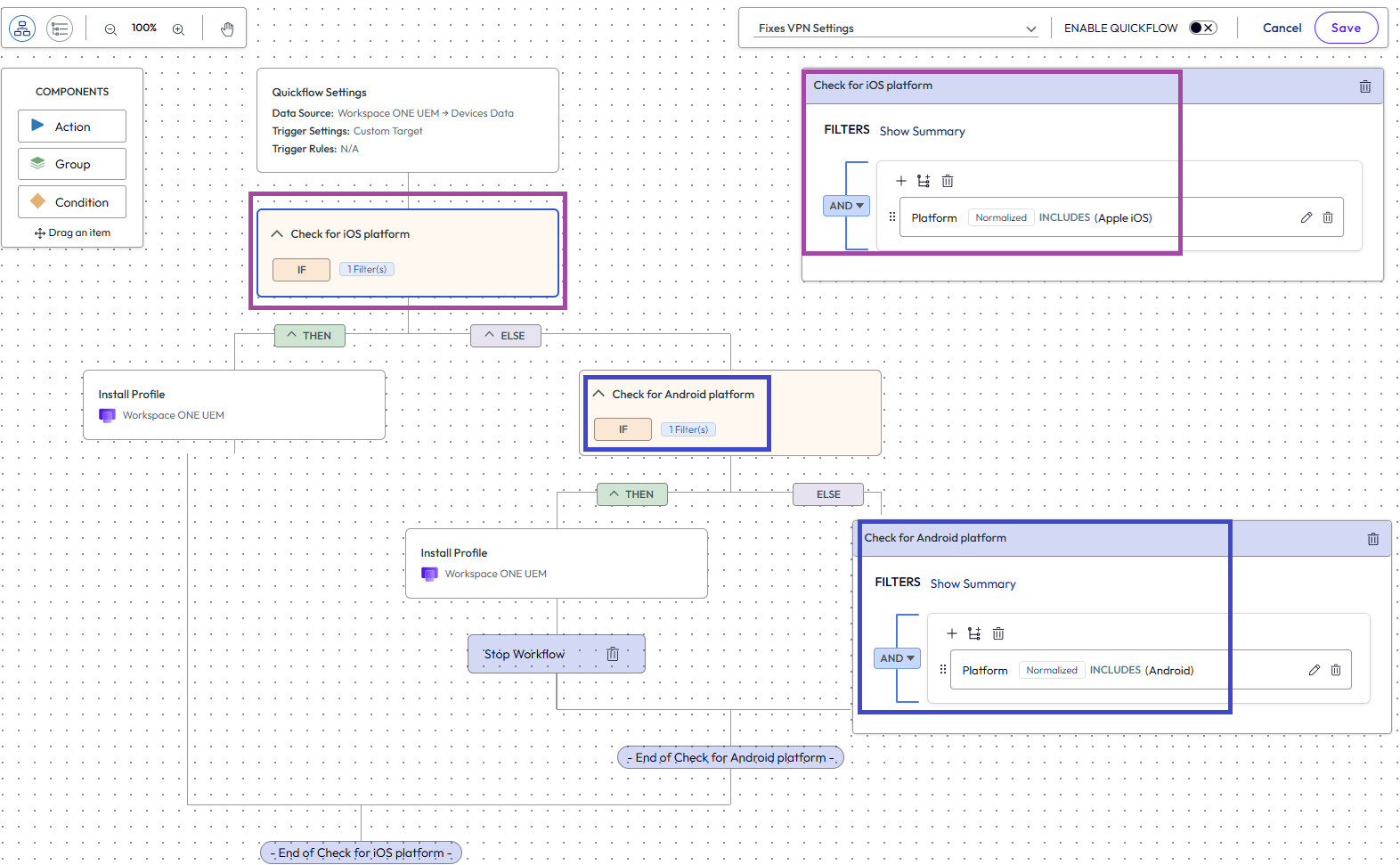
- If statement: Add the listed filters.
- Devices > Platform
- Includes
- Apple iOS
- Work with the Then statement to add an Action that installs the Fix VPN profile when a device is identified as Apple iOS.
- Add an Action.
- Select Workspace ONE UEM.
- Select Install Profile.
- Search for the Fix VPN profile and add it to the Install Profile widget.
- Select the add icon, +, and select Stop Workflow.
- Work with the Else statement to add a Condition with an Action that installs the Fix VPN profile when a device is identified as Android.
- Add another Condition.
- If statement: Add the listed filters.
- Devices > Platform
- Includes
- Android
- Then statement: Add an action that installs the Fix VPN profile when a device is identified as Android.
- Add an Action.
- Select Workspace ONE UEM.
- Select Install Profile.
- In the required widget, search for the Fix VPN profile and add it to the Install Profile, Then statement. You can test the profile to see that the system returns viable results.
- Under the Then statement, select the add icon, +, and select Stop Workflow.
- You do not need an Else statement for this second condition.
- If statement: Add the listed filters.
- Add another Condition.
- If statement: Add the listed filters.
- Save the quickflow and activate it.
Was this page helpful?